
Downloaded from hlayiso.com
NATIONAL
SENIOR CERTIFICATE
GRADE 11
NOVEMBER 2020
COMPUTER APPLICATIONS TECHNOLOGY P1
(EXEMPLAR)
MARKS: 150
TIME: 3 hours
*ICATNE1*
This question paper consists of 12 pages, including an input mask character sheet.
You're offline
Skip to contentMemorandum 
View all

CAT P1 QP MEMO GR11 NOV 2020 ENG D hlayiso.com
Computer Applications Technology · Grade 11 · Eastern Cape November · 2020. Memorandum, 24 pages. Read online or download the PDF.
- Subject
- Computer Applications Technology
- Grade
- Grade 11
- Document type
- Memorandum
- Year
- 2020
- Exam period
- Eastern Cape November
- Paper
- 1
- Pages
- 24
- File size
- 964.8 KB
Loading document…
Loading document…
1 of 24
Document textSearch extracted text and jump to a page.
Downloaded from hlayiso.com
2 COMPUTER APPLICATIONS TECHNOLOGY P1 (EC/NOVEMBER 2020)
INSTRUCTIONS AND INFORMATION
1. Owing to the nature of this practical examination, it is important to note that,
even if you complete the examination early, you will NOT be permitted to leave
the examination room until all the administrative functions associated with the
examination have been finalised. During the examination, normal rules
regarding leaving the examination room apply.
2. If you are working on the network, or the data files have been preloaded, you
must follow the instructions provided by the invigilator/teacher. Alternatively,
the invigilator will give you a CD/DVD/flash drive containing all the files needed
for the examination. If a CD/DVD/flash drive has been issued to you, you must
write your examination number and centre number on the CD/DVD/flash drive.
3. At the end of the examination, you must hand in the CD/DVD/flash drive given
to you by the invigilator with ALL your answer files saved onto the
CD/DVD/flash drive, OR you should make sure that ALL the answer files are
saved on the network/computer as explained to you by the invigilator/teacher.
4. Make absolutely sure that ALL files can be read. Do NOT save unnecessary
files/folders and do NOT hand in duplicate answer files/folders. Do NOT delete
any original files that you did not work on.
5. A copy of the master files will be available from the invigilator. Should there be
any problems with a file, you may request another copy from the invigilator.
6. This question paper consists of FIVE questions. Answer ALL the questions.
7. Read through each question before answering or solving the problem. Do NOT
do more than is required by the question.
8. Ensure that you save each document using the file name given in the question
paper. Save your work at regular intervals as a precaution against possible
power failures.
9. You may NOT use any resource material.
10. Accuracy will be taken into account, e.g. if a question requires the answer to be
in cell F3 in a spreadsheet, and you enter the answer in cell G4, it will NOT be
marked.
Copyright reserved Please turn over
Downloaded from hlayiso.com
(EC/NOVEMBER 2020) COMPUTER APPLICATIONS TECHNOLOGY P1 3
11. Ensure that the regional settings are set to South Africa and date and time
settings, number settings and currency settings are correctly set.
12. In all questions involving word processing, you should set the language to
English (South Africa). The paper size is assumed to be A4 Portrait, unless
instructed otherwise. Use centimetres as the unit of measurement.
13. Formulae and/or functions must be used for ALL calculations in questions
involving spreadsheets. Use absolute cell references only where necessary to
ensure that formulae are correct when you copy them to other cells in a
spreadsheet.
14. NOTE: All formulae and/or functions should be inserted in such a manner that
the correct results will still be obtained even if changes are made to the existing
data.
15. The examination folder/data disk that you receive with this question paper will
contain the folder and files listed below. Ensure that you have the folder and all
the files before you begin this examination.
Copyright reserved Please turn over
Downloaded from hlayiso.com
4 COMPUTER APPLICATIONS TECHNOLOGY P1 (EC/NOVEMBER 2020)
SCENARIO
Your mother is part of a women’s group who wishes to visit the Wild Coast for
their end year function. They do not know anything about the Wild Coast but
are interested in going there as they have heard about it from other people. They
have requested you to do research for them regarding accommodation,
transport and bookings. You have to give them a report after a week.
QUESTION 1: WORD PROCESSING
Edit the document 1WildCoast as requested. It will be part of your report to the
group.
Open the 1WildCoast word processing document.
1.1 A cover page has been created for the document. Edit the document as
follows:
1.1.1 Format the picture on the cover page so that the width and height is
5 cm. (2)
1.1.2 Set the position of the picture to Middle Centre of the cover page. (1)
1.1.3 Insert your name and surname in the author control. (1)
1.2 Insert border left page numbers to the document. Make sure that zero (0)
does not appear on the cover page. (2)
1.3 Use a word processing feature to move the heading “Wild Coast Region,
Eastern Cape” to the next page. (1)
1.4 The heading “Wild Coast Region, Eastern Cape” must be changed as follows:
Create a new style called “Eastern Cape Coasts” as follows:
x Base the style on Heading 1 style.
x Centre the new style horizontally.
x The font colour must be red.
x Apply the style to the heading. (5)
1.5 1.5.1 Insert a modern style automatic table of contents in the space
provided. (3)
1.5.2 Insert a caption on the picture on page 4 and then update the
automatic table of figures to include this picture as well. (2)
Copyright reserved Please turn over
Downloaded from hlayiso.com
(EC/NOVEMBER 2020) COMPUTER APPLICATIONS TECHNOLOGY P1 5
1.6 Locate the text ‘Xolobeni region’ highlighted in yellow and add a footnote as
follows:
x The footnote must appear below text.
x Insert the symbol )(Wingdings character code 0046 or new version
code 70) and add the text ‘(www.wildcoast.com/xolobeni)’. (4)
1.7 Find the word Transkei and replace it with Former Transkei. (2)
1.8 Locate the ‘Placeholder 1’ on page 5 and do the following:
x Add a new Website with Wild Coast as the website name.
x The URL must be www.wildcoast.com. (3)
1.9 Insert a horizontal scroll shape at the end of the document.
x Insert the text (Adapted from www.wildcoast.com/shipwrecks for more
info.) found at the end of the document.
x Change the shape style to Subtle effect – Blue Accent 1.
x Remove the highlight colour from the text. (4)
[30]
Copyright reserved Please turn over
Downloaded from hlayiso.com
6 COMPUTER APPLICATIONS TECHNOLOGY P1 (EC/NOVEMBER 2020)
QUESTION 2: WORD PROCESSING
You were asked to help create a booking form for the trip.
Open and modify the 2Form word processing document and modify the document.
2.1 Find the WordArt heading “Wild Coast Trip”.
2.1.1 Transform the WordArt to Warped Ring Inside. (2)
2.1.2 Add the 2Form.jpg picture found in the examination folder above the
heading Wild Coast Trip. Use a word processing feature to group the
picture and WordArt to form one picture. (3)
2.2 Insert a page background using:
x A vertical gradient fill effect
x with blue and white colours. (3)
2.3 Use the image 2Watermark.jpg as a watermark and set scaling to 120%. (3)
2.4 Set tabs to align the form control for Surname with the other fields as
follows:
x Set the first tab at 6 cm and
x the second tab at 14 cm (3)
2.5 Format the form controls as follows:
2.5.1 Set the Surname text form field to a maximum length of 20
characters. (1)
2.5.2 Gender form field must be changed to a dropdown form field to add
Male and Female. (2)
2.5.3 The check box form field must be set to 14 pt exactly and the BnB
form field must be checked/ticked. (3)
[20]
Copyright reserved Please turn over
Downloaded from hlayiso.com
(EC/NOVEMBER 2020) COMPUTER APPLICATIONS TECHNOLOGY P1 7
QUESTION 3: SPREADSHEET
You received a spreadsheet from the Tourism Centre with the all information
regarding bookings for accommodation and places to visit.
Open the 3Wild Coast Visitors spreadsheet and work in the Information
worksheet.
3.1 Format the worksheet as follows:
3.1.1 Merge and centre row 1 from cell A1 to Q1. (2)
3.1.2 Apply a From Corner shading style to the merged cell, use 2 colours
namely yellow and blue. (4)
3.2 Insert today’s date in cell D2, with the format 20-Nov-2020. (2)
3.3 Ensure that all the text in row 4 is visible without widening the columns. (1)
3.4 Use a spreadsheet feature to ensure that the contents from row 1 to row 4
remains on screen when the user scrolls down. (2)
3.5 Use a spreadsheet feature to ensure that data from row 1 to row 4 appears on
every page and that the gridlines will show when the worksheet is printed. (3)
3.6 Apply conditional formatting to column G to select all the Hotels, use a reddish
colour fill. (3)
3.7 Change the Off Peak Rates in column I to South African currency with no
decimal places. (2)
3.8 Use a function in cell D67 to display the highest Peak Rate for
accommodation. (2)
3.9 Calculate in cell D69 the total deposit paid by the Chinese. (4)
3.10 Use a formula in cell D71 to calculate the amount paid by Cossons Ewart
family for their stay in the hotel during the peak season. (3)
3.11 Use a function in cell D73 to determine the number of visitors who did not pay
the deposit. (2)
3.12 Determine in cell D75 the number of visitors who chose surfing. (2)
3.13 Visitors who paid R3000 and more will receive “Type A Accommodation” and
those who paid less than R3000 will receive “Regular Accommodation”.
Determine in cell D77 what type of accommodation will Cossons Ewart
receive. (4)
Copyright reserved Please turn over
Downloaded from hlayiso.com
8 COMPUTER APPLICATIONS TECHNOLOGY P1 (EC/NOVEMBER 2020)
3.14 Cossons Ewart has paid R2 000 deposit. Use a formula in cell D79 to
determine the amount in Euros. (2)
3.15 Discount on Accommodation is based on the number of activities that the
person chooses.
A person who chooses all the activities will receive a 30% discount on the
peak rate, a person who choses three (3) activities will receive 15% discount
of peak rate and those who choose two or less will not receive any discount.
Those who will not receive a discount must be left blank.
Use a function in cell Q5 to determine what the discount on peak rates will be.
Copy the answer to the other cells in column Q. (7)
Lodge worksheet
3.16 Change the tab colour of this worksheet to blue. (1)
3.17 Use a spreadsheet feature to display all the visitors that will make use of
Lodge Accommodation. (2)
Graph worksheet
Create a graph based on the data given in the Graph worksheet and ensure that it
resembles the one given below:
Wild Coast Lodges
R1 400,00
R1 200,00
R1 000,00
R800,00
R600,00
R400,00
R200,00
R-
x Use Visitors and Peak Rates columns.
x Use an appropriate graph with the correct data.
x Insert the chart title as Wild Coast Lodges.
x Set gap width to 50%. (5)
[53]
Copyright reserved Please turn over
Downloaded from hlayiso.com
(EC/NOVEMBER 2020) COMPUTER APPLICATIONS TECHNOLOGY P1 9
QUESTION 4: DATABASE
A database for all visitors has been created. Modify the database and use Design
View in all queries.
Open the 4WildCoast database.
4.1 Format the Bookings Info table as follows:
4.1.1 Change the row height to 25 pt. (1)
4.1.2 Set the alternative row colour to red and background colour to green. (2)
4.1.3 Create an input mask on the Cell Number field to ensure that the user
inserts a cell number as follows:
x Ten compulsory numbers.
x In the format 000-0000 000. (3)
4.1.4 Ensure that the Cell Number field must be filled in. (1)
4.1.5 Add a validation rule to the Age field so that it accepts only visitors
from age 18 to 60. Add a suitable validation message. (3)
4.1.6 Change the Deposit Paid field to an appropriate data field type with 2
decimal places. (2)
4.1.7 Add a dropdown list in the Home Town field and include Port
Elizabeth, East London, Mthatha and Queenstown. (3)
4.1.8 Set the e-mail address field so that it is in lowercase. (1)
4.2 Create a form called Visitors Info based on the Visitors Info table as follows:
x Include only the following fields: Visitor, Gender, Email address, Country,
Number of people, Number of days and Deposit.
x Insert the image 4WildCoast.jpg in the centre of the form header.
x Insert date and time.
x Sort the Country field alphabetically in descending order.
x Insert a button in the footer of the form and the action of the button must be
to close the form. (9)
4.3 Create a query called QryFemales based on Visitors Info table and do the
following:
x Display Visitors field and Deposit field.
x Show all females who paid a deposit of R3 200 or more. (5)
Copyright reserved Please turn over
Downloaded from hlayiso.com
10 COMPUTER APPLICATIONS TECHNOLOGY P1 (EC/NOVEMBER 2020)
4.4 Open a query Qry4_4 and modify it as follows:
x Show Visitors, Country and Deposit fields.
x Use a function in datasheet view to display the total amount of deposits of
all the visitors from Russia. (4)
[34]
Copyright reserved Please turn over
Downloaded from hlayiso.com
(EC/NOVEMBER 2020) COMPUTER APPLICATIONS TECHNOLOGY P1 11
QUESTION 5: INTEGRATION
Use the spreadsheet 5WildCoastResource as a source and do the following:
5.1 Export the data in Sheet 1 to a new database called 5Resource.
x Make sure all data fields have an appropriate data type.
x Move the Type of Accommodation field to be the first field.
x Sort the table according to Type of Accommodation in descending order. (6)
5.2 Work in Sheet 2.
x Use a function in J1 and J2 respectively to calculate the number of Males
and Females.
x Create an appropriate graph to show the percentage of each gender.
x The graph should have an appropriate heading.
x Move the data to the word document 5MyDoc in such a way that if
changes are made in the spreadsheet the changes will appear in the word
document. (7)
[13]
TOTAL: 150
Copyright reserved Please turn over
Downloaded from hlayiso.com
12 COMPUTER APPLICATIONS TECHNOLOGY P1 (EC/NOVEMBER 2020)
INPUT MASK CHARACTER SHEET
CHARACTER DESCRIPTION
0 Digit (0 to 9, entry required, plus [+] and minus [–] signs not allowed)
Digit or space (entry not required, plus [+] and minus [–] signs not
9
allowed)
Digit or space (entry not required; spaces are displayed as blanks while
# in Edit mode, but blanks are removed when data is saved; plus [+] and
minus [–] signs allowed)
L Letter (A to Z, entry required)
? Letter (A to Z, entry optional)
A Letter or digit (entry required)
a Letter or digit (entry optional)
& Any character or a space (entry required)
C Any character or a space (entry optional)
Decimal placeholder and thousand, date and time separators (The actual
.,:;-/ character used depends on the settings in the Regional Settings
Properties dialog box in the Windows Control Panel.)
< Causes all characters to be converted to lower case
Causes all characters to be converted to upper case to right. You can
>
include the exclamation point anywhere in the input mask.
Causes the input mask to display from right to left, rather than from left to
! right. Characters typed into the mask always fill it from left to right. You
can include the exclamation point anywhere in the input mask.
Causes the character that follows to be displayed as the literal character
\
(for example, \A is displayed as just A)
Copyright reserved Please turn over
Downloaded from hlayiso.com
NATIONAL
SENIOR CERTIFICATE
GRADE 11
NOVEMBER 2020
COMPUTER APPLICATIONS TECHNOLOGY P1
MARKING GUIDELINE
(EXEMPLAR)
NAME OF CANDIDATE: GRADE:
SIGNATURE OF EDUCATOR:
TOTAL Q1 Q2 Q3 Q4 Q5
MARKS: 150 30 20 53 34 13
This marking guideline consists of 10 pages.
Downloaded from hlayiso.com
2 COMPUTER APPLICATIONS TECHNOLOGY P1 (EC/NOVEMBER 2020)
QUESTION 1 File Name: 1WildCoast Total Q1: 30
Maximum Candidate
No. Criteria
Mark Mark
1.1.1 Cover Page
x Size exactly 5 cm x 5 cm 9 1
2
x Lock aspect ratio unchecked 9 1
1.1.2 Cover Page
1 1
x Picture position set to Middle Centre 9
1.1.3 Cover Page
x Learner name and surname inserted in author 1 1
control 9
1.2 Page Numbering
x Border left page numbering used 9 1 2
x Zero on first page removed (different first page) 9 1
1.3 Breaks
1 1
x Page break used 9
1.4. Styles
x New Style Eastern Cape Coasts created 9 1
1
x Based on Heading 1 style 9
1
x New style horizontally centred 9 5
1
x Font colour of style is red 9 1
x Style applied to heading 9
1.5.1 Table of Contents
x Table of content inserted 9 1
x Modern style format used 9 1
3
x Ensure that heading ‘Wild Coast Region, Eastern 1
Cape’ appears in TOC 9
1.5.2 Table of Figures
x Picture captioned 9 1 2
x Table of figures updated 9 1
1.6 Footnote
x Footnote inserted 9 1
x Below the text 9 1
4
x Wingdings character code 0046 or 70 ) used 9 1
1
x Text ‘(www.wildcoast.com/xolobeni)’ added 9
1.7 Find and Replace
1
x Transkei replaced with Former Transkei 9 2
1
x All five occurrences replaced 9
Copyright reserved Please turn over
Downloaded from hlayiso.com
(EC/NOVEMBER 2020) COMPUTER APPLICATIONS TECHNOLOGY P1 3
1.8 Citation
x Web site chosen source 9 1
x Wild Coast inserted as web site name 9 1 3
x www.wildcoast.com inserted as the URL 9 1
1.9 Shapes
x Horizontal scroll shape inserted 9 1
x Correct text added/Copied 9 1
4
x Shape style changed to Subtle effect – Blue Accent 1
19 1
x Yellow text highlight removed from inserted text 9
Total for QUESTION 1 [30]
Copyright reserved Please turn over
Downloaded from hlayiso.com
4 COMPUTER APPLICATIONS TECHNOLOGY P1 (EC/NOVEMBER 2020)
QUESTION 2 File Name: 2Form Total Q2: 20
Maximum Candidate
No. Criteria
Mark Mark
2.1.1 WordArt
x WordArt changed 9 1 2
x Changed / transformed to Warped Ring Inside. 9 1
2.1.2 Grouping
x Any picture inserted. 9 1
x Picture 2Form.jpg inserted. 9 1 3
x Picture and WordArt grouped. 9 1
2.2 Page background
x Page background inserted. 9 1
1 3
x Vertical gradient fill used. 9
x Two colours, blue and white, used. 9 1
2.3 Watermark
x Watermark inserted 9 1
1 3
x 2Watermark.jpg image used 9
x Image scaled to 120% 9 1
2.4 Tabs
x Tabs set to Surname 9 1 3
x First tab set at 6 cm centred. 9 1
x Second tab set at 14 cm right align. 9 1
2.5.1 x Surname text form field 20 characters 9 1
2.5.2 x Gender changed to dropdown form field 9 1
x Male and Female entered. 9 1
6
2.5.3 x The check box form field set to 14 pt 9 1
x exactly 9 1
x and BnB field checked. 9 1
Total for QUESTION 2 [20]
Copyright reserved Please turn over
Downloaded from hlayiso.com
(EC/NOVEMBER 2020) COMPUTER APPLICATIONS TECHNOLOGY P1 5
QUESTION 3 File Name: 3Wild Coast Visitors Total Q3: 53
Maximum Candidate
No. Criteria
Mark Mark
Information worksheet
3.1.1 Merge and Centre
x Cells A1 to Q1 are merged 9 1 2
x and centred 9 1
3.1.2 Shading 1
x Shading applied on merged cell 9
1
x “From Corner” shading style used 9 4
1
x use 2 colours 9
x namely yellow and blue. 9 1
3.2 Date
1
x D2: Today’s date inserted 9 2
x Date format changed to dd-mm-yyyy 9 1
3.3 Wrap text
x Text in row 4 wrapped 9 1 1
3.4 Freeze Panes
x Row 4 frozen 9 1
x All other text moves under row 4 when user scrolls
2
1
down 9
3.5 Printing
1
x Row 1 to row 4 to repeat 9
1 3
x at the top of each page 9
1
x Gridlines inserted (ticked) 9
3.6 Conditional formatting
x Conditional formatting applied in correct column 1
(column G) 9 1 3
x Criteria only hotels 9 1
x Reddish fill colour used 9
3.7 Column I
x Rand Currency or Accounting 9 1
2
x Zero decimal places 9 1
3.8 Cell D67
=MAX(H5:H64) / =LARGE((H5:H64),1) 1
2
x Correct cells used 9 1
x Max / large function used 9
3.9 Cell D69
=SUMIF(E5:E64,"China",L5:L64) 1
x Sumif function correctly used 9 1
4
x Criteria range E5:E64 9 1
x Sum range L5:L64 9 1
x Criteria – China 9
Copyright reserved Please turn over
Downloaded from hlayiso.com
6 COMPUTER APPLICATIONS TECHNOLOGY P1 (EC/NOVEMBER 2020)
3.10 Cell D71
=(H5*J5)*K5
x H5 and J5 used 9 1
3
1
x * sign used 9
1
x K5 9
3.11 Cell D73
=COUNTBLANK(L5:L64) 1 2
x Correct function used 9 1
x Correct range used 9
3.12 Cell D75
=COUNTA(N5:N64)
2
x Correct function used 9 1
x Correct range used 9 1
3.13 Cell D77
=IF(L5>=3000,"Type A Accommodation","Regular
Accommodation")
x Correct function used 9 1 4
x Correct condition specified 9 1
x Value if true is correct 9 1
x Value if false is correct 9 1
3.14 Cell D79
=L5/G2
2
x Countif function used 9 1
x Correct range 9 1
3.15 Cell Q5
=IF(COUNTA(M5:P5)>3;(0,3*H5);IF(COUNTA(M5:P5)=3;
(0,15*H5);” “))
x Function = IF 9 1
x First condition: (COUNTA(M5:P5) >3 9 1
1 7
x 1,3*H5 9
x Second condition: COUNTA(M5:P5)=3 9 1
x 1,15*H5 9 1
x Value false condition: “ “ or Blank 9 1
x Function copied to all cells 9 1
Lodge worksheet
3.16 Tab colour
x Tab colour of Lodge worksheet set to blue 9 1 1
3.17 Filtering
x Filtering used 9 1 2
x on Type of Accommodation column 9 1
Copyright reserved Please turn over
Downloaded from hlayiso.com
(EC/NOVEMBER 2020) COMPUTER APPLICATIONS TECHNOLOGY P1 7
3.18 Graph Worksheet
x Sort table from Large to Small 9 1
x Graph created 9 1
5
x Graph title Wild Coast Lodges 9 1
x Both series points plotted correctly. 9 1
x Gap width set to 50% 9 1
Total for QUESTION 3 [53]
Copyright reserved Please turn over
Downloaded from hlayiso.com
8 COMPUTER APPLICATIONS TECHNOLOGY P1 (EC/NOVEMBER 2020)
QUESTION 4 File Name: 4WildCoast Total Q4: 34
Maximum Candidate
No. Criteria
Mark Mark
4.1.1 Row height
1 1
x Row height set at 25 pt. 9
4.1.2 Row colour
x Alternative row colour set to red. 9 1 2
x Background colour set to green. 9 1
4.1.3 Field: Cell Number
x Input mask set. 9 1
3
x Ten compulsory numbers. 9 1
x Correct format 000-0000 000. 9 1
4.1.4 Field: Cell Number
1 1
x Cell Number field is set to Yes. 9
4.1.5 Field: Age
1
x Validation rule: Between 18 9 1 3
x And 60. 9 1
x Suitable validation text inserted. 9
4.1.6 Field: Deposit Paid
1
x Changed to currency. 9 2
1
x With 2 decimal places. 9
4.1.7 Field: Home
xCombo box created in Home Town field. 9 1
xValue list added. 9 3
1
xAll towns included (Port Elizabeth/East 1
London/Mthatha/Queenstown). 9
4.1.8 Field: email address
1 1
x < symbol set on format 9
Form
4.2 Visitors Info
x Form Visitors Info created. 9
x Only Visitor, Gender, Email address, Country, 1
Number of people, Number of days and Deposit 1
field appear. 9 1
x Image 4WildCoast.jpg used. 9 1
x Centred in form header. 9 1 9
x Date and time inserted. 9 1
x Country field sorted alphabetically. 9 1
x In descending order. 9 1
1
x Any button inserted in the form footer. 9
x Button action is to close the form. 9
Copyright reserved Please turn over
Downloaded from hlayiso.com
(EC/NOVEMBER 2020) COMPUTER APPLICATIONS TECHNOLOGY P1 9
Queries
4.3 QryFemales
x Fields used: Visitor, Deposit and Gender. 9 1
1
x Gender does not show. 9 1
1
x Gender criteria: Female. 9 1
5
x Deposit criteria: >= 9 3200. 9
4.4 Qry4_4
x Criteria of Country field: Russia. 9 Design view
x Total function is used. 9
x From the datasheet view. 9
x Total deposits of the Russian visitors. (Sum) 9
1
1
1 4
1
Total for QUESTION 4 [34]
Copyright reserved Please turn over
Downloaded from hlayiso.com
10 COMPUTER APPLICATIONS TECHNOLOGY P1 (EC/NOVEMBER 2020)
QUESTION 5 File Name: 5WildCoast Resource Total Q5: 13
Maximum Candidate
No. Criteria
Mark Mark
5.1 Export Data
x Data exported from Spreadsheet 5WildCoast 1
Resource. 9 1
x Exported to a new database – table - 5Resource. 9
1 6
x Peak Rates, Number of Days and Deposits are
assigned the correct data type. 9 1
x Type of Accommodation moved to the first field. 9 1
x Table sorted by Type of Accommodation field. 9 1
x In descending order. 9
5.2 Graph
x Graph created using the data in Sheet 2. 9 1
x Countif: Females. 9 1
x Countif: Males. 9 1
x Pie Graph is used 9 7
1
x Appropriate heading – anything around percentage
per gender. 9 1
x Graph is moved to the word document, 5MyDoc. 9 1
x Paste special is used when pasting the graph. 9 1
Total for QUESTION 5 [13]
TOTAL 150
Copyright reserved Please turn over
Downloaded from hlayiso.com
Downloaded from hlayiso.com
Recommended for this subject
Published documents with matching subject and grade metadata.
Memorandum
CAT P1 MEMO GR11 NOV 2022 Afrikaans hlayiso.com
Memorandum
CAT P1 MEMO GR11 NOV 2022 English hlayiso.com
Memorandum
CAT P2 GR11 MEMO NOVEMBER 2022 English hlayiso.com
Memorandum
CAT P2 GR11 MEMO NOVEMBER 2022 Afrikaans hlayiso.com
Memorandum
CAT P1 QP MEMO GR11 NOV 2020 AFR D hlayiso.com
Memorandum
CAT P1 MEMO GR11 NOV 2020 AFR D hlayiso.com
Related documents
Matched using subject, grade, language, document type and exam metadata.
Memorandum
CAT P1 MEMO GR11 NOV 2020 ENG D hlayiso.com
Question paper
CAT P1 QP GR11 NOV 2020 AFR D hlayiso.com
Question paper
CAT P1 QP GR11 NOV 2020 ENG D hlayiso.com
Memorandum
CAT P2 GR11 QP MEMO NOV2020 AFR D hlayiso.com
Memorandum
CAT P2 GR11 MEMO NOV2020 ENG D hlayiso.com
Memorandum
CAT P2 GR11 MEMO NOV2020 AFR D hlayiso.com
More from Grade 11 Computer Applications Technology
Explore more published documents in this catalogue.
Study guide
CAT Grade 11 Teacher's Guide v2 hlayiso.com
Textbook
Gr11 CAT Practical LB print 20 9 19 hlayiso.com
Textbook
Gr11 CAT Practical LB web 20 9 19 hlayiso.com
Study guide
Gr11 CAT TG Study Guide LR hlayiso.com
Textbook
Gr11 CAT Theory LB print 19 11 19 hlayiso.com
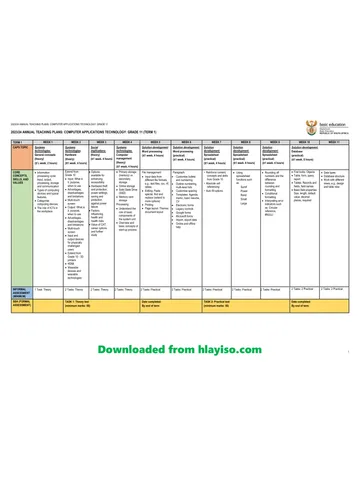
Annual teaching plan