
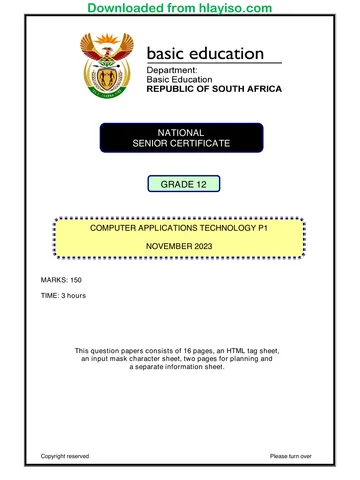
SENIOR CERTIFICATE EXAMINATIONS/
NATIONAL SENIOR CERTIFICATE EXAMINATIONS
COMPUTER APPLICATIONS TECHNOLOGY P1
2023
MARKS: 150
TIME: 3 hours
This question paper consists of 18 pages,
an HTML tag sheet, an input mask character sheet, two pages for planning and
a separate information sheet.
Copyright reserved Please turn over
Skip to contentQuestion paper 
View all
Computer Applications Technology Grade 12 P1 NSC June 2024 QP
Grade 12 Computer Applications Technology Paper 1 question paper from the NSC June Exam 2024 (English), 23 pages. Read online or get the free PDF download, memo linked when available.
Computer Applications Technology · Grade 12 · NSC June Exam · 2024 · English. Question paper, 23 pages. Read online or download the PDF.
- Subject
- Computer Applications Technology
- Grade
- Grade 12
- Language
- English
- Document type
- Question paper
- Year
- 2024
- Exam period
- NSC June Exam
- Paper
- 1
- Curriculum
- CAPS
- Pages
- 23
- File size
- 973.2 KB
Loading document…
Loading document…
1 of 23
Document textSearch extracted text and jump to a page.
Computer Applications Technology/P1 2 DBE/2023
SC/NSC
INSTRUCTIONS AND INFORMATION
1. Owing to the nature of this practical examination, it is important to note that,
even if you complete the examination early, you will NOT be permitted to
leave the examination room until all the administrative tasks associated with
the examination have been finalised. During the examination, the standard
examination rules regarding leaving the examination room apply.
2. If you are working on the network, or the data files have been preloaded on
your system, you must follow the instructions provided by the
invigilator/educator.
3. At the end of the examination, you must make sure that ALL your answer files
are saved on the network/computer as explained to you by the
invigilator/educator.
4. Make absolutely sure that all files can be read. Do NOT save unnecessary
files/folders and do NOT hand in duplicate answer files/folders. Do NOT
delete any original files that you did not work on.
5. The information sheet that has been provided with the question paper MUST
BE COMPLETED AFTER THE THREE-HOUR EXAMINATION SESSION.
Hand it to the invigilator at the end of the examination.
6. A copy of the master files will be available from the invigilator. Should there
be any problems with a file, you may request another copy from the
invigilator.
7. This question paper consists of SEVEN questions. Answer ALL the questions.
8. Read through each question before answering or solving the problem. Do
NOT do more than is required by the question.
9. Ensure that you save each document using the file name given in the
question paper. Save your work regularly as a precaution against possible
power failures.
10. You may NOT use any resource material.
11. Accuracy will be taken into account.
12. Ensure that the regional settings are set to South Africa and date and time
settings, number settings and currency settings are correctly set.
13. In all questions involving word processing, you should set the language to
English (South Africa). The paper size is assumed to be A4 Portrait, unless
instructed otherwise. Use centimetres as the unit of measurement.
Copyright reserved Please turn over
Computer Applications Technology/P1 3 DBE/2023
SC/NSC
14. Ensure that the Developer tab and Ruler are activated.
15. Ensure that the decimal symbol is set as a full stop ('.') and the list separator
is set as a comma (',').
16. Formulae and/or functions must be used for ALL calculations in questions
involving spreadsheets. Use absolute cell references only where necessary to
ensure that formulae are correct when you copy them to other cells in a
spreadsheet.
NOTE: All formulae and/or functions should be inserted in such a manner
that the correct results will still be obtained even if changes are
made to the existing data.
17. You may NOT use a word processing program such as Word to answer the
HTML question.
18. Borders around images or screenshots in this question paper are intended for
clarity. Do NOT insert borders unless you are instructed to do so.
19. The examination data folder that you receive with this question paper contains
the files listed below. Ensure that you have all the files before you begin with
this examination.
1CapePoint Word processing document
2Dates Zipped file
2Mountain Word processing document
2Table Image
3Marathon Spreadsheet
4Accommodation Spreadsheet
5Tours Database
6_1Banner Image
6_1Fearless Image
6_1Interactive HTML file
6_1Nature Image
6_1Urban Image
6_2Arrows Image
6_2Big6 HTML file
7CapeTown Word processing document
7Tourists Spreadsheet
Copyright reserved Please turn over
Computer Applications Technology/P1 4 DBE/2023
SC/NSC
SCENARIO
The Table Mountain National Park (TMNP) stretches from the north of Cape Town,
down the Cape Peninsula to Africa's most southern point, the Cape of Good Hope.
This extensive park makes Cape Town a spectacular tourist destination.
QUESTION 1: WORD PROCESSING
A document was prepared giving five reasons to visit the beautiful Cape Point.
Open the 1CapePoint word processing document and insert your examination number
in the footer.
1.1 Make the following changes in the header:
Remove the double strikethrough from the text 'CAPE TOWN, SOUTH
AFRICA'.
Change the position of the header to 1 cm from the top of the first page. (2)
1.2 Set the hyphenation so that words in capital letters are NOT hyphenated. (1)
1.3 Insert a custom mark footnote on the word 'Reasons', found in the main
heading, to display as:
(3)
1.4 Find the text that starts with 'The Cape Peninsula …' and ends with
'… 5 reasons why.' and modify it to display as shown below.
NOTE: The spacing between the columns is 1 cm. (3)
Copyright reserved Please turn over
Computer Applications Technology/P1 5 DBE/2023
SC/NSC
1.5 Find the text 'Question/Vraag 1.5' and replace this text with a citation
referencing the source Matthew Sterne. Do NOT display the year. (2)
1.6 Find the comment and reply to the comment with the text 'sometimes'. (1)
1.7 Edit the watermark as follows:
Change the font type to Arial Narrow.
Format the shape of the WordArt to an 'Arch Down (Curve)' shape. (2)
1.8 Find the text below the heading 'Funicular Tickets' that starts with 'Description'
and ends with 'R35'.
Change the layout of this text to appear as shown below.
(4)
1.9 Apply a 3 pt page border to the document and set the top margin to appear
12 pt from the text. (3)
Save and close the 1CapePoint word processing document. [21]
Copyright reserved Please turn over
Computer Applications Technology/P1 6 DBE/2023
SC/NSC
QUESTION 2: WORD PROCESSING
A document was created with information about Table Mountain.
Open the 2Mountain word processing document and insert your examination number
in the header.
2.1 Add the text 'Mountain' as the subject to the file properties of the document. (1)
2.2 Replace the picture on the cover page with the 2Table picture. Apply any half
reflection effect to this picture. (2)
2.3 Insert automatic page numbers to display as shown below.
NOTE:
Page numbers should NOT appear in Section 1. (3)
2.4 Insert a Table of Contents using the Distinctive format below the heading
'Question/Vraag 2.4' to appear as follows:
NOTE: Ignore the format of the page numbering if it is different. (4)
2.5 Find the text 'Question/Vraag 2.5' below the heading 'Table Mountain' and
replace this text with a cross-reference to the bookmark 'cableway'. Display the
page number only. (2)
Copyright reserved Please turn over
Computer Applications Technology/P1 7 DBE/2023
SC/NSC
2.6 Find the heading 'Hiking' and the text below it that ends with '… with a group.'.
Apply paragraph formatting to this heading and the text so that it will always
remain together. (1)
2.7 Find the numbered list below the heading 'Facts'. In the Multilevel list dialog, a
style TableList appears below the option List Styles.
In the TableList style, change the number style of the second level to a
Webdings bullet symbol: (character code: 77).
HINT: Hover over the list below the List Styles option to view the names of the
styles. (3)
2.8 Find the picture below the heading 'Access' and make the following changes:
Format the Picture Layout to that of the 'Bending Picture Blocks' SmartArt
graphic.
Insert the text 'View' in the shape that is part of the SmartArt graphic.
Format the size of the SmartArt graphic to exactly 7 cm high and 10 cm
wide. (3)
2.9 Find the text box above the map that contains the subheading 'Table Mountain
National Park Map'.
Adjust the text and the text box so that it appears on the map image as follows:
(2)
Save and close the 2Mountain word processing document.
Copyright reserved Please turn over
Computer Applications Technology/P1 8 DBE/2023
SC/NSC
2.10 Locate the 2Dates zipped file and do the following:
Extract the 2Dates file by using the password: #d/m
Sort the table according to the dates on which the places were opened,
starting with the most recent opening date. (3)
Save and close the 2Dates word processing document. [24]
Copyright reserved Please turn over
Computer Applications Technology/P1 9 DBE/2023
SC/NSC
QUESTION 3: SPREADSHEET
NOTE:
Use formulae and/or functions for ALL calculations in the spreadsheet.
Use absolute cell references ONLY where necessary to ensure that formulae are
correct when you copy it to other cells in a spreadsheet.
Insert formulae and/or functions in such a manner that the correct results will still be
obtained even if values are changed in the existing data.
Should you need to use building blocks, use the space allocated for this in the
spreadsheet data file.
Open the 3Marathon spreadsheet which contains details about the top 50 qualifying
athletes for the 2023 Oceans Meet Marathon.
3.1 Delete Sheet3 from the workbook. (1)
Work in the Participants worksheet.
3.2 Set the print area to cells A12:E62. (1)
3.3 Add the text 'Marathon Logo' as the Alt Text of the image in cell A3. (1)
3.4 Insert a function in cell F5 to determine the average qualifying time. (1)
3.5 The distance of the race is stored in cell F3. For every complete 5 km from the
starting point of the race, a medical station will be placed on the route. The start
and finish points will also have a medical station.
Insert a formula in cell F8 to calculate how many stations will be placed on the
route. (4)
3.6 Each of the 50 athletes will receive a special entry number.
Generate an entry number in cell B20 for the athlete, Kuda, as follows:
A number between 1 and 50; followed by
The first two letters of the athlete's name; followed by
The registration number of the athlete (6)
3.7 During the race, athletes will wear wristbands in different colours according to
their age group.
Insert a VLOOKUP function in cell J17 to display the colour of the wristband
that Lucky will wear. Use the data in the Band worksheet.
Copy the function down to the rest of the cells in column J. (4)
Save and close the 3Marathon spreadsheet. [18]
Copyright reserved Please turn over
Computer Applications Technology/P1 10 DBE/2023
SC/NSC
QUESTION 4: SPREADSHEET
NOTE:
Use formulae and/or functions for ALL calculations in the spreadsheet.
Use absolute cell references ONLY where necessary to ensure that formulae are
correct when you copy it to other cells in a spreadsheet.
Insert formulae and/or functions in such a manner that the correct results will still be
obtained even if values are changed in the existing data.
Should you need to use building blocks, use the space allocated for this in the
spreadsheet data file.
Open the 4Accommodation spreadsheet that contains information about the price and
grading of accommodation in Cape Town.
The spreadsheet contains the following symbols to indicate facilities:
Pets allowed Spa available
Gym available Wi-Fi available
Swimming pool available
Work in the Accom worksheet.
4.1 Change cells A2:M2 and its contents to display as follows:
(3)
4.2 Insert a function in cell C4 to determine how many of the places do NOT allow
pets. (1)
4.3 Distance from the airport to a place of accommodation is displayed as follows:
The six shortest distances: Short
Distances between the six shortest distances and 100 km: Medium
Distances greater than 100 km: Long
Insert a nested IF function in cell F10 to display the distance for the Boutique
Hotel and Guest House. (7)
Copyright reserved Please turn over
Computer Applications Technology/P1 11 DBE/2023
SC/NSC
4.4 Use an AND function in cell G10 to return 'TRUE' if the price per room is less
than R1 000 and the place has a pool. (2)
4.5 During the off-peak season, places of accommodation give a 12.5% discount on
the price per room.
Insert a formula in cell M13 to calculate the price of accommodation during the
off-peak season, after the discount has been given.
Format the amount to display in the same format as the rest of the values in the
column. (3)
Work in the Q4_6 worksheet that contains the number of reviews for each of the
accommodation types.
4.6 Create a column chart using the data series A1:B6 to display the total number of
reviews for each of the accommodation types as follows:
Total Reviews
Totale Resensies
90000
75000
60000
45000
30000
15000
0
Hotels Villa Apartments Guest House Bed & Breakfast
NOTE: The 'Hotels' bar has a Paper bag texture fill. (6)
Save and close the 4Accommodation spreadsheet. [22]
Copyright reserved Please turn over
Computer Applications Technology/P1 12 DBE/2023
SC/NSC
QUESTION 5: DATABASE
The 5Tours database stores information regarding bookings for tours and activities in
and around Cape Town.
NOTE: Accept/Approve any messages if they appear.
Open the 5Tours database.
5.1 Open the tbl5_1 table in Design View.
5.1.1 Modify the properties of the IDNo field as follows:
Set an appropriate field size.
Set the field properties so that records are uniquely identified. (2)
5.1.2 Add 'Safari' as a value list option to the Experience field.
Change the lookup properties so that tourists can choose more than one
option as an experience type. (2)
5.1.3 Change the properties of the Date field to only accept dates from the
beginning of July 2023 to the end of August 2024. Display an appropriate
message if the date entered is incorrect. (4)
5.1.4 Change the Picture field as follows:
Set an appropriate data type so that a tourist can upload their ID
photo.
Move the field to appear below the IDNo field.
Change the properties so that the heading 'IDPhoto' will display in
Datasheet View, instead of the heading 'Picture'.
NOTE: Do not rename the Picture field. (3)
Switch to Datasheet View.
5.1.5 Change the colour of the gridlines to black AND set the option to display
only the horizontal gridlines. (2)
Save and close the tbl5_1 table.
Copyright reserved Please turn over
Computer Applications Technology/P1 13 DBE/2023
SC/NSC
5.2 Open the frm5_2 form, based on the tblActivities table, in Design View, and
modify the form as follows:
Change the 'Display when' property of the image so that the image will only
display on the screen.
Apply conditional formatting to the Duration field to compare records in a
yellow bar colour. Display the bar only.
Save and close the frm5_2 form. (4)
5.3 Open the qry5_3 query, based on the tblActivities table, in Design View.
Display all the tours where morning activities include game drives with transport
OR shark cage diving.
Save and close the qry5_3 query. (4)
5.4 Create a query named qry5_4 based on the tblActivities table as follows:
Experience CountOfTourName
Adventure 14
Biking 11
Culture 4
Hiking 1
Safari 6
Total 36
NOTE:
The records in the Experience field
The last row total is calculated in Datasheet View
Save and close the qry5_4 query. (5)
5.5 Open the qry5_5 query, based on the tblActivities table, in Design View.
Insert a calculated field Hours to determine how many hours each tour will take,
based on the Duration field. Display only the tours that will take a day or longer.
HINT: Refer to field descriptions in the Design View of the table.
Save and close the qry5_5 query. (4)
Copyright reserved Please turn over
Computer Applications Technology/P1 14 DBE/2023
SC/NSC
5.6 Open the report called rpt5_6 based on the tblActivities table.
Modify the report as shown below.
NOTE:
Grouping does not split over pages.
Ignore any textbox borders. (5)
Save and close the rpt5_6 report.
Save and close the 5Tours database. [35]
Copyright reserved Please turn over
Computer Applications Technology/P1 15 DBE/2023
SC/NSC
QUESTION 6: WEB DESIGN (HTML)
NOTE:
You may NOT use a word processing program such as Word to answer the
HTML questions.
An HTML tag sheet has been attached for reference.
All files needed to complete this question can be found in the examination folder.
You are required to modify web pages about a new interactive virtual experience for
tourists visiting Cape Town.
6.1 Open the incomplete 6_1Interactive file in a web browser and also in a
text/HTML editor (NOT a word processing program such as Word).
Your final web page should look like the example below.
Copyright reserved Please turn over
Computer Applications Technology/P1 16 DBE/2023
SC/NSC
NOTE:
Use the example on the previous page as a guide when answering this
question.
Question numbers appear as comments in the coding to indicate where you
should insert the answer(s). Do NOT delete these comments.
6.1.1 Insert your examination number between the 'center' tags to display in
bold text.
NOTE: The number on the screenshot is only an example. (1)
6.1.2 Insert HTML code so that the image appears next to the text 'Find your
Freedom!' as displayed in the screenshot. (1)
6.1.3 Modify the horizontal line to display across 80% of the web page. (1)
6.1.4 Modify the code so that the text colour above the table appears the
same as in the table. (1)
6.1.5 Insert the 6_1Urban image to match the other images as shown in the
screenshot. (2)
6.1.6 Modify the code so that the words 'discovering flowers' will display on
the next line, with no open line between the text. (1)
6.1.7 Edit the numbered list in the second column to appear the same as the
other two lists found in the last row of the table. (1)
6.1.8 Modify the code so that the link will direct the user to the web address
given in the data. (1)
Save and close the 6_1Interactive file.
Copyright reserved Please turn over
Computer Applications Technology/P1 17 DBE/2023
SC/NSC
6.2 Open the incomplete 6_2Big6 file in a web browser and also in a text/HTML
editor (NOT a word processing program such as Word).
Modify the HTML code so that your final web page displays like the example
below.
NOTE: The size of the spacing between the cells is 50. (5)
Save and close the 6_2Big6 file.
ONE mark will be allocated for closing tags and correct nesting in both the web
pages. (1)
[15]
Copyright reserved Please turn over
Computer Applications Technology/P1 18 DBE/2023
SC/NSC
QUESTION 7: GENERAL
7.1 Open the 7CapeTown word processing document.
7.1.1 Change the inside borders of the table to any blue colour. (1)
7.1.2 Modify the heading row of the table to appear as shown below.
(1)
7.1.3 A tourist receives points that can be used as discount on future
travels.
Insert a formula to calculate the points for Allan Nel as follows:
Determine the total visits from 2020 to 2023, then
Display 1 000 if the total visits are more than 5, otherwise
Display 500 (5)
Save and close the 7CapeTown word processing document.
7.2 Open the 7Tourists spreadsheet.
Work in the List worksheet.
7.2.1 Do the following:
Apply a spreadsheet feature to column A to arrange the text into
columns.
Find and replace all occurrences of the word 'Maybe' with the
word 'No' in a red font. (3)
Work in the Details worksheet.
7.2.2 Every year tourists receive a message, one month before their
birthday, about a special voucher that they can use when they book
a trip.
Use a combination of functions in cell D2 to determine the date in
the current year on which Adriaan Barnard received/will receive a
message. The current year must be entered as a function. (5)
Save and close the 7Tourists spreadsheet.
[15]
TOTAL: 150
Copyright reserved
Computer Applications Technology/P1 DBE/2023
SC/NSC
HTML TAG SHEET
Basic Tags Formatting Tags continued
Tag Description Tag Description
Defines the body of the web Inserted before each list item,
<body></body>
page and adds a number or symbol
<li></li>
<body Sets the background colour of depending on the type of list
bgcolor="pink"> the web page selected
<body text="black"> Sets the colour of the body text <img src="name"> Adds an image
Contains information about the <img src="name" Aligns an image: can be
<head></head>
web page align="left"> "right", "bottom", "top"
Creates an HTML document – <p align="center"><img Aligns an image in the
<html></html>
starts and ends a web page src="name"></p> "center", can also be "middle"
<img src="name" Sets the size of the border
<title></title> Defines a title for the web page
border="1"> around an image
<br/> Inserts a line break <img src="name" Sets the height and width of an
<!-- --> Comment width="200" height ="200"> image
Text Tags Displays alternative text when
Tag Description <img src="name" the mouse hovers over the
alt="alternative text"> image or when the image is
<hl></hl> Creates the largest heading not found
<h6></h6> Creates the smallest heading <hr/> Inserts a horizontal line
<b></b> Creates bold text <hr size="3"/> Sets size (height) of a line
<i></i> Creates italic text
Sets the width of a line, in
<u></u> Creates underlined text <hr width=”80%”/>
percentage or absolute value
<font size="3"></font> Sets size of font, from "1" to "7"
<font color= "green">
Sets font colour <hr color= "ff0000"/> Sets the colour of the line
</font>
<font face="Times New Table Tags
Sets font type
Roman"></font> Tag Description
Links Tags <table></table> Creates a table
Tag Description <tr></tr> Creates a row in a table
<a href="URL"></a> Creates a hyperlink <td></td> Creates a cell in a table
<a href="URL"><img
Creates an image link
src="name"></a> Creates a table header (a cell
<th></th>
Creates a target location in the with bold, centred text)
<a name="NAME"></a>
document
Links to a target location created
<a href="#NAME"></a> somewhere else in the <table width="50"> Sets the width of the table
document
<a href= Sets the width of the border
Links to an e-mail address <table border="1">
"mailto:#NAME"></a> around the table cells
Sets the space between the
Formatting Tags <table cellspacing="1">
table cells
Sets the space between a cell
Tag Description <table cellpadding="1">
border and its contents
<p></p> Creates a new paragraph
Sets the alignment for cell(s)
Aligns a paragraph to the "left" <tr align="left"> ("left", can also be "center" or
<p align="left"> (default), can also be "right" or "right")
"center"
Centres a paragraph, image or
<center></center>
section Sets the vertical alignment for
<ol></ol> Creates a numbered list <tr valign="top"> cell(s) ("top", can also be
<ol type="A","a", Defines the type of numbering "middle" or "bottom")
"I","i","1"></ol> used
Sets the number of columns a
<ul></ul> Creates a bulleted list <td colspan="2">
cell should span
<ul type="disc", Sets the number of rows a cell
Defines the type of bullets used <td rowspan="4">
"square","circle"> </ul> should span
Copyright reserved
Computer Applications Technology/P1 DBE/2023
SC/NSC
INPUT MASK CHARACTER SHEET
CHARACTER DESCRIPTION
0 Digit (0 to 9, entry required, plus [+] and minus [–] signs not allowed)
Digit or space (entry not required, plus [+] and minus [–] signs not
9
allowed)
Digit or space (entry not required; spaces are displayed as blanks while
# in Edit mode, but blanks are removed when data is saved; plus [+] and
minus [–] signs allowed)
L Letter (A to Z, entry required)
? Letter (A to Z, entry optional)
A Letter or digit (entry required)
a Letter or digit (entry optional)
& Any character or a space (entry required)
C Any character or a space (entry optional)
Decimal placeholder and thousand, date and time separators (The actual
.,:;-/ character used depends on the settings in the Regional Settings
Properties dialog box in the Windows Control Panel.)
< Causes all characters to be converted to lower case
> Causes all characters to be converted to upper case
Causes the input mask to display from right to left, rather than from left to
! right. Characters typed into the mask always fill it from left to right. You
can include the exclamation mark anywhere in the input mask.
Causes the character that follows to be displayed as the literal character
\
(e.g. \A is displayed as just A)
Copyright reserved
Computer Applications Technology/P1 DBE/2023
SC/NSC
YOU MAY USE THIS PAGE FOR ANY PLANNING PURPOSES.
Copyright reserved
Computer Applications Technology/P1 DBE/2023
SC/NSC
YOU MAY USE THIS PAGE FOR ANY PLANNING PURPOSES.
Copyright reserved
Computer Applications Technology/P1 DBE/2023
SC/NSC
Examination sticker
150
COMPUTER APPLICATIONS TECHNOLOGY P1 – JUNE 2023
INFORMATION SHEET (to be completed by the candidate AFTER the 3-hour session)
CENTRE NUMBER ___________________________________________________________
EXAMINATION NUMBER _______________________________________________________
WORKSTATION NUMBER ______________________________________________________
SUITE USED
Microsoft Microsoft Microsoft Office 365/
(Mark appropriate
Office 2013 Office 2016 Office 2019 Microsoft Office 2021
box with a cross (X))
WEB BROWSER USED Other
Mozilla Google Internet Microsoft (Specify)
(Mark appropriate
Firefox Chrome Explorer Edge
box with a cross (X))
FOLDER NAME ______________________________________________________________
Candidate must enter the file name(s) used for each answer. Tick if saved and/or attempted.
Marker
Question Saved Attempted Maximum Mark
File name Initial/
Number () () Mark Achieved
Code
1 1CapePoint 21
2Mountain
2 24
2Dates
3 3Marathon 18
4 4Accommodation 22
5 5Tours 35
6_1Interactive
6 15
6_2Big6
7CapeTown
7 15
7Tourists
TOTAL 150
Comment: (For office/marker use only)
___________________________________________________________________________
___________________________________________________________________________
Copyright reserved
Study this subject
Revise the topics in this paper, then practise them question by question.
- Grade 12 Computer Applications Technology notes
CAPS revision notes with worked examples.
- Computer Applications Technology questions by topic
Past exam questions sorted by CAPS topic, with memos where available.
- Grade 12 Computer Applications Technology quizzes
Short topic quizzes with instant feedback.
- All Grade 12 Computer Applications Technology past papers
Past papers by year, with memos where available.
- Grade 12 past papers
More Computer Applications Technology and other subjects in this collection.
Recommended for this subject
More papers and memos for this grade and subject.
Question paper
Computer Applications Technology Grade 12 P2 2025 QP
Question paper
Computer Applications Technology Grade 12 P1 2024 QP (Eng)
Question paper
Computer Applications Technology Grade 12 P2 2024 QP (Eng)
Question paper
Computer Applications Technology Grade 12 P1 November 2024 NSC QP
Question paper
Computer Applications Technology Grade 12 P1 2024 QP
Question paper
Computer Applications Technology Grade 12 P1 NSC June 2023 QP
Related documents
Memorandum
Computer Applications Technology Grade 12 P1 2024 Memo (Eng)
Memorandum
Computer Applications Technology Grade 12 P1 NSC June 2025 Memo
Question paper
Computer Applications Technology Grade 12 P1 2022 QP (Eng)
Question paper
Computer Applications Technology Grade 12 P1 2020 QP (Eng)
Question paper
Computer Applications Technology Grade 12 P1 NSC June 2016 QP
Question paper
Computer Applications Technology Grade 12 P1 NSC June 2015 QP
More from Grade 12 Computer Applications Technology
Memorandum
Computer Applications Technology Grade 12 P1 2025 Memo
Memorandum
Computer Applications Technology Grade 12 P2 2025 Memo
Question paper
Computer Applications Technology Grade 12 P2 NSC June 2023 QP
Question paper
Computer Applications Technology Grade 12 P1 NSC November 2023 QP
Errata
Computer Applications Technology Grade 12 P1 2022 Errata
Memorandum