
Downloaded from hlayiso.com
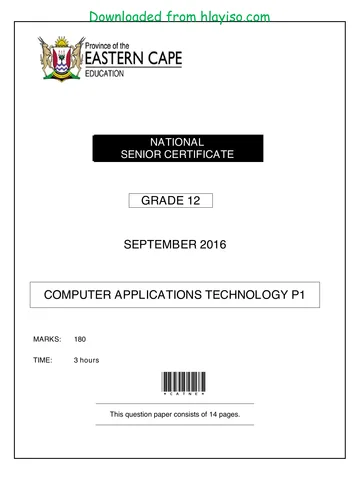
NATIONAL
SENIOR CERTIFICATE
GRADE 12
COMPUTER APPLICATIONS TECHNOLOGY P1
FEBRUARY/MARCH 2016
MARKS: 180
TIME: 3 hours
This question paper consists of 18 pages,
an HTML tag sheet and a separate information sheet.
Copyright reserved Please turn over
Skip to contentQuestion paper 
View all
Computer Applications Technology Grade 12 P1 2016 QP
Grade 12 Computer Applications Technology Paper 1 question paper from the NSC Supplementary Exam 2016, 20 pages. Read online or get the free PDF download, memo linked when available.
Computer Applications Technology · Grade 12 · NSC Supplementary Exam · 2016. Question paper, 20 pages. Read online or download the PDF.
- Subject
- Computer Applications Technology
- Grade
- Grade 12
- Document type
- Question paper
- Year
- 2016
- Exam period
- NSC Supplementary Exam
- Paper
- 1
- Curriculum
- CAPS
- Pages
- 20
- File size
- 1.0 MB
Loading document…
Loading document…
1 of 20
Document textSearch extracted text and jump to a page.
Downloaded from hlayiso.com
Computer Applications Technology/P1 2 DBE/Feb.–Mar. 2016
NSC
INSTRUCTIONS AND INFORMATION
1. Owing to the nature of this practical examination, it is important to note that,
even if you complete the examination early, you will NOT be permitted to
leave the examination room until all the administrative functions associated
with the examination have been finalised. During the examination, normal
rules regarding leaving the examination room apply.
2. Type your examination number in the header of EVERY document that you
create or save, where applicable.
3. The invigilator will give you a CD/DVD/flash disk containing all the files
needed for the examination OR you will be told where the files can be found
on the network or computer. If a CD/DVD has been issued to you, you must
write your centre number and examination number on the CD/DVD. If you are
working on the network, you must follow the instructions provided by the
invigilator/teacher.
4. A copy of the master files will be available from the invigilator. Should there
be any problems with a file, you may request another copy from the
invigilator.
5. This question paper consists of SEVEN questions.
6. Answer ALL the questions.
7. Ensure that you save each document using the file name given in the
question paper. Save your work at regular intervals as a precaution against
possible power failures.
8. Read through each question before answering or solving the problem. Do
NOT do more than is required by the question.
9. At the end of the examination, you must hand in the CD/DVD/flash disk given
to you by the invigilator with ALL your answer files saved onto it, OR you
should make sure that ALL your answer files are saved on the
network/computer as explained to you by the invigilator/teacher. Make
absolutely sure that all files can be read. Do NOT save unnecessary
files/folders. Do NOT hand in duplicate answer files/folders.
10. The information sheet that has been provided with the question paper MUST
BE COMPLETED AFTER THE THREE-HOUR EXAMINATION SESSION.
Hand it to the invigilator at the end of the examination.
11. During the examination you may consult the help functions of the programs
that you are using. You may NOT use any other resource material.
Copyright reserved Please turn over
Downloaded from hlayiso.com
Computer Applications Technology/P1 3 DBE/Feb.–Mar. 2016
NSC
12. Unless instructed otherwise, use formulae and/or functions for ALL
calculations in questions involving spreadsheets. Use absolute cell
references only where necessary to ensure that formulae are correct when
you copy them to other cells in a spreadsheet.
13. NOTE: All formulae and/or functions should be inserted in such a manner
that the correct results will still be obtained even if changes are
made to the existing data.
14. If data is derived from a previous question that you could not answer, you
should still proceed with the questions that follow.
15. In all questions involving word processing, you should set the language to
English (South Africa). Assume that the paper size is A4 Portrait, unless
instructed otherwise.
16. Use centimetres as the unit of measurement when you answer this
question paper.
17. Alternative instructions for candidates using LibreOffice are given in
cases where they differ from the instructions for candidates using
Microsoft Office.
18. Generally, one mark is allocated per action; therefore, a 2-mark question
would usually require TWO actions, et cetera.
19. The examination folder/CD/DVD/flash disk that you receive with this question
paper contains the files listed below. Ensure that you have all the files before
you begin with this examination.
1Climate_Klimaat Image file
1Effect_Effek Word processing file
2Nature_Natuur Word processing file
3Extreme_Uiters Spreadsheet file
4Imp CSV file
4Species_Spesies Spreadsheet file
5Spec_Spes Database file
6Eleph_Olif Image file
6Elephant_Olifant HTML file
6Save_Red Word processing file
7Answ_Antw Word processing file
7Bird_Voël Word processing file
7Birds_Voëls Database file
Copyright reserved Please turn over
Downloaded from hlayiso.com
Computer Applications Technology/P1 4 DBE/Feb.–Mar. 2016
NSC
SCENARIO
The world's climate is changing. Ice is melting and glaciers are disappearing. Heat
waves, storms and floods are becoming more extreme. Our planet is getting warmer
and even a small increase in temperature can change our climate. When our climate
changes, we are all affected.
Your class is launching an awareness programme to make learners aware of the
effects of global warming.
QUESTION 1: WORD PROCESSING
A document will be handed out to learners explaining the effects of global warming.
You have been asked to assist in completing the document.
Open the 1Effect_Effek word processing document and insert your examination
number in the header.
1.1 More information should be added to the cover page. Complete the cover
page as follows:
1.1.1 Insert your examination number under the heading 'Author' in the
text content control.
NOTE: Do NOT change the document properties. (1)
1.1.2 Add the 1Climate_Klimaat picture found in the examination folder in
the picture control. (2)
1.1.3 Apply the 'Global' style to the title '10 Most Common Effects of
Global Warming'. (1)
1.2 Adjust the quote 'One of the most controversial topics in today's age is global
warming' so that it will NOT appear in the table of contents.
NOTE: The table of contents contains only one level of heading styles.
Update the entire table of contents on page 2. (3)
1.3 Locate the text 'global warming' in the first paragraph of the document and
apply any text outline to this text.
NOTE: Do NOT use WordArt/Fontwork. (1)
1.4 Apply automatic numbering to the heading 'Rising Sea Levels'. (1)
1.5 Locate the paragraph that starts with 'When the surface …' and ends with
'… low-lying coastal areas'.
Apply automatic hyphenation to this paragraph. (1)
Copyright reserved Please turn over
Downloaded from hlayiso.com
Computer Applications Technology/P1 5 DBE/Feb.–Mar. 2016
NSC
1.6 Add a bookmark called 'Heat' to the heading '2. Heat Waves'. (2)
1.7 Locate the image below the heading '3. Killer Storms'.
Apply a 3.5 pt border around the image.
Add a shadow effect of your choice. (3)
1.8 Locate the image below the heading '8. Wars'.
Mark the image with an index entry called 'Wars'. (2)
1.9 Replace all occurrences of the '&' character with the word 'and'. (1)
1.10 Locate the page on which the heading '10. Ecosystem Failure' appears.
1.10.1 Place ONLY this page, including the heading and content, in
landscape orientation. (1)
1.10.2 The shape with the text 'Soil' has not been added to the grouped
image. Add the shape to the rest of the group of shapes on
this page. (1)
1.11 Locate the text on the second last page that starts with 'We should install …'
and ends with '… not using them'.
Add automatic bullets to this text.
Use the (Microsoft Office: Wingdings character code 123/
LibreOffice: U+F07B) for the bullets. (2)
1.12 Locate the image on the second last page under the heading 'Preventive
Measures:'.
Adjust it so that it displays similar to the example below.
Mineral
Resource
Sustainable Synthetic
Equality
Development Materials
Biological
Productivity
NOTE: Ensure that the new shape appears similar in size to the other
shapes. (4)
Copyright reserved Please turn over
Downloaded from hlayiso.com
Computer Applications Technology/P1 6 DBE/Feb.–Mar. 2016
NSC
1.13 Insert an automatically generated index on the last page, so that the index
displays similar to the example below.
Use the following format options for the index:
Use one column.
Group the entries alphabetically under the letters of the alphabet.
Align page numbers with tab leaders.
NOTE: Your page numbers may differ.
(4)
1.14 Add automatic page numbering as follows:
Add the page numbers centred in the page footer.
Start the page numbering with 'i' (Roman numeral 1) on the table of contents
page.
Use the numbering style 1, 2, et cetera for the rest of the document,
restarting the page numbering from page 1.
NOTE: The cover page must NOT be numbered. (5)
Save and close the 1Effect_Effek document. [35]
Copyright reserved Please turn over
Downloaded from hlayiso.com
Computer Applications Technology/P1 7 DBE/Feb.–Mar. 2016
NSC
QUESTION 2: WORD PROCESSING
The class held a poetry competition to celebrate Nature Day. The poem that won the
competition was published.
Open the 2Nature_Natuur word processing document and insert your examination
number in the page header.
2.1 Set the left and right indentation of the entire document to 3 cm. (2)
2.2 Apply a drop cap effect to the heading 'Nature is Crying, You Should Know' as
follows:
The drop cap should appear in the margin.
The drop cap should appear across TWO lines. (3)
2.3 Add an endnote to the heading 'Nature is Crying, You Should Know' as
follows:
Use the '#' character on the keyboard as the custom mark for the note.
Use the highlighted text found on the last line of the document as the text
of the endnote. (3)
2.4 Change the line spacing of the entire document to 'Multiple', set at 1.15. (1)
2.5 Centre the text and the image in the document horizontally and vertically on
the page. (2)
2.6 Add a hyperlink to the picture at the bottom of the page. It must link with the
website crying.com. (2)
2.7 Change the page colour to any colour of your choice. (1)
2.8 Add the current date in the page footer. The date should automatically update
each time the document is opened. (2)
Save and close the 2Nature_Natuur document. [16]
Copyright reserved Please turn over
Downloaded from hlayiso.com
Computer Applications Technology/P1 8 DBE/Feb.–Mar. 2016
NSC
QUESTION 3: SPREADSHEET
Use formulae and/or functions for ALL calculations in the spreadsheet. Use absolute
cell references only where necessary to ensure that formulae are correct when you
copy it to other cells in the same column (copy down). All formulae and/or functions
should be inserted in such a manner that the correct results will still be obtained, even
if changes are made to the existing data.
Data was gathered about extreme temperatures and rainfall.
Open the 3Extreme_Uiters spreadsheet and work in the Ex_Eks worksheet.
3.1 Format the worksheet as follows:
3.1.1 Change the background colour of cell A1 to any colour of your
choice. (1)
3.1.2 Merge cells A1:J1. (1)
3.1.3 Rotate the headings of row 2 by 90 degrees. (1)
3.1.4 Change the colour of ONLY the bottom border of cells A2:J2
to red. (2)
3.2 Use a data format to display all the negative numbers in cells C7:C32 in red
and with TWO decimal places.
NOTE: Do NOT use conditional formatting. (3)
3.3 Use conditional formatting in column D to display the cell with the HIGHEST
value AND the cell with the LOWEST value in bold. (4)
3.4 Use a combination of functions to extract the temperature in degrees
Fahrenheit (131oF) from cell C4 (the degrees Celsius column) and insert it
into cell D4 (in the column for degrees Fahrenheit).
NOTE: Ensure that the correct results will still be obtained, even if the
temperature in degrees Fahrenheit in cell C4 changes (for example
to 27oC or 80oF).
HINT: First find the position of the space. All the data after the space must
appear in the column for degrees Fahrenheit. You may use any of the
empty columns, such as columns K and L, for calculating any interim
results. (7)
3.5 The following formula is used to convert degrees Celsius to degrees
Fahrenheit:
o
C × 9 ÷ 5 + 32 = oF
Add a formula in cell D7 using the temperature in degrees Celsius in cell C7
and convert it to degrees Fahrenheit. (2)
Copyright reserved Please turn over
Downloaded from hlayiso.com
Computer Applications Technology/P1 9 DBE/Feb.–Mar. 2016
NSC
3.6 Use a function/formula in cell G4 to determine the number of full days that
have passed since the date of the highest temperature (cell F4) experienced
in Africa.
For example, if the date of the highest temperature was Monday,
11 February 1935, the number of days that have passed would be 29 470. (5)
3.7 Change the page setup as follows:
Set the range A2:D32 as the print area.
Use a spreadsheet feature to ensure that all the data will fit on one sheet.
NOTE: Do NOT print the spreadsheet. (2)
Save and close the 3Extreme_Uiters spreadsheet. [28]
Copyright reserved Please turn over
Downloaded from hlayiso.com
Computer Applications Technology/P1 10 DBE/Feb.–Mar. 2016
NSC
QUESTION 4: SPREADSHEET
Use formulae and/or functions for ALL calculations in the spreadsheet. Use absolute
cell references only where necessary to ensure that formulae are correct when you
copy it to other cells in the same column (copy down). All formulae and/or functions
should be inserted in such a manner that the correct results will still be obtained, even
if changes are made to the existing data.
A study was done about all the species threatened with extinction. A summary of these
threatened species has been stored in a spreadsheet.
Open the 4Species_Spesies spreadsheet and work in the Spec_Spes worksheet.
4.1 Change the height of row 1 to 30 pt. (1)
4.2 Use a VLOOKUP function in cell B6 to determine to which type 'Birds' in
cell A6 belongs by using the table in the Type_Tipe worksheet.
Ensure that this function will work correctly if copied to the other cells. (4)
4.3 Add a function in cell C10 to calculate the total number of vertebrate species. (2)
4.4 Add a function in cell L5 to calculate the percentage of the number of
mammals threatened in 2014 (column K) in relation to the total number of
species evaluated (cell D10). (2)
4.5 Insert a function in cell N6 to determine the severity level by using the
severity percentage in column M as follows:
A severity percentage of more than 50% is classified as 'Very severe'.
A severity percentage of more than 15% and less than or equal to 50% is
classified as 'Severe'.
A severity percentage of less than or equal to 15% is classified as
'Moderate'. (5)
Copyright reserved Please turn over
Downloaded from hlayiso.com
Computer Applications Technology/P1 11 DBE/Feb.–Mar. 2016
NSC
4.6 Create a pie chart in cell O2 to display the severity threat rate per total
species, as shown in the example below.
18%
50%
7%
Total Vertebrates
% of endangered types
Total Invertebrates 25%
Total Plants
Total Others
NOTE:
The data used in the pie chart is shown in columns A and M.
The title '% of endangered types' appears approximately in the middle of
the pie chart.
The legend appears in the bottom left-hand corner.
Data labels are used, as shown above.
The 'Total Invertebrates' segment is separated from the rest of the pie
chart, as shown above. (6)
4.7 Import the data from the 4Imp file in the examination folder into the
worksheet Imp. (2)
Save and close the 4Species_Spesies spreadsheet. [22]
Copyright reserved Please turn over
Downloaded from hlayiso.com
Computer Applications Technology/P1 12 DBE/Feb.–Mar. 2016
NSC
QUESTION 5: DATABASE
A database was created to capture data on specific endangered species.
Open the 5Spec_Spes database.
5.1 Edit the Survey_Opname table as follows:
5.1.1 Change the field size of the Type field to 10. (1)
5.1.2 There are currently two primary keys set on the table. Remove the
primary key that is not suitable so that only ONE suitable primary key
remains.
HINT: Look at the data stored in these fields. (1)
5.1.3 Create an input mask on the ID field to ensure that the user enters a
code as follows:
Five compulsory capital letters
Followed by at least one, but possibly two, digits
EXAMPLE: REPHE99 or MOLAL4 can be entered as valid codes. (5)
5.1.4 The Protected field does not display the 'Yes' and 'No' values in the
drop-down list box as intended.
Change the lookup field properties to correct the error. (1)
5.1.5 Create a new lookup field called FullStatus.
Use the data in the Name field of the Code_Kode table to provide the
values for the new field. (4)
Save and close the Survey_Opname table.
5.2 Create a form called frm5_2 based on the Survey_Opname table as follows:
Include all the fields of the Survey_Opname table.
The form should have a tabular layout.
Change the font of the form heading to bold and change the background
colour of the form heading to any colour of your choice.
Type your examination number in the form footer.
Save and close the frm5_2 form. (6)
Copyright reserved Please turn over
Downloaded from hlayiso.com
Computer Applications Technology/P1 13 DBE/Feb.–Mar. 2016
NSC
5.3 Open the qry5_3 query.
Display only the bird and plant types that are protected.
Save and close the qry5_3 query. (5)
5.4 Open the qry5_4 query.
Add the fields SName, Status and Population in the two tables provided to
the query.
Sort the query in ascending order on the CName field.
Save and close the qry5_4 query. (3)
5.5 Research indicates that the population of each species will decrease by 1%
every year. Open the qry5_5 query.
Display only the records where a value for the common name (CName) is
given.
Insert a calculated field called NewPop that will calculate the new
population after its size has been decreased by 1%.
Display this number as a whole number.
Save and close the qry5_5 query. (7)
Copyright reserved Please turn over
Downloaded from hlayiso.com
Computer Applications Technology/P1 14 DBE/Feb.–Mar. 2016
NSC
5.6 Create a report called rep5_6 based on the Survey_Opname table.
The report must display information using a layout similar to the one in the
example below.
rep5_6
Survey by Year SurveyDate ID CName Protected
2012 Number of items: 20
2012/02/02 FisAm84 Roanoke bass Yes
2012/02/14 BirAi56 Bachman's sparrow Yes
2012/03/01 MolFu48 Atlantic pigtoe Yes
2012/04/19 FisEt10 Carolina darter - Eastern No
2012/04/20 PlaEm62 Eastern isopyrum No
2012/05/27 PlaAl86 Striped garlic No
2012/07/01 InsGo22 Rapids clubtail No
2012/08/19 InsCa67 Carolina ladle crayfish Yes
2012/08/24 BirLa41 Loggerhead shrike No
2012/08/25 RepHe99 Four-toed salamander Yes
2012/09/01 InsCh76 A mayfly No
2012/09/10 MolTo77 Savannah lilliput No
2012/10/01 MolVi50 Carolina creekshell Yes
2012/10/25 PlaPh99 Buttercup phacelia Yes
2012/10/28 PlaPa79 Horsetail crown grass Yes
2012/11/03 MolAl4 Brook floater Yes
2012/11/07 MolVi54 Notched rainbow Yes
2012/11/11 MolAl91 Triangle floater Yes
2012/11/17 PlaDi85 A witch grass No
2012/12/31 BirHa57 Bald eagle Yes
2013 Number of items: 12
2013/02/06 PlaFo64 Large witch alder No
2013/03/06 MolEl15 Roanoka slabshell No
2013/03/26 InsGo37 No
2013/04/12 InsNe40 Septima's clubtail No
2013/05/24 PlaPt92 Harperella Yes
2013/05/31 FisNo17 Cape Fear shiner No
2013/06/25 PlaCo38 Piedmont horsebalm Yes
NOTE:
The formatting is not required to exactly match the formatting in the
example above.
Ensure that the correct data appears.
The default grouping by date produces the date by month. Change this
option to display the date by year.
'Survey by Year' is a group heading.
The format of the date will differ depending on the settings of the
computer.
Take note of the calculations that appear.
Save and close the rep5_6 report. (7)
Close the 5Spec_Spec database. [40]
Copyright reserved Please turn over
Downloaded from hlayiso.com
Computer Applications Technology/P1 15 DBE/Feb.–Mar. 2016
NSC
QUESTION 6: WEB DESIGN (HTML)
You are required to assist in designing an information pamphlet to help save the
elephants.
Open the incomplete 6Elephant_Olifant web page in a web browser and also in a
text/HTML editor.
NOTE:
Question numbers are inserted as comments in the coding to show approximately
where the answer(s) should be inserted.
An HTML tag sheet has been attached for reference.
Your final web page should look like the example below.
Copyright reserved Please turn over
Downloaded from hlayiso.com
Computer Applications Technology/P1 16 DBE/Feb.–Mar. 2016
NSC
NOTE: Use the example on the previous page to assist you with this question.
6.1 Correct the HTML tags to display the text 'Save the Elephant' in the browser
tab. (1)
6.2 Add HTML tags to display the 6Eleph_Olif.jpg image found in the
examination folder.
Align the picture to the left, as shown in the example on the previous page. (2)
6.3 Format the text 'SAVE THE ELEPHANT' with the font 'Elephant'. (2)
6.4 Increase the font size of the text 'FROM THE KIDS ANIMAL PROTECTION'
by 1. (2)
6.5 Add a horizontal line with the following properties below the body tag, as
indicated in the file:
Set the line colour to a yellow colour.
Set the line size to 4. (3)
6.6 Add a row with the text 'Asian Elephant' to the table.
The table should appear as follows:
African Elephant
Asian Elephant (2)
6.7 Format the text 'Physical description' with a Heading 2 style. (1)
6.8 Display the text 'Proboscidea' in italics. (1)
6.9 Apply numbering to the text under the heading 'Threats to elephants' as
follows:
i. Poaching is still a problem.
ii. Habitat loss is a concern. (3)
6.10 Insert a link on the words 'Save the Elephant' that links to the document
6Save_Red.docx found in the examination folder. (3)
Save and close the 6Elephant_Olifant document. [20]
Copyright reserved Please turn over
Downloaded from hlayiso.com
Computer Applications Technology/P1 17 DBE/Feb.–Mar. 2016
NSC
QUESTION 7: GENERAL
A newsletter was created about the effects of global warming on birds. You were
asked to assist in completing the document.
Open the 7Bird_Voël word processing document.
7.1 Locate the text on the first page that starts with 'What is Global Warming?'
and ends with '… and other species' on the second last page and do the
following:
Place this text into two columns.
Ensure that the heading 'How will Global Warming affect us?' will always
appear at the top of the second column. (2)
7.2 Locate the following text on the second last page:
Snow Goose Chen caerulescens
Canada Goose Branta canadensis
Trumpeter Swan Cygnus buccinator
Wood Duck Aix sponsa
Some tab settings have already been applied to the text. Adjust the tab
settings to format the text to appear as follows:
Snow Goose ...................................... Chen caerulescens
Canada Goose .................................. Branta canadensis
Trumpeter Swan ............................ Cygnus buccinator
Wood Duck ....................................... Aix sponsa (2)
7.3 Insert a text watermark that displays the text 'Birds'. (2)
7.4 Locate the text 'Figure 1: Comparison of bird species for 2000 and 2014'.
Use any method to create a chart/graph below this text, as shown below.
NOTE:
Use the data in the table on the last page to show a comparison between
the years 2000 and 2014.
Ignore the alignment of the horizontal labels.
2500
2000
1500
1000 2000
500
0 2014
(4)
Save and close the 7Birds_Voëls document.
Copyright reserved Please turn over
Downloaded from hlayiso.com
Computer Applications Technology/P1 18 DBE/Feb.–Mar. 2016
NSC
7.5 You were asked to assist with the analysis of the data in the 7Birds_Voëls
database.
Open the 7Answ_Antw document and insert your examination number in the
document.
This question requires you to give the answer and briefly explain the specific
method/formula/function you used to obtain the answer.
EXAMPLE:
QUESTION BRIEF EXPLANATION ANSWER
How many boys are in the Filter to extract the boys of 12A 24
Grade 12A class? and then use the Count function.
Use the Birds_Voëls table in the 7Birds_Voëls database to answer the
questions below.
7.5.1 How many records are there in the database?
NOTE: No explanation is required. (1)
7.5.2 How many birds have not yet been allocated an English name? (2)
7.5.3 To which family does the 'Pardusco' (English name) belong? (2)
7.5.4 How many birds with an English name containing the word 'Macaw'
are there in the database? (2)
7.5.5 How many unique families are there in the database? (2)
Save and close the 7Answ_Antw document. [19]
TOTAL: 180
Copyright reserved
Downloaded from hlayiso.com
Computer Applications Technology/P1 DBE/Feb.–Mar. 2016
NSC
HTML TAG SHEET
Basic Tags Formatting Tags continued
Tag Description Tag Description
<body></body> Defines the body of the web Inserted before each list
page item, and adds a number or
<li></li>
<body Sets the background colour of symbol depending on the
bgcolor="pink"> the web page type of list selected
<body Sets the colour of the body <img src="name"> Adds an image
text="black"> text
Contains information about Aligns an image: can be
<head></head> <img src="name"
the web page "left", "right", "center",
align="left">
Creates an HTML document – "bottom", "top", "middle"
<html></html>
starts and ends a web page
<img src="name" Sets the size of the border
<title></title> Defines a title for the web border="1"> around an image
page
<br/> Inserts a line break <img src="name"
width="200" Sets the height and width of
<!-- --> Comment an image
Text Tags height ="200">
Tag Description Displays alternative text
<img src="name"
<hl></hl> alt="alternative when the mouse hovers over
Creates the largest heading
text"> the image or when the image
<h6></h6> Creates the smallest heading is not found
<hr/> Inserts a horizontal line
<b></b> Creates bold text <hr size="3"/> Sets size (height) of a line
<i></i> <hr width="80%"/> Sets the width of a line, in
Creates italic text
percentage or absolute value
<font Sets size of font, from "1" to <hr color=
size="3"></font> "ff0000"/> Sets the colour of the line
"7"
<font Table Tags
color="green"> Sets font colour
</font> Tag Description
<font face="Times <table></table> Creates a table
New Roman"></font> Sets font type
<tr></tr> Creates a row in a table
Links Tags <td></td> Creates a cell in a table
Tag Description Creates a table header (a
<th></th>
<a href="URL"></a> Creates a hyperlink cell with bold, centred text)
<a href="URL"><img <table
src="name"></a> Creates an image link width="50"> Sets the width of the table
Creates a target location in <table Sets the width of the border
<a name="NAME"></a>
the document border="1"> around the table cells
Links to a target location <table Sets the space between the
<a href= cellspacing="1">
created somewhere else in table cells
"#NAME"></a>
the document <table Sets the space between a
Formatting Tags cellpadding="1"> cell border and its contents
Tag Description Sets the alignment for cell(s)
<tr align="left"> ("left", can also be "center" or
<p></p> Creates a new paragraph "right")
Aligns a paragraph to the Sets the vertical alignment
<p align="left"> "left" (default), can also be <tr valign="top"> for cell(s) ("top", can also be
"right" or "center" "middle" or "bottom")
<br/> Inserts a line break Sets the number of columns
<td colspan="2">
<ol></ol> Creates a numbered list a cell should span
<ol type="A","a", Defines the type of numbering Sets the number of rows a
<td rowspan="4">
"I","i","1"></ol> used cell should span
<ul></ul> Creates a bulleted list
<ul type="disc",
Defines the type of bullets
"square","circle">
</ul> used
Copyright reserved
Downloaded from hlayiso.com
Computer Applications Technology/P1 DBE/Feb.–Mar. 2016
NSC
COMPUTER APPLICATIONS TECHNOLOGY P1 – FEBRUARY/MARCH 2016
INFORMATION SHEET (to be completed by the candidate AFTER the 3-hour session)
180
CENTRE NUMBER ______________________________________________________________
EXAMINATION NUMBER _________________________________________________________
WORK STATION NUMBER ________________________________________________________
SUITE USED
LibreOffice 4.4 Microsoft Office Microsoft Office Microsoft Office
(Mark appropriate
or higher 2007 2010 2013
box with a cross (X))
WEB BROWSER USED Other (Specify)
(Mark appropriate Mozilla Firefox Google Chrome Internet Explorer
box with a cross (X))
FOLDER NAME _________________________________________________________________
Candidate must enter the file name(s) used for each answer. Tick if saved and/or done.
Marker
Question Saved Done Maximum Mark
File name Initial/
Number () () Mark Achieved
Code
1 35
2 16
3 28
4 22
5 40
6 20
7 19
TOTAL 180
Comment (for office/marker use only)
_____________________________________________________________________________________
_____________________________________________________________________________________
Copyright reserved
Study this subject
Revise the topics in this paper, then practise them question by question.
- Grade 12 Computer Applications Technology notes
CAPS revision notes with worked examples.
- Computer Applications Technology questions by topic
Past exam questions sorted by CAPS topic, with memos where available.
- Grade 12 Computer Applications Technology quizzes
Short topic quizzes with instant feedback.
- All Grade 12 Computer Applications Technology past papers
Past papers by year, with memos where available.
- Grade 12 past papers
More Computer Applications Technology and other subjects in this collection.
Recommended for this subject
More papers and memos for this grade and subject.
Question paper
Computer Applications Technology Grade 12 P2 2025 QP
Question paper
Computer Applications Technology Grade 12 P1 2024 QP (Afr)
Question paper
Computer Applications Technology Grade 12 P1 2024 QP (Eng)
Question paper
Computer Applications Technology Grade 12 P2 2024 QP (Eng)
Question paper
Computer Applications Technology Grade 12 P1 November 2024 NSC QP
Question paper
Computer Applications Technology Grade 12 P1 2024 QP
Related documents
Memorandum
Computer Applications Technology Grade 12 P1 2016 Memo
Question paper
Computer Applications Technology Grade 12 P1 2016 QP
Question paper
Computer Applications Technology Grade 12 P1 2016 QP
Question paper
Computer Applications Technology Grade 12 P1 NSC June 2016 QP
Question paper
Computer Applications Technology Grade 12 P1 2018 QP
Question paper
Computer Applications Technology Grade 12 P1 2017 QP
More from Grade 12 Computer Applications Technology
Memorandum
Computer Applications Technology Grade 12 P1 2025 Memo
Memorandum
Computer Applications Technology Grade 12 P2 2025 Memo
Memorandum
Computer Applications Technology Grade 12 P1 NSC June 2025 Memo
Memorandum
Computer Applications Technology Grade 12 P1 2024 Memo (Eng)
Question paper
Computer Applications Technology Grade 12 P1 NSC June 2023 QP
Question paper