
Downloaded from hlayiso.com
NATIONAL
SENIOR CERTIFICATE
GRADE 12
COMPUTER APPLICATIONS TECHNOLOGY P1
NOVEMBER 2012
MARKS: 200
TIME: 3 hours
This question paper consists of 18 pages and a separate information sheet.
Copyright reserved Please turn over
Skip to contentQuestion paper 



_hlayiso.com_--c01bfbcb-cb2b-4618-9d1d-c1121a3bfe6b/v1-ca8424d1fe5bc9192ecd/card.webp)
_hlayiso.com_--810d2c32-e315-4816-bc8a-e27be13a16f6/v1-7b02c01b6f4af79ca907/card.webp)
View all



Computer Applications Technology Grade 12 P1 NSC November 2012 QP
Grade 12 Computer Applications Technology Paper 1 question paper from the NSC November Exam 2012, 18 pages. Read online or get the free PDF download, memo linked when available.
Computer Applications Technology · Grade 12 · NSC November Exam · 2012. Question paper, 18 pages. Read online or download the PDF.
- Subject
- Computer Applications Technology
- Grade
- Grade 12
- Document type
- Question paper
- Year
- 2012
- Exam period
- NSC November Exam
- Paper
- 1
- Curriculum
- CAPS
- Pages
- 18
- File size
- 408.2 KB
Loading document…
Loading document…
1 of 18
Document textSearch extracted text and jump to a page.
Downloaded from hlayiso.com
Computer Applications Technology/P1 2 DBE/November 2012
NSC
INSTRUCTIONS AND INFORMATION
1. Owing to the nature of this three-hour examination, it is important to note
that you will NOT be permitted to leave the examination room before the end
of the examination period.
2. Insert your examination number in the header of EVERY document that you
create or save.
3. The invigilator will give you a disk containing all the files needed for the
examination OR you will be told where the files can be found on the network
or computer. If a disk has been issued to you, you must write your
examination number and centre number on the disk. If you are working on
the network, you must follow the instructions provided by the invigilator.
4. A copy of the master files will be available from the invigilator. Should there
be any problems with a file, you may request another copy from the
invigilator.
5. This question paper consists of SEVEN questions.
6. Answer ALL the questions.
7. Ensure that you save each document using the file name given in the
question paper. Save your work at regular intervals as a precaution against
possible power failures.
8. Read through each question before answering or solving the problem. Do
NOT do more than is required by the question.
9. At the end of the examination you must hand in the disk given to you by the
invigilator with ALL your answer files saved onto the disk, OR you should
make sure that ALL your answer files are saved on the network/computer as
explained to you by the invigilator/educator. Make absolutely sure that all
files can be read. Do NOT save unnecessary files/folders and do NOT hand
in duplicate answer files/folders.
10. The separate information sheet that has been provided with the question
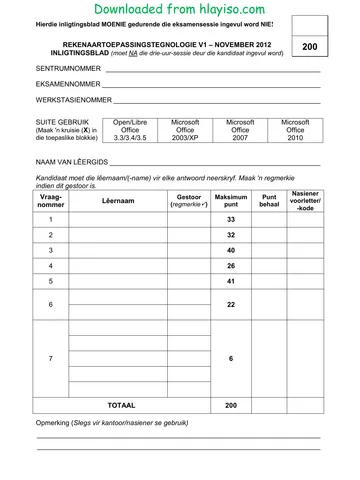
paper MUST BE COMPLETED AFTER THE THREE-HOUR
EXAMINATION SESSION. Hand it to the invigilator at the end of the
examination.
11. During the examination you may use the help functions of the programs
which you are using. You may NOT use any other resource material.
12. If data is derived from a previous question that you cannot answer, you
should still proceed with the questions that follow.
13. Unless instructed otherwise, formulae and/or functions must be used for ALL
calculations in questions involving spreadsheets. Absolute cell references
must be used only where necessary to ensure that formulae are correct
when they are copied to other cells in a spreadsheet.
Copyright reserved Please turn over
Downloaded from hlayiso.com
Computer Applications Technology/P1 3 DBE/November 2012
NSC
14. In all questions involving word processing, the language should be set to
English (South Africa). The paper size is assumed to be A4 Portrait, unless
instructed otherwise.
15. Use centimetres as the unit of measurement when answering this
examination paper.
16. Generally 1 mark is allocated per action, so a 2-mark question would usually
require TWO actions, et cetera.
17. The examination folder/data disk that you receive with this question paper
will contain the folder and files listed below. Ensure that you have the folder
and all the files before you begin this examination.
A folder called Data that contains the following files:
• 1Climate_Klimaat Word processing file
• 2Wind_Wind Word processing file
• 3Travel_Reis Spreadsheet file
• 4Daily_Daagliks Spreadsheet file
• 5Weather_Weer Database file
• 6Day_Dag Spreadsheet file
• 6Record_Opname Word processing file
• 7Answers_Antwoorde Word processing file
• 7Extreme_Uiters Word processing file
• 7Flood_Vloed Word processing file
• 7Password_Wagwoord Word processing file
• 7Storm_Storm Word processing file
SCENARIO
Weather patterns are changing. Your school's weather club offers the following
services:
• Providing information about extreme weather conditions
• Maintaining a spreadsheet on local weather data
• Creating and maintaining a database containing weather data for people
travelling abroad
Copyright reserved Please turn over
Downloaded from hlayiso.com
Computer Applications Technology/P1 4 DBE/November 2012
NSC
QUESTION 1
Open the 1Climate_Klimaat document.
[Adapted from www.climate.org/topics/extreme-weather]
1.1 Set the right-hand margin of the document to 1.5 cm. (1)
1.2 Change the layout of the document as follows:
• Apply automatic hyphenation to the whole document.
• Justify the text. (2)
1.3 Place a 3 pt wide, double-line page border around all the pages of the
document. (3)
1.4 Apply the following changes to the heading 'Climate Institute' as shown in the
example on the next page.
The heading ...
• appears in WordArt/Fontworks.
• is 23 cm wide.
• reads vertically from bottom to top.
• is on the left-hand side of the page.
• does not hide the text. (5)
Copyright reserved Please turn over
Downloaded from hlayiso.com
Computer Applications Technology/P1 5 DBE/November 2012
NSC
EXTREME WEATHER
Most of the potentially damaging consequences relating to climate change are
associated with extremes – the number of heat waves, floods or severe storms,
for example. Since extreme weather events cause loss of life and property, it is
important to understand what impact climate change may have on their
occurrence.
Global climate change affects different regions of the earth in different ways.
Although the accuracy of regional climate forecasts is improving, they are still
uncertain. However, we do know that a warmer atmosphere will result in a
greater number of tropical storms, extreme heat waves, droughts and floods.
Figure 1: Weather pattern
1.5 Change all subheadings which are formatted with Heading 1 style to
Heading 2 style. (2)
1.6 Apply paragraph spacing of 10 pt after/0.35 cm below to the first paragraph
starting with 'Most of the ...'. (1)
1.7 Change the properties of the image on page 1 so that it appears in colour. (1)
1.8 Change the caption 'Figure 2: Storm', that appears below the graph/chart on
the last page of the document so that it just reads 'Storm' and appears above
the graph/chart. (2)
1.9 Set the distance from the text of the dropped capital letter 'S' of 'Since' on the
second page to zero. (1)
1.10 The text from 'Tropical Storms ...' to '... global climate change' at the end of
the document must be placed in columns as follows:
• The text must appear in two columns.
• The first column must be set to 5.5 cm wide.
• A vertical line must appear between the columns from the heading 'Heat
Waves' to the end of the document.
• Ensure that the heading 'Heat Waves' will always appear at the top of a
new column. (5)
Copyright reserved Please turn over
Downloaded from hlayiso.com
Computer Applications Technology/P1 6 DBE/November 2012
NSC
1.11 Move the graph/chart and its caption that appear at the end of the document
to the second page as follows:
• The picture/image position of the graph/chart must be set to allow the
graph/chart to appear exactly in the centre of the page (both vertically and
horizontally).
• The image must appear across the two columns of text.
• The text must flow around the image. (4)
1.12 Replace all occurrences of the word 'storms' so that the words appear in a
red font, and are no longer underlined.
NOTE: Do NOT specify any formatting of the text for which you are
searching. (3)
1.13 Insert a diagonal text watermark in Arial font to read 'Weather_Weer'. (3)
Save 1Climate_Klimaat and close the document. [33]
Copyright reserved Please turn over
Downloaded from hlayiso.com
Computer Applications Technology/P1 7 DBE/November 2012
NSC
QUESTION 2
2.1 Add your examination number to the author property of the document
2Wind_Wind. (1)
Open the 2Wind_Wind document.
2.2 Replace the words linked to the bookmark BoyGirl with the word 'gender'
without deleting the bookmark. (2)
2.3 Indent the names of the storms starting with 'Alex (male) ...' to '... and so on
...' by 1 cm. (2)
2.4 Correct the spelling error found in the document.
NOTE: The names of places, towns and hurricanes are NOT misspelt. (1)
2.5 Locate the subheading 'Tornado versus hurricane' together with its contents
ending '... 320 km/h.'
Place a dashed shadow paragraph border around the subheading and its
contents. (3)
2.6 Apply 14 pt bullets to the text beginning with 'Be sure ...' and ending with '...
on it.'
Use the lightning cloud symbol in Webdings (character number 43)
(LibreOffice: U+F02B) for the bullet symbols. (3)
2.7 Convert the table that contains 'Categories of Hurricanes' to text. (1)
Study the table below before attempting QUESTION 2.8.
Copyright reserved Please turn over
Downloaded from hlayiso.com
Computer Applications Technology/P1 8 DBE/November 2012
NSC
2.8 Locate the two tables under the heading 'The Five Worst Hurricanes in US
History' and make the following changes:
2.8.1 Convert the text in the first table to upper case. (1)
2.8.2 Merge the two tables without deleting any data.
NOTE: If you did NOT complete QUESTION 2.8.2, continue to apply
the instructions in QUESTIONS 2.8.3 to 2.8.8 to the second
table only. (1)
2.8.3 Set the outside border of the table to 6 pt and ensure that the inside
gridlines remain at ½ pt. (2)
2.8.4 Set the height of all the rows in the table to exactly 1 cm. (2)
2.8.5 Vertically align the cell contents of the table to the centre. (1)
2.8.6 Select all the cells in the bottom row of the table EXCEPT the cell
containing <<Formula>>, and:
• Merge these cells.
• Right-align the text 'TOTAL'. (2)
2.8.7 Replace the text <<Formula>> with a formula to calculate the total
number of deaths. (1)
2.8.8 Sort the data in the table by year from the most recent to the first time
a hurricane was listed. (2)
2.9 Apply outline numbering to the THREE trivia questions to appear as shown
below:
Trivia Questions
1. Which of these hurricanes had the strongest winds?
a. Sea Islands Hurricane in 1893
b. Hurricane Katrina in 2005
c. Lake Okeechobee Hurricane in 1928
2. What would you observe in the eye of the hurricane?
a. Strong, spinning winds
b. Calm or very little wind
c. Heavy rain, thunder and lightning (3)
2.10 Add automatic page numbering to the document as follows:
• The page number must appear anywhere in the footer.
• The first page of the document is NOT numbered. In other words, page
numbering starts on the second page and is numbered as 1. (4)
Save 2Wind_Wind and close the document. [32]
Copyright reserved Please turn over
Downloaded from hlayiso.com
Computer Applications Technology/P1 9 DBE/November 2012
NSC
QUESTION 3
Weather data for the past 10 years (2002–2011) for the cities of Cape Town, Durban
and Johannesburg has been collected and stored in a spreadsheet.
Open the spreadsheet 3Travel_Reis.
Work in the worksheet Cities_Stede.
3.1 Change the heading 'Cape Town/Kaapstad' in the merged cell A2:H2 to
resemble the example below:
Cape Town
Kaapstad
(2)
3.2 Add a function in cell L15 to calculate the average yearly rainfall in
Johannesburg from 2002 to 2011. (2)
3.3 The wind speed in Cape Town seems to be more or less the same from year
to year.
Add a function in cell D18 that will determine the most commonly occurring
value for the annual average wind speed in Cape Town (Column D). (2)
3.4 Add a function in cell S18 to determine the maximum yearly rainfall in Durban
from 2002 to 2011. (2)
3.5 Columns G, N and U contain values showing the number of days with snow
per year in each of the three cities.
Add a function or formula in cell F21 to display the total number of days on
which snow fell in all three cities from 2002 to 2011. (3)
3.6 Use conditional formatting in column O to add a blue fill to the three cells
containing the three highest values in that column. This conditional formatting
must show the top three if applied to any other set of data. (3)
Copyright reserved Please turn over
Downloaded from hlayiso.com
Computer Applications Technology/P1 10 DBE/November 2012
NSC
Work in the worksheet Graph_Grafiek.
3.7 A pie chart/graph is given. Change the given chart/graph to resemble the
chart/graph below.
Change only the following:
• Chart/Graph type
• Title of the chart/graph
• Display the legend to the right of the chart/graph, as shown above
• Display the minor vertical gridlines
• Ticks (marks) should cross the vertical axis (5)
3.8 Make the following changes to the header of the worksheet (Graph_Grafiek):
• The text 'Temperatures' is displayed in the left-hand section of the header.
• The current date (which must update) is displayed in the centre section of
the header.
• The text 'Page number' plus an automatic page number is added to the
right-hand section of the header, for example Page number 1. (3)
Save 3Travel_Reis.
Copyright reserved Please turn over
Downloaded from hlayiso.com
Computer Applications Technology/P1 11 DBE/November 2012
NSC
A summary of the weather data gives valuable information.
Continue working in the spreadsheet 3Travel_Reis.
Work in the worksheet called Summary_Opsomming.
3.9 Change the height of the first row to 80 pt/2.82 cm. (1)
3.10 Insert a double-line border to the bottom of the merged cells A1:D1. (2)
3.11 Add a function in cell D3 to display the average annual maximum temperature
for Durban (2002–2011) using data from the Cities_Stede worksheet. (2)
3.12 Use IF-statements in cell B8 to add a classification for Johannesburg.
This is based on the difference between the average maximum and average
minimum temperatures of each of the cities in this worksheet, as follows:
Difference between average maximum Classification
and average minimum temperatures
Less than 10 Constant
Greater than or equal to 10 but less than 13 Settled
13 or greater than 13 Extreme (4)
3.13 The average number of rainy days per year in each of the cities as observed
from 2002 to 2011 is shown in row 5.
Add a function in cell B9 to calculate the percentage chance you may have of
experiencing a rainy day in Johannesburg. The answer must be rounded up to
the nearest whole number. (3)
3.14 Insert a column graph in the worksheet Summary_Opsomming to compare
the basic climate values of the three cities in cells B2:D7.
NOTE: • Format the column indicating the greatest number of rainy days.
Use a gradient fill in a dark colour to emphasise this column (that
is to make it stand out).
• The title 'Basic Climate Comparison' must appear above the
graph. (6)
Save and close 3Travel_Reis. [40]
Copyright reserved Please turn over
Downloaded from hlayiso.com
Computer Applications Technology/P1 12 DBE/November 2012
NSC
QUESTION 4
Weather data for several South African towns and cities has been collected for
7 December 2011.
Open the spreadsheet 4Daily_Daagliks.
Work in the worksheet DayRecord_DagVerslag.
4.1 Add a function in cell N2 to determine the number of towns for which wind data
exists in column J. (2)
4.2 In cell E5, display the difference between the minimum temperature in cell C5
and the maximum temperature in cell D5.
Show the difference as a percentage of the minimum temperature. (3)
4.3 The daily temperatures for Bhisho for one week are recorded in cells B4:H4 in
the Temperature_Temperatuur worksheet.
Add a function in cell F5 on the DayRecord_DagVerslag worksheet to display
the average temperature for Bhisho for ONE week.
Round the answer off to TWO decimal places. (4)
4.4 A day is considered hot if the humidity (column G) is higher than 80%.
Use a function in cell H5 to display 'Hot' if the humidity level is 80% and above
and 'Mild' if the humidity level is less than 80%. (3)
4.5 Use a VLOOKUP function in cell K5 to display the wind speed for Bhisho on
Thursday. Use the data in the worksheet Wind_Wind as lookup values.
Make sure that the function will work correctly if it were to be copied down for
the other towns and cities. (5)
4.6 Each town is given a code (see column L), made up as follows:
• An asterisk (*) followed by the abbreviation of the name of the province
found in column B, followed by the first three letters of the name of the
town.
• The code must appear in upper case.
Add a function or formula in cell L5 to generate a code for Bhisho. (6)
4.7 Use a function in cell N3 to display the number of days on which there was
wind for ALL towns and cities during the week listed in cells B4:H10 in the
Wind_Wind worksheet. (3)
Save and close 4Daily_Daagliks. [26]
Copyright reserved Please turn over
Downloaded from hlayiso.com
Computer Applications Technology/P1 13 DBE/November 2012
NSC
QUESTION 5
Open the 5Weather_Weer database.
Work in the Data_Data table.
5.1 The club wishes to maintain databases concerning the weather.
5.1.1 Change the data type of the Experience_Ondervinding field to a more
suitable field type. (1)
5.1.2 Delete the record of L Jackson. (1)
5.1.3 Add a drop-down list control to the Gender_Geslag field which will
allow the user to choose 'M' or 'F'. (3)
5.1.4 Set a validation rule and appropriate (suitable) validation message on
the Departure_Vertrek field so that the dates of departure are from
1 October 2011 to 31 December 2012 only. (4)
5.2 The queries below are based on the database table called Info_Inlig in the
same database. The Design View of the table shows the following fields:
Field Name Data Type Description
ID AutoNumber
Surname_Van Text Surname of traveller/Van van reisiger
Initial_Voorletter Text Initial of traveller/Voorletter van reisiger
Gender_Geslag Text Gender/Geslag
ContactName_Kontaknaam Text Contact person/Kontakpersoon
ContactNumber_Kontaknommer Text Emergency number/Nommer vir noodgeval
Departure_Vertrek Date/Time Date of departure/Vertrekdatum
Arrival_Aankoms Date/Time Date of return/Terugkeerdatum
Country_Land Text Destination/Bestemming
Danger_Gevaar Text Climate concerns/Klimaatsbekommernisse
• Open the query QryMale_Manlik.
• Modify the QryMale_Manlik query to show only the surnames and initials of
the male travellers.
• Display the information in ascending order of their date of departure. (3)
Save and close the QryMale_Manlik query.
Copyright reserved Please turn over
Downloaded from hlayiso.com
Computer Applications Technology/P1 14 DBE/November 2012
NSC
Open the query QryDays_Dae.
5.3 Modify the QryDays_Dae query by inserting a calculated field called
Days_Dae to display the number of days the travellers will be out of the
country. (4)
Save and close the QryDays_Dae query.
5.4 Create a new query called QryFlood based on the data in the Info_Inlig table.
It must display the following:
• A list of the initials and surnames of the travellers, as well as the destination
country (no other fields should be displayed)
• Only the records for those destinations (countries) where flooding may be a
danger (see Danger_Gevaar field) (4)
Save the query as QryFlood.
5.5 Export the results from the QryInfo_Inlig query to a spreadsheet and save it as
MyInfo. (2)
5.6 Create a form called New_Nuut based on the Data_Data table to allow users
to enter new data into the table. (3)
5.7 Open the existing form called FrmForm_Vorm.
5.7.1 Make the following changes to the form header:
• Create a label in the form header and type in your examination
number.
• Move the image from the form footer to the form header.
• Place a shadowed border around the image. (4)
5.7.2 Make the following changes to the form footer:
• Place a horizontal line at the top of the form footer.
• Add today's date as a field in the form footer. (3)
Save and close both forms.
Copyright reserved Please turn over
Downloaded from hlayiso.com
Computer Applications Technology/P1 15 DBE/November 2012
NSC
5.8 Create a report called MyReport_Verslag based on the Info_Inlig table as
follows:
• Display ALL the fields.
• Group the records in the report according to the Country_Land field.
• Sort the records in the report according to the Surname_Van field.
• Use a block layout. (4)
Save and close the report.
5.9 Open the existing report called RepInfo_Inlig.
Modify the report as follows:
• Use a function to display the number of records for each group of
departures below the Departure_Vertrek group.
• Add page numbering to the report so that the page number appears on
every page. Page numbers should appear in the format Page X of Y, for
example Page 1 of 2. (5)
Save and close the report.
Close the database 5Weather_Weer. [41]
Copyright reserved Please turn over
Downloaded from hlayiso.com
Computer Applications Technology/P1 16 DBE/November 2012
NSC
QUESTION 6
Learners need to present the data from the weather station to the authorities.
Open the 6Record_Opname document.
6.1 Change the page orientation of the document to landscape. (1)
6.2 Study the example below to answer QUESTIONS 6.2.1 and 6.2.2:
DAILY RECORD OF WEATHER CONDITIONS
6.2.1 Change the title 'Daily record of weather conditions' as follows:
• An outline font style
• A small caps/small capitals effect (2)
6.2.2 Insert a symbol resembling a sun to the left of the title.
Adjust the size of the symbol to resemble the sample above. (3)
6.3 Set and apply a right-aligned leader tab at 10 cm for the recorder's name. (3)
6.4 The weather station is identified by the number 3674.
Add an endnote to the words 'weather station no 3674'.
• Use the 'info' symbol , found in the Webdings character set, as a custom
mark to mark the endnote.
• The words 'GPS pending' appear as the endnote text. (3)
6.5 Place a text form control next to the word 'Name' with the following properties:
• The default text is 'Enter the name here'.
• A name entered in the text control may NOT be longer than 20 characters. (3)
6.6 Place a field showing the file name and path for 6Record_Opname at the
bottom of the page. (1)
6.7 Weather data has been entered into a spreadsheet called 6Day_Dag.
Paste the contents of cells B2:G9 as a linked table at the end of the document
6Record_Opname. (2)
Copyright reserved Please turn over
Downloaded from hlayiso.com
Computer Applications Technology/P1 17 DBE/November 2012
NSC
6.8 Extract the names of the 10 cities that are most likely to experience flooding
according to the article in the 1Climate_Klimaat document.
Display the names of these cities in the 6Record_Opname document in an
easily readable format.
HINT: Use the keywords 'Mumbai, Shanghai' to locate the appropriate data. (2)
6.9 Place a link on the image of the windy tree to open the word processing file
2Wind_Wind. (2)
Save and close all open documents. [22]
Copyright reserved Please turn over
Downloaded from hlayiso.com
Computer Applications Technology/P1 18 DBE/November 2012
NSC
QUESTION 7
Open the word processing file 7Answers_Antwoorde.
7.1 Enter the number of characters found in the word processing file
7Extreme_Uiters in the space provided in the 7Answer_Antwoorde
document. Include ALL characters in the count. (1)
7.2 On which template was the word processing file 7Flood_Vloed based?
Enter your answer in the space provided in the file 7Answer_Antwoord. (1)
7.3 Use the password '8' to open the file 7Password_Wagwoord.
Remove the password from the file and close 7Password_Wagwoord. (1)
7.4 How much space would you need to save 7Extreme_Uiters on a disk?
Enter your answer in the space provided in the file 7Answer_Antwoord. (1)
7.5 Save the image found in the word processing file 7Storm_Storm as an image
file.
Name the image file 7Storm. (2)
Save and close all open documents. [6]
TOTAL: 200
Copyright reserved
Study this subject
Revise the topics in this paper, then practise them question by question.
- Grade 12 Computer Applications Technology notes
CAPS revision notes with worked examples.
- Computer Applications Technology questions by topic
Past exam questions sorted by CAPS topic, with memos where available.
- Grade 12 Computer Applications Technology quizzes
Short topic quizzes with instant feedback.
- All Grade 12 Computer Applications Technology past papers
Past papers by year, with memos where available.
- Grade 12 past papers
More Computer Applications Technology and other subjects in this collection.
Recommended for this subject
More papers and memos for this grade and subject.
Question paper
Computer Applications Technology Grade 12 P2 2025 QP
Question paper
Computer Applications Technology Grade 12 P1 2024 QP (Afr)
Question paper
Computer Applications Technology Grade 12 P1 2024 QP (Eng)
Question paper
Computer Applications Technology Grade 12 P2 2024 QP (Eng)
Question paper
Computer Applications Technology Grade 12 P1 November 2024 NSC QP
Question paper
Computer Applications Technology Grade 12 P1 2024 QP
Related documents
Question paper
Computer Applications Technology Grade 12 P1 NSC November 2012 QP
Question paper
Computer Applications Technology Grade 12 P1 NSC November 2012 QP
Information sheet
Computer Applications Technology Grade 12 P1 2012 Info Sheet
Information sheet
Computer Applications Technology Grade 12 P1 2012 Info Sheet
Memorandum
Computer Applications Technology Grade 12 P1 2012 Memo
Memorandum
Computer Applications Technology Grade 12 P1 2012 Memo
More from Grade 12 Computer Applications Technology
Memorandum
Computer Applications Technology Grade 12 P1 2025 Memo
Memorandum
Computer Applications Technology Grade 12 P2 2025 Memo
Memorandum
Computer Applications Technology Grade 12 P1 NSC June 2025 Memo
Memorandum
Computer Applications Technology Grade 12 P1 2024 Memo (Eng)
Question paper
Computer Applications Technology Grade 12 P1 NSC June 2023 QP
Question paper