Downloaded from hlayiso.com
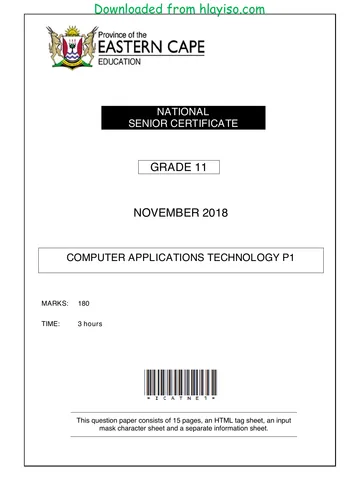
NATIONAL
SENIOR CERTIFICATE
GRADE 11
NOVEMBER 2018
COMPUTER APPLICATIONS TECHNOLOGY P1
MARKS: 180
TIME: 3 hours
This question paper consists of 15 pages, an HTML tag sheet, an input
mask character sheet and a separate information sheet.
Skip to contentAll 2018 papers 
View all
Computer Applications Technology Grade 11 P1 2018 QP (Eng)
Grade 11 Computer Applications Technology Paper 1 question paper from the Eastern Cape November 2018 (English), 16 pages. Read online or download the free PDF.
Computer Applications Technology · Grade 11 · Eastern Cape November · 2018. Question paper, 16 pages. Read online or download the PDF.
- Subject
- Computer Applications Technology
- Grade
- Grade 11
- Document type
- Question paper
- Year
- 2018
- Exam period
- Eastern Cape November
- Paper
- 1
- Curriculum
- CAPS
- Pages
- 16
- File size
- 1.1 MB
Free to read online, no sign-up needed
Loading document…
Loading document…
1 of 16
This exam
Questions in this paper
Document textSearch extracted text and jump to a page.
Downloaded from hlayiso.com
2 COMPUTER APPLICATIONS TECHNOLOGY P1 (EC/NOVEMBER 2018)
INSTRUCTIONS AND INFORMATION
1. Owing to the nature of this three-hour examination, it is important to note that
you will NOT be permitted to leave the examination room before the end of
the examination period.
2. The invigilator will give you a disk containing ALL the files needed for the
examination OR you will be told where the files can be found on the network
or computer. If a disk has been issued to you, you must write your centre
number and examination number on the label. If you are working on the
network, you must follow the instructions provided by the invigilator.
3. A copy of the master files will be available from the invigilator. Should there
be any problems with a file, you may request another copy from the
invigilator.
4. This question paper consists of SIX questions.
5. Answer ALL the questions.
6. Ensure that you save each document using the file name given in the
question paper. Save your work at regular intervals as a precaution against
possible power failures.
7. Read through EACH question before answering or solving the problem. Do
NOT do more than required by the question.
8. At the end of the examination you must hand in the disk given to you by the
invigilator with ALL the files saved on the disk, OR you should make sure that
ALL the files are saved on the network/computer as explained to you by the
invigilator/teacher. Make absolutely sure that ALL files can be read.
9. During the examination you may make use of the help functions of the
programs which you are using. You may NOT use any other resource
material.
10. If data is derived from a previous question that you cannot answer, you
should still proceed with the questions that follow.
11. Unless instructed otherwise, you must use formulae and/or functions for ALL
calculations in questions involving spreadsheets. Use absolute cell
references only where necessary to ensure that formulae are correct when
you copy them to other cells in a spreadsheet.
12. In all questions involving word processing, you should set the language to
English (South Africa). The paper size is assumed to be A4 Portrait, unless
instructed otherwise.
Copryright reserved Please turn over
Downloaded from hlayiso.com
(EC/NOVEMBER 2018) COMPUTER APPLICATIONS TECHNOLOGY P1 3
13. In Annexure A the HTML Tag sheet is provided.
14. The examination folder/data disk that you receive with this question paper will
contain the folder and files listed below. Ensure that you have the folder and
all the files before you begin this examination.
Copyright reserved Please turn over
Downloaded from hlayiso.com
4 COMPUTER APPLICATIONS TECHNOLOGY P1 (EC/NOVEMBER 2018)
SCENARIO
Ubuntu – Humanity Stokvel is an investment society to which members regularly
contribute an agreed amount and from which they receive a lump sum payment. Your
mother is a member of this Stokvel.
In December they will be going on holiday to Mauritius. They asked you to help them
with finding information about Mauritius, bookings, payments and look for places to
visit.
QUESTION 1: WORD PROCESSING
A document that shows the various tourist attractions in Mauritius was created.
Open the 1 Mauritius Tourist Attractions word processing document.
1.1 Insert a cover page in the document where the following must be displayed:
x Choose a Filigree cover page.
x Type in the document name as “Mauritius Tourist Attractions” and insert
today’s date in the space provided. (3)
1.2 Modify the style Heading 2 as follows:
x Font: 14 pt, bold, any dark blue colour.
x Paragraph spacing: 6 pt After Heading.
x Apply the modified style to all Heading 2 headings. (5)
1.3 Modify the existing table of contents to display headings formatted with the
Heading 1 and Heading 2 styles. (1)
1.4 Format the first paragraph as follows:
x Only the top and bottom paragraph borders are displayed.
x Border thickness – ‘Width’ = 2¼ pt.
x The paragraph is shaded in yellow. (3)
1.5 Locate the letter M found in the second paragraph under the heading
Mauritius Botanical Garden.
x Add a drop cap effect for the letter M to drop over 2 lines.
x The distance from the text should be set to 2 cm. (2)
1.6 Insert a caption to the first picture on the document. The caption must be
formatted as follows:
x Name of caption must be “Bot Gardens I”.
x Numbering – Roman figures in capital letters.
x The position of the caption must be above the picture. (3)
Copryright reserved Please turn over
Downloaded from hlayiso.com
(EC/NOVEMBER 2018) COMPUTER APPLICATIONS TECHNOLOGY P1 5
1.7 Format the paragraph under the heading “Île aux Cerfs Island” to resemble
the picture below.
NOTE:
x The size of the picture must be exactly 4 cm x 4 cm.
x Use the correct picture wrapping and paragraph alignment. (3)
1.8 Locate the shaded word “Port Louis” under the heading Port Louis.
Add a footnote to the word and the footnote must read: “The Port is named in
honour of King Louis XV.” (2)
1.9 Locate the highlighted text below the paragraph Grand Bassin and insert the
citation to the source Mark. The year in the citation must not show. (2)
1.10 Find all occurrences of the word “Visitors” and replace them with the word
“Tourists”. (2)
1.11 Locate the text “Most famous Waterfalls in Mauritius” and add picture bullets
on the list below. Use the picture 1 Bullet found in your folder as your picture
bullet. (2)
1.12 Insert an automatic bibliography under the heading Bibliography. (2)
1.13 The table of figures in the last page shows 5 pictures. Modify it to show all 6
pictures in the document. (2)
1.14 Insert automatic page numbering:
x In the header.
x Display numbers from the third page of the document; numbering must
start at 1.
x The numbering must be displayed in the centre. (4)
[36]
Copyright reserved Please turn over
Downloaded from hlayiso.com
6 COMPUTER APPLICATIONS TECHNOLOGY P1 (EC/NOVEMBER 2018)
QUESTION 2: WORD PROCESSING
While in Mauritius, the Stokvel group will award the founding members of the group.
The founding members are people who are 60 years and older. The group asked you
to create certificates for them. They gave you the list of the recipients in a spreadsheet
file.
Open the 2 Certificate word processing document.
2.1 Change the orientation of the page to landscape. (1)
2.2 Insert the picture 2 Humanity and resize it to 1.5 cm both height and width.
Format the picture and the heading Ubuntu – Humanity Stokvel that is typed
in WordArt, to be one picture. (3)
2.3 Format the text “Certificate of Appreciation” to font size 36, font colour red and
centre the text. (3)
2.4 Insert an Art page border of your choice. (2)
2.5 Insert today’s date on the place marked Date and set it to update
automatically. (2)
2.6 You want to create one certificate for all recipients.
Prepare the mail merge as follows:
x Use the Members worksheet of the 2 Members of Stokvel spreadsheet
as the data source.
x Only those who are 60 years and older will get certificates.
x Sort the members ascending according to Surnames.
x Add the merge fields, Surname, Name and Gender in the spaces provided
in the document.
x Save the 2 Members of Stokvel document before completing the merge.
x Complete the mail merge and save the new merged document as
2 Complete letters. (5)
[16]
Copryright reserved Please turn over
Downloaded from hlayiso.com
(EC/NOVEMBER 2018) COMPUTER APPLICATIONS TECHNOLOGY P1 7
QUESTION 3: SPREADSHEET
You were asked to calculate the projected expenditure of the tour to Mauritius.
Open the 3 Stokvel Expenditure spreadsheet and work in the Expenditure
worksheet.
3.1 Format the cells in row 1 to 5 as follows:
x Change the merged cell to include cells A1:J5.
x Apply a ‘red two colours diagonal down shading to the merged cell.
x Apply any fill effect
x Centre the text horizontally and vertically. (4)
3.2 Change the formatting of row 6 without enlarging the cell so that all data is
visible. (1)
3.3 Use the spreadsheet feature to ensure that the contents in only column 1 and
2 remain on the screen if the user scrolls to the right. (2)
3.4 Use a spreadsheet feature to show the 3 youngest people on the trip. Format
the answer to a light blue font colour. (3)
3.5 In cell H7, use a formula to calculate the amount each person has to pay for
his/her stay in Mauritius. Price per day reflects in L1. Change to South African
currency with no decimal places. Copy the formula to all cells below. (3)
3.6 Some members of the Stokvel have already paid some money. In cell I7,
calculate the outstanding amount for Allen. (2)
3.7 Since this is an overseas trip, a levy will be charged from the total amount
each person pays for the trip.
Use a formula in cell K7 to calculate the levy that Allen must pay. Use the
percentage in cell L3 in your calculation. (2)
3.8 In cell L7, use a formula to calculate the amount each person is supposed to
pay, taking into consideration the discounts and levies charged. (3)
3.9 In cell D79, use a function to calculate the age of the second eldest person in
the group. (3)
3.10 In cell D81, use a function to calculate how many women are part of the group
going to Mauritius. (3)
3.11 In cell D83, use a function to calculate the number of people who have not yet
paid the deposit. (2)
Copyright reserved Please turn over
Downloaded from hlayiso.com
8 COMPUTER APPLICATIONS TECHNOLOGY P1 (EC/NOVEMBER 2018)
3.12 In cell E85, use a function to calculate the total amount of deposits paid by
people who will be staying at Pearle Beach. (4)
3.13 Each person that paid a deposit received a discount as indicated in column J.
Use a function in E87 to determine the average of the discount per person for
the Shanti Maurice Hotel and use a function to round off the answer to zero
decimal places. (7)
Graph Worksheet
3.14 Use the information provided, to create a graph that will show the percentage
of visitors each hotel will host from the total Stokvel members.
NOTE:
x The graph must be a 3D graph.
x It must have a suitable title.
x The graph must show percentage data labels.
x The legend must be on the right.
x The hotel with the highest percentage must be formatted with the 3 Ocean
picture which you will find in your data folder and be drawn out.
x The chart area must be formatted with any gradient fill with 100%
brightness. (9)
3.15 Move the graph from the Graph worksheet to a new worksheet and name it
My Chart. (2)
[50]
Copryright reserved Please turn over
Downloaded from hlayiso.com
(EC/NOVEMBER 2018) COMPUTER APPLICATIONS TECHNOLOGY P1 9
QUESTION 4: DATABASE
A database was created for keeping track of the Stokvel members’ details for future
reference.
Open the 4 Stokvel Database.
4.1 Format the Stokvel Design table as follows:
4.1.1 Set a Primary Key to the most suitable field in the table. (1)
4.1.2 Change the row height to 25 pt. (1)
4.1.3 Set the background colour of table to maroon 1 and gridlines colour to
dark blue. (2)
4.1.4 Change the IDNo field so that this field is never left empty. (1)
4.1.5 Create an input mask on the Cell Number field to ensure that the user
inserts a cell number as follows:
x Ten compulsory numbers
x In the format (000)0000000 (3)
4.1.6 Add a drop-down list to the Hotel field to include the following:
x La Plantation Hotel
x Mon Choisy Beach
x Pearle Beach
x Shanti Maurice (3)
4.1.7 Change data type for the Deposit field to an appropriate type. (1)
4.1.8 Add a validation rule to the Age field so that it accepts only the values
between 16 and 80. Add a suitable validation message so that the
entry will be appropriate. (3)
Continue working in the 4 Stokvel database.
4.2 A form called Members based on the Stokvel Members table has been
created. Modify the form as follows:
x Change the name of the form to Form4_2.
x The Surname field must not display, but must not be deleted.
x Change the property of the image control so that the whole image is visible.
x Change the font colour of heading Stokvel Members to red and the
background colour of the Form Header to yellow.
x Add a control tip (Check if ‘yes’) to the Dietary Requirements field.
x Enter your Name and Surname in the form footer.
x Set the properties of the form so that users will not be able to delete any
data. (10)
Copyright reserved Please turn over
Downloaded from hlayiso.com
10 COMPUTER APPLICATIONS TECHNOLOGY P1 (EC/NOVEMBER 2018)
Queries
4.3 Create a query called Qry4_3 based on the Stokvel Members table.
x Display only the Name and CellNo. fields.
x Display only the records of the female Stokvel members who are
Vodacom subscribers and whose numbers begin with 082 or 072. (5)
4.4 The organisers expect a minimum of R2000.00 to be paid by now.
Modify the query Qry4_4 to display the Surname, Name, Deposit and
Hotel fields of Customers from the Maritime Crystals Beach Hotel that had
paid the required amount and more. Sort the query according to Surname
in ascending order. (6)
4.5 Create a report called Rpt4_5 based on the Stokvel Members table.
x Display only the fields Surname, Name, Gender, Hotel, Deposit and
No. of Days in this order.
x Group the report based on the Hotel field.
x Sort the report based on the No of Days field.
x Calculate in a group footer the amount deposited by members for each
hotel and set the currency to rand.
x Include proper labels for your calculations. (9)
[45]
Copryright reserved Please turn over
Downloaded from hlayiso.com
(EC/NOVEMBER 2018) COMPUTER APPLICATIONS TECHNOLOGY P1 11
QUESTION 5: WEB DESIGN (HTML)
A website was created to give information about the tour to Mauritius.
Open the incomplete 5 Mauritius web page in a web browser and also in a text
HTML editor, e.g. Notepad (Not a word processing program like Word).
NOTE:
x Question numbers are inserted as comments in the coding as guidelines to show
approximately where the answer(s) should be inserted.
x An HTML tag sheet has been attached for reference.
Your final web page should look like the example below.
Copyright reserved Please turn over
Downloaded from hlayiso.com
12 COMPUTER APPLICATIONS TECHNOLOGY P1 (EC/NOVEMBER 2018)
5.1 Add the HTML code so that the text Mauritius appears in the browser tab. (2)
5.2 Change the background colour of the web page to light blue. (2)
5.3 Insert a horizontal line above and below the picture “5 beach-accessories.jpg”
and the colour of the horizontal line should be red. (3)
5.4 A picture has been inserted at the top of the website, but it does not display
properly.
Modify the picture to display and centre it.
x Insert an alternate text to display “Beach Accessories” if the image does
not display. (4)
5.5 Format the attributes of the list under the heading "What to do” to square
bullets. (2)
5.6 Format the heading “Information” to a red colour. (2)
5.7 The subheadings under the information heading should be made bold as
shown in the screenshot. (2)
5.8 Link the document “5 Mauritius flyer.pdf” to the words “Click here” displayed
at the end of the webpage. (3)
[20]
Copryright reserved Please turn over
Downloaded from hlayiso.com
(EC/NOVEMBER 2018) COMPUTER APPLICATIONS TECHNOLOGY P1 13
QUESTION 6: GENERAL
A form has been created for members of the Stokvel.
Open 6 Registration Form and do the following:
6.1 In paragraph 2 make necessary changes to the form to resemble the one
below:
x Insert a 2 ¼ pt yellow paragraph border around the paragraph.
x Insert a telephone symbol next to Tel. The symbol is a Webdings
201-character. (4)
6.2 Format the checkbox form field near Mr. to be 12 pt exactly. (1)
6.3 Next to Family Name, insert a text form field which is in uppercase and has a
maximum length of 12 characters. (3)
6.4 Insert a dropdown list on the special dietary requirements to the three options
given. (2)
6.5 Insert the file path as a field in the centre of the footer. (3)
[13]
TOTAL: 180
Copyright reserved Please turn over
Downloaded from hlayiso.com
14 COMPUTER APPLICATIONS TECHNOLOGY P1 (EC/NOVEMBER 2018)
ANNEXURE A – HTML TAG SHEET
(Basic Tags) Formating Tags continued
Tag Description Tag Description
<body></body> Defines the body of the web <li></li> Inserted before each list item,
Page and adds a number or symbol
<body Sets the background colour of depending upon the
bg color="pink"> the web page type of list selected
<body text="black"> Sets the colour of the body text <img src="name"> Adds an image
<head></head> Contains information about the <img src="name" Aligns an image: can also be
document align="left"> "right", "center"; "bottom",
"top", "middle"
<html></html> Creates an HTML document – <img src="name" Sets size of border around
starts and ends a web page border="1"> an image
<title></title> Defines a title for the document <img src="name" Sets the height and width of an
<!-- --> Kommentaar width="200" image
height
="200">
Text Tags <img src="name" Displays alternative text when
Tag Description alt="alternative the mouse hovers over the
<hl></hl> Creates the largest heading text"> image or when the image is
not found
<h6></h6> Creates the smallest heading <hr/> Inserts a horizontal line
<b></b> Creates bold text <hr size="3"/> Sets size (height) of line
<i></i> Creates italic text
<font Sets size of font, from "1" to "7" <hr width="80%"/> Sets width of line, in
size="3"></font> percentage or absolute value
<font Sets font colour <hr Sets the colour of the line
color="green"></font color="ff0000"/>
>
<font face="Times Sets font type Table Tags
New Roman"></font>
Link Tags Tag Description
Tag Description <table></table> Creates a table
<a href="URL"></a> Creates a hyperlink <tr></tr> Creates a row in a table
<a href="URL"><img Creates an image link <td></td> Creates a cell in a table
src="URL"></a>
<a name="NAME"></a> Creates a target location <th></th> Creates a table header (a cell
<a href="#NAME"></a> with bold, centered text)
Links to a target location created
somewhere else in the document
Formating Tags <table Sets the width of the table
width="50">
Tag Description <table Sets the width of the border
border="1"> around the table cells
<p></p> Creates a new paragraph <table Sets the space between the
cellspacing="1"> table cells
<p align="left"> Aligns a paragraph to the "left" <table Sets the space between a cell
(default), can also be "right", or cellpadding="1"> border and its contents
"center"
<br/> Inserts a line break <tr align="left"> Sets the alignment for cell(s)
<ol></ol> (can also be "center" or "right")
Creates a numbered list
<ol type="A","a", Defines the type of numbering <tr valign="top"> Sets the vertical alignment for
"I","i","1"></ol> used cell(s) (can also be "middle" or
"bottom")
<ul></ul> Creates a bulleted list <td colspan="2"> Sets the number of columns a
cell should span
<ul type="disc", Defines the type of bullets used <td rowspan="4"> Sets the number of rows a cell
"square","circle"></ should span
ul>
Copryright reserved Please turn over
Downloaded from hlayiso.com
(EC/NOVEMBER 2018) COMPUTER APPLICATIONS TECHNOLOGY P1 15
INPUT MASK CHARACTER SHEET
CHARACTER DESCRIPTION
0 Digit (0 to 9, entry required, plus [+] and minus [–] signs not allowed)
9 Digit or space (entry not required, plus [+] and minus [–] signs not allowed)
Digit or space (entry not required; spaces are displayed as blanks while in Edit
# mode, but blanks are removed when data is saved; plus [+] and minus [–] signs
allowed)
L Letter (A to Z, entry required)
? Letter (A to Z, entry optional)
A Letter or digit (entry required)
a Letter or digit (entry optional)
& Any character or a space (entry required)
C Any character or a space (entry optional)
Decimal placeholder and thousand, date and time separators (The actual character
.,:;-/ used depends on the settings in the Regional Settings Properties dialog box in the
Windows Control Panel.)
< Causes all characters to be converted to lower case.
Causes all characters to be converted to upper case to right. You can include the
>
exclamation point anywhere in the input mask.
Causes the input mask to display from right to left, rather than from left to right.
!
Characters typed into the mask always fill it from left to right.
Causes the character that follows to be displayed as the literal character (for
\
example, \A is displayed as just A)
Copyright reserved Please turn over
Downloaded from hlayiso.com
Study this subject
Recommended for this subject
Question paper
Computer Applications Technology Grade 11 P1 2018 QP (Afr)
Question paper
Computer Applications Technology Grade 11 P1 2018 QP (Afr)
Question paper
Computer Applications Technology Grade 11 P1 2018 QP (Eng)
Memorandum
Computer Applications Technology Grade 11 P1 2018 Memo (Afr)
Memorandum
Computer Applications Technology Grade 11 P1 2018 Memo (Eng)
Question paper