
Downloaded from hlayiso.com
NATIONAL SENIOR CERTIFICATE EXAMINATION
NOVEMBER 2018
COMPUTER APPLICATIONS TECHNOLOGY: PAPER II
Time: 3 hours 180 marks
PLEASE READ THE FOLLOWING INSTRUCTIONS CAREFULLY
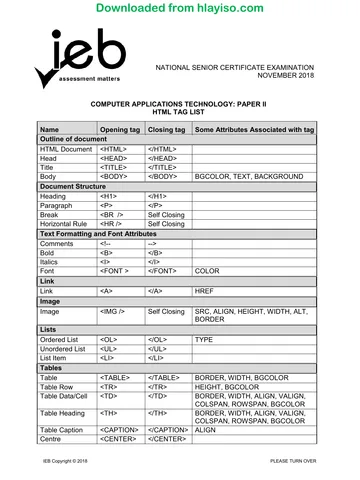
1. This question paper consists of 16 pages and an insert (HTML Tag List and Input
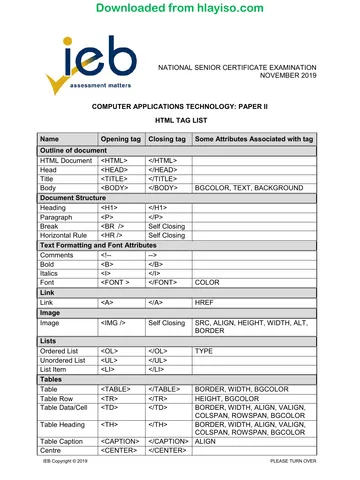
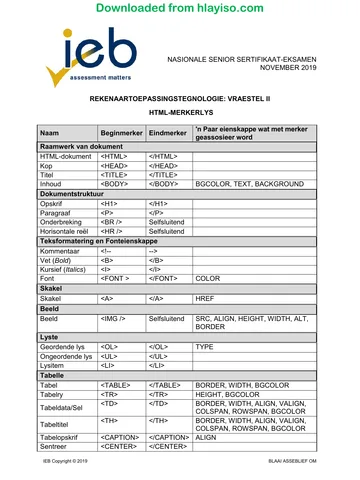
Mask Character Sheet) of two pages. Please check that your question paper is
complete.
2. You may only use a text-based editor for the HTML section, namely Notepad,
Notepad++, WordPad or Komodo text editor.
3. You must answer ALL the questions. Please read the entire question before
attempting a solution. Do not do more than is required by the question.
4. Take note of the mark allocation to ascertain the complexity of the solution required
and the amount of time to spend on each question.
5. Save your work regularly.
6. If a formula/function such as a complicated if statement does not work, indicate the
question number, give a brief explanation, and paste a screenshot of the
spreadsheet or database into the Screenshots document to obtain part marks;
you may then leave it out of the spreadsheet or database solution.
7. Make a backup copy of all database files before you start your examination.
8. All word-processing documents should be set up as follows (unless other
instructions are given)
• The default for measuring units – centimetres (cm)
• Language – English (South Africa)
• Page size – A4
• Margins – 2,54 cm
9. Note that you may use the offline help function available in each application.
IEB Copyright © 2018 PLEASE TURN OVER
Skip to contentQuestion paper 

View all
Computer Applications Technology Grade 12 IEB P2 2018 QP
IEB Grade 12 Computer Applications Technology Paper 2 question paper from the 2018, 16 pages. Read online or get the free PDF download, memo linked when available.
Publisher: IEB
Computer Applications Technology · Grade 12 · 2018. Question paper, 16 pages. Read online or download the PDF.
- Subject
- Computer Applications Technology
- Grade
- Grade 12
- Document type
- Question paper
- Year
- 2018
- Paper
- 2
- Publisher
- IEB
- Curriculum
- IEB
- Pages
- 16
- File size
- 664.7 KB
Loading document…
Loading document…
1 of 16
Document textSearch extracted text and jump to a page.
Downloaded from hlayiso.com
NATIONAL SENIOR CERTIFICATE: COMPUTER APPLICATIONS TECHNOLOGY: PAPER II Page 2 of 16
10. Figures in the question paper have a border. When a figure is provided as part of a
question, you are not expected to add the border unless specifically instructed to do
so.
11. All data files listed in Instruction 12 can be found on the network drive that has been
allocated for this examination. Please note that all solutions must be saved to your
examination folder on this network drive.
12. You have been supplied with an examination folder called LearnerFiles. In this folder
are two folders of which one is hidden. Refer to Figure 1 below and check that the
following folders and files exist in LearnerFiles:
Figure 1
The Website folder contains two files and one subfolder. Refer to Figure 2 below.
Figure 2
The Images subfolder within the Website folder contains three files. Refer to
Figure 3 below.
Figure 3
IEB Copyright © 2018
Downloaded from hlayiso.com
NATIONAL SENIOR CERTIFICATE: COMPUTER APPLICATIONS TECHNOLOGY: PAPER II Page 3 of 16
Read the scenario below that describes the background to the practical tasks you are
required to perform.
SCENARIO
Your school has been selected to organise and run this year's edition of the inter-schools'
athletics competition. The sports department is seeking assistance from the Grade 12
learners for various duties. You have chosen to assist with the computer applications duties.
QUESTION 1 File and Folder Management
1.1 A folder, called LearnerFiles, containing the data files for this examination has
been provided to you. Rename this folder to your examination number. (1)
1.2 Change the folder properties of your examination folder to display the file
extensions. Take a screenshot and insert it in the file called
q1FileAndFolderManagement.docx. (1)
1.3 In your examination folder, there is a compressed folder called SchoolTeams.
Extract this folder to a new folder called NewTeams2018. (2)
1.4 There is a hidden folder called OldFiles2017 in your examination folder.
Locate this folder and change its properties so that it is no longer hidden. (2)
1.5 Edit the document properties of the file called TeamsAttending.docx so that
your exam number appears as an additional author. Take a screenshot and
insert it in the file called q1FileAndFolderManagement.docx. (2)
1.6 Locate the file created by Jessica Mankowski. Take a screenshot showing the
search criteria and the search results and insert it in the space provided in
q1FileAndFolderManagement.docx. (2)
1.7 Whilst using Excel, the computer you have been assigned to use displays the
following message on the screen.
Figure 4
Check the amount of RAM on your computer, record it in the space provided
and then insert a screenshot showing how much RAM is available in
q1FileAndFolderManagement.docx. (2)
IEB Copyright © 2018 PLEASE TURN OVER
Downloaded from hlayiso.com
NATIONAL SENIOR CERTIFICATE: COMPUTER APPLICATIONS TECHNOLOGY: PAPER II Page 4 of 16
1.8 On further investigation you suspect that the computer may have a
fragmented hard disk. Give the steps you would take to analyse and
defragment the disk. Type your answer in the space provided in
q1FileAndFolderManagement.docx. (4)
1.9 Open the text editor you are using for HTML development. In the help tab
click the "About …" button and take a screenshot of the pop-up that shows
the information about the text editor you are using and insert it in the space
provided in the q1FileAndFolderManagement.docx. Refer to the example
shown below:
Figure 5
(1)
Save and close the file q1FileAndFolderManagement.docx.
1.10 Create a new folder in your examination folder and name it AnswerFiles-
YourExamNumber. (1)
1.11 Move q1FileAndFolderManagement.docx to the folder AnswerFiles-
YourExamNumber. (1)
[19]
IEB Copyright © 2018
Downloaded from hlayiso.com
NATIONAL SENIOR CERTIFICATE: COMPUTER APPLICATIONS TECHNOLOGY: PAPER II Page 5 of 16
QUESTION 2 Word Processing
An event brochure must be prepared for the athletics competition at the school. Open the
document called q2EventBrochure.docx and perform the following tasks to produce the
final brochure.
2.1 Adjust the page setup as follows:
2.1.1 Change the orientation to landscape. (1)
2.1.2 Ensure that the margins are 1,5 cm all round. (2)
2.1.3 Change the size of the page to 29 cm wide and 20 cm high. (2)
2.2 Columns will be used to enhance the layout of the document. Modify the
document as follows:
2.2.1 Change the layout of the whole document so that it has three columns. (2)
2.2.2 Ensure that each column has a width of 7,5 cm. (2)
2.2.3 Insert a line between the columns. (1)
2.3 Add an image as directed below:
2.3.1 Insert the image called Track-and-Field.jpg from the Images
subfolder in the Website folder at the top of the middle column and
position it to the left relative to the column. (3)
2.3.2 Resize the image so that it has a height and width of 2 cm. (3)
2.3.3 Ensure that text is wrapped tightly and appears only to the right of
the image. (1)
2.3.4 Insert the text "200 m Race" as a caption below the image. (1)
2.4 Find the text "Behavioural Benefits" and insert the following endnote:
Sport does build character! (3)
2.5 Highlight the last paragraph in yellow. (1)
Insert your exam number in the header of the document. Save the file as
q2EventBrochure-YourExamNumber.docx in the folder called AnswerFiles-
YourExamNumber that you created earlier.
[22]
IEB Copyright © 2018 PLEASE TURN OVER
Downloaded from hlayiso.com
NATIONAL SENIOR CERTIFICATE: COMPUTER APPLICATIONS TECHNOLOGY: PAPER II Page 6 of 16
QUESTION 3 Word Processing
All correspondence about the athletics competition will be printed on a letterhead.
3.1 Design the letterhead template as instructed below:
3.1.1 Open a new Word document and save it as q3LetterHead-
YourExamNumber.docx in the folder called AnswerFiles-
YourExamNumber that you created earlier. (1)
3.1.2 In the header section, insert a table with two columns and one row. (2)
3.1.3 Split the first column so that it has two rows. (1)
3.1.4 Resize the first column so that it is 12 cm wide and the second is
4 cm wide. (1)
3.2 Insert WordArt into the first row of the first column. The text should read:
You may choose any WordArt style. (1)
3.3 In the centre of the second row of the first column insert the following text
as superscript:
"Honesty, Commitment, Character" (2)
3.4 Add the following text in the last column:
P. O. Box 4598
Green Acres
(011) 645 7891
admin@dsaths.org
www.dsaths.org (1)
3.5 Ensure that the only border that is visible is the bottom border. Refer to the
example given below.
Figure 6 (1)
IEB Copyright © 2018
Downloaded from hlayiso.com
NATIONAL SENIOR CERTIFICATE: COMPUTER APPLICATIONS TECHNOLOGY: PAPER II Page 7 of 16
3.6 The letterhead must also include a footer.
3.6.1 Enter the text as shown in the figure below into the footer.
Figure 7 (1)
3.6.2 Use the Arial font for the text. (1)
3.6.3 Insert a line just above the text in the footer. (1)
3.6.4 Ensure that only the footer is visible in subsequent pages. (2)
Save the letterhead.
3.7 Save the letterhead as a template called q3LHTemplate-
YourExamNumber in the folder called AnswerFiles-YourExamNumber
that you created earlier. (1)
[16]
IEB Copyright © 2018 PLEASE TURN OVER
Downloaded from hlayiso.com
NATIONAL SENIOR CERTIFICATE: COMPUTER APPLICATIONS TECHNOLOGY: PAPER II Page 8 of 16
QUESTION 4 Mail Merge
Open the Word document called q4MailMerge.docx and prepare the document as
follows.
4.1 Merge the document as follows:
4.1.1 Use the text document called Officials.txt as the data source. (1)
4.1.2 Filter the data so that only officials who are managers receive the
form. (1)
4.1.3 Replace the text <<Name>>, <<Surname>>, <<Team>> and
<<Designation>> with the appropriate fields from the data source. (2)
4.2 Insert radio buttons next to the Team Gender label as follows:
4.2.1 Insert a 5 cm left tab stop with a dotted leader between the label and
the first radio button. (1)
4.2.2 The managers should be able to choose from only the following
options:
Co-Ed, Boys, Girls (2)
4.2.3 Edit the properties of the radio buttons so that the Co-Ed button is
selected by default. (1)
4.3 Insert a text input field at the 5 cm tab stop so that managers can input
team captains' names. (1)
4.4 Insert a date picker at the 5 cm tab stop so that the date of completion of
this form can be recorded. (1)
4.5 Finish and merge the document so that only the first two records are saved
as individual documents. Save the documents as q4MergeRec_1.docx and
q4MergeRec_2.docx in the folder called AnswerFiles-YourExamNumber
that you created earlier. (4)
4.6 Restrict editing so that users can only fill in the forms. Leave the password
blank. (2)
Save the merged document as q4MailMerge-YourExamNumber in the folder
called AnswerFiles-YourExamNumber that you created earlier.
[16]
IEB Copyright © 2018
Downloaded from hlayiso.com
NATIONAL SENIOR CERTIFICATE: COMPUTER APPLICATIONS TECHNOLOGY: PAPER II Page 9 of 16
QUESTION 5 Spreadsheets
5.1 Open the spreadsheet called q5_1Officials.xlsx and make the following
changes:
5.1.1 Change the colour of the Officials tab to green. (1)
5.1.2 Apply the following changes to the range A1 to F1:
(a) Merge the cells A1 to F1. (1)
(b) Align the text to the right. (1)
(c) Change the font size to 22 pt. (1)
(d) Change the fill of the merged cells so that they have a green
thin diagonal crosshatch pattern. (2)
(e) Ensure that the merged cells have a double-line border. (1)
5.1.3 Filter the data so that only the coaches are visible. (3)
5.1.4 The single-sex schools are paired by gender so that they make up
one team with both boys and girls. A random selection must be made
for this pairing. The girls' schools have already been assigned a
number between 1 and 4.
Use any appropriate functions or formulas and column G to assign a
random number between 1 and 4 to the boys' schools. Ensure that
there are no duplicate numbers assigned. The random number
between 1 and 4 that is generated must appear in column F. (4)
5.1.5 Use conditional formatting for the cells in column E as follows:
(a) All co-ed schools must have a green strikethrough font. (2)
(b) All boys' schools must have a blue fill. (1)
(c) All girls' schools must have a solid thin outline border. (1)
Save the spreadsheet as q5_1Officials-YourExamNumber in the folder
called AnswerFiles-YourExamNumber.
IEB Copyright © 2018 PLEASE TURN OVER
Downloaded from hlayiso.com
NATIONAL SENIOR CERTIFICATE: COMPUTER APPLICATIONS TECHNOLOGY: PAPER II Page 10 of 16
5.2 Open the spreadsheet called q5_2Athletes. Note that the spreadsheet
contains the following worksheets and data:
• Athletes – the data of all athletes entered for the competition
• Competition_Details – the details of venue, dates and organisers
• Classification – a table with classification codes and corresponding
descriptions
• Summary – a summary of statistics
Make the following changes to the worksheet labelled Athletes.
5.2.1 The South African ID number is set up as shown in the figure below:
Figure 8
[Source: <http://compareguru.co.za>]
Characters 7 to 10 are assigned a value from 0000 to 4999 for females,
while a value from 5000 to 9999 is assigned for males. Essentially, the
seventh character indicates the gender of the person. If it is greater than 4,
the person is male, otherwise the person is female. In cell D2 insert a
function to determine the gender of the athlete and copy the function to
D3:D199. Note that the first five results should appear as shown below:
Figure 9 (7)
IEB Copyright © 2018
Downloaded from hlayiso.com
NATIONAL SENIOR CERTIFICATE: COMPUTER APPLICATIONS TECHNOLOGY: PAPER II Page 11 of 16
5.2.2 The cut-off date for the calculation of age groups is given in the
worksheet called Competition_Details. Use the date given in B6 and the
date of birth of each athlete (Column E) to determine the age group into
which each athlete falls in column G in the Athletes worksheet. Ensure
that the date is rounded down and that there are no decimal places. (4)
5.2.3 In cell I2, use an HLOOKUP function to determine the qualification of
the athlete given the classification in column F. Expand the calculation
to cell I199. (3)
Note that all the changes below must be applied to the worksheet labelled
Summary.
5.2.4 In cells B2 to B11, determine the number of athletes per school. (4)
5.2.5 In cell B13, determine the ratio of the number of athletes with a
"National Standard" classification to the total number of athletes. Format
your answer as a percentage. (6)
5.2.6 Create a chart in the Summary worksheet as directed below:
(a) Use the data given in A16:B22. (1)
(b) The chart type must be 3D Pie Chart. (1)
(c) The legend must appear to the right of the chart. (1)
(d) Change the legend's text colour to white. (1)
(e) Use the image called Track-and-Field.jpg from the Images
subfolder in the Website folder as a background to the chart. (2)
(f) The chart title "Number of Athletes Per Age Group" must appear
at the top of the chart. (1)
Your chart should be similar to the one shown below:
Figure 10
Save the document as q5_2Athletes-YourExamNumber in the folder called
AnswerFiles-YourExamNumber.
[49]
IEB Copyright © 2018 PLEASE TURN OVER
Downloaded from hlayiso.com
NATIONAL SENIOR CERTIFICATE: COMPUTER APPLICATIONS TECHNOLOGY: PAPER II Page 12 of 16
QUESTION 6 Databases
The actual meeting recording and race management will be done using a
database called q6EventManagement.accdb. Follow the instructions below to
prepare the database for use on the day(s) of the competition.
Open the database called q6EventManagement.accdb.
6.1 All the changes below must be applied to the table called tblAthletes.
6.1.1 Modify the table so that a suitable field is set as the primary key. (2)
6.1.2 Use an appropriate method to ensure that 13 digits between zero
and nine only, can be entered in the NAT_ID field. (3)
6.1.3 Use a list box so that users can only enter "Male" or "Female" in the
gender field. (3)
6.1.4 Modify the SCHOOL field so that it looks up its value from tblSchool.
Ensure that only the SchoolName field appears. (3)
6.2 Create a relationship between the CLASSIFICATION field in tblAthletes and
the CODE field in tblClassification as follows:
6.2.1 The relationship must be a one-to-many relationship. (2)
6.2.2 Ensure that data updated in tblClassification is also automatically
updated in tblAthletes. (2)
6.3 Modify the tblEventManager table so that an athlete can only be entered
once per event. (2)
6.4 Modify the DESCRIPTION field in the tblClassification table as instructed
below. In the event that you encounter warnings, click "Yes" to continue and
"Yes" again to test data with the new rules.
6.4.1 Change the field size to 25 characters. (1)
6.4.2 Ensure that the field can never be left blank. (1)
6.4.3 Ensure that there can be duplicated data in the field. (2)
IEB Copyright © 2018
Downloaded from hlayiso.com
NATIONAL SENIOR CERTIFICATE: COMPUTER APPLICATIONS TECHNOLOGY: PAPER II Page 13 of 16
6.5 Create a form as follows:
6.5.1 The form must have all the fields from tblEventList. (2)
6.5.2 The form must have the following fields from tblEventManager:
(a) Athlete
(b) TimeOrDistance
(c) Position (2)
6.5.3 The form must be grouped by tblEventList (1)
6.5.4 Edit the form header so that it reads:
Event Manager (1)
6.5.5 Change the font colour of all labels in the main form to white. (1)
6.5.6 Insert the image called Track-and-Field.jpg from the Images
subfolder in the Website folder as a background stretched over the
entire main form. See example below.
Figure 11 (2)
6.6 Create queries as follows:
6.6.1 Create a query called qryNationalAthletes that will display only the
names and surnames of the athletes who have a classification of
"National Standard". (3)
6.6.2 Create a query called qryClassSummary that will display only the
total number of athletes per classification. Only the DESCRIPTION
field and the number of respective athletes must be displayed. (3)
IEB Copyright © 2018 PLEASE TURN OVER
Downloaded from hlayiso.com
NATIONAL SENIOR CERTIFICATE: COMPUTER APPLICATIONS TECHNOLOGY: PAPER II Page 14 of 16
6.7 Create a report as follows:
6.7.1 Create a report called rptAthletes using the following fields
from tblAthletes:
(i) SURNAME
(ii) FIRST_NAME
(iii) NAT_ID
(iv) CLASSIFICATION
(v) SCHOOL (1)
6.7.2 Group the report by CLASSIFICATION then by SCHOOL. (1)
6.7.3 In the group footer insert a calculation to determine the
number of athletes per CLASSIFICATION. (2)
Save and close the database q6EventManagement.accdb.
[40]
IEB Copyright © 2018
Downloaded from hlayiso.com
NATIONAL SENIOR CERTIFICATE: COMPUTER APPLICATIONS TECHNOLOGY: PAPER II Page 15 of 16
QUESTION 7 HTML
In order to gain support and raise hype about the competition you have decided
to use a website. Apply the following instructions to set up the site.
Note that all the changes below must be applied to the page called index.html in
the Website folder.
7.1 Edit the page so that the title of the index page includes your examination
number. (1)
7.2 Insert the image AthsSportsCentre.jpg in the Images subfolder as
background image for the page. (2)
7.3 Change the heading "Inter-School Athletics – 2018" so that:
7.3.1 It is aligned in the centre. (1)
7.3.2 The font colour is blue. (1)
7.4 Insert the image NewLogo.jpeg in the Images subfolder as follows:
7.4.1 Insert just below the heading. (1)
7.4.2 Adjust the size to 200 px width and 100 px height. (2)
7.4.3 Centre align the image. (1)
7.5 Insert a blue line immediately below the image. (1)
7.6 Find the heading "Track and Field Competitions" and set a hyperlink to the
page called TrackField.html. (2)
Save and close the HTML file index.html.
IEB Copyright © 2018 PLEASE TURN OVER
Downloaded from hlayiso.com
NATIONAL SENIOR CERTIFICATE: COMPUTER APPLICATIONS TECHNOLOGY: PAPER II Page 16 of 16
Open TrackField.html in the Website folder and apply the following changes:
7.7 Insert the following table exactly as it is shown here.
Track Events
100 m 200 m 800 m 1 500 m
Field Events
Long Jump Triple Jump Hammer Throw Discus
Figure 12
To achieve this, follow the instructions given below:
7.7.1 Modify the first and third rows to span four columns each. (2)
7.7.2 Ensure that rows one and three are heading rows. (2)
7.7.3 Ensure that the table has a border of 5 px. (2)
Save and close the HTML file TrackField.html.
[18]
Total: 180 marks
IEB Copyright © 2018
Study this subject
Revise the topics in this paper, then practise them question by question.
- Grade 12 Computer Applications Technology notes
CAPS revision notes with worked examples.
- Computer Applications Technology questions by topic
Past exam questions sorted by CAPS topic, with memos where available.
- Grade 12 Computer Applications Technology quizzes
Short topic quizzes with instant feedback.
- All Grade 12 Computer Applications Technology past papers
Past papers by year, with memos where available.
- Grade 12 IEB past papers
More Computer Applications Technology and other subjects in this collection.
Recommended for this subject
More papers and memos for this grade and subject.
Question paperIEB
Computer Applications Technology Grade 12 IEB P1 2019 QP
Question paperIEB
Computer Applications Technology Grade 12 IEB P1 2019 QP (Afr)
Question paperIEB
Computer Applications Technology Grade 12 IEB P2 2019 QP
Question paperIEB
Computer Applications Technology Grade 12 IEB P2 2019 QP (Afr)
Question paperIEB
Computer Applications Technology Grade 12 IEB P2 2019 QP
Question paperIEB
Computer Applications Technology Grade 12 IEB P2 2019 QP (Afr)
Related documents
Question paperIEB
Computer Applications Technology Grade 12 IEB P2 2018 QP (Afr)
Question paperIEB
Computer Applications Technology Grade 12 IEB P2 2018 QP
Question paperIEB
Computer Applications Technology Grade 12 IEB P2 2018 QP (Afr)
MemorandumIEB
Computer Applications Technology Grade 12 IEB Paper 2 2018 Memo
MemorandumIEB
Computer Applications Technology Grade 12 IEB P2 2018 Memo (Afr)
Question paperIEB
Computer Applications Technology Grade 12 IEB P1 2018 QP
More from Grade 12 Computer Applications Technology
MemorandumIEB
Computer Applications Technology Grade 12 IEB Paper 1 2019 Memo
MemorandumIEB
Computer Applications Technology Grade 12 IEB P1 2019 Memo (Afr)
Question paperIEB
Computer Applications Technology Grade 12 IEB P2 2019 QP
Question paperIEB
Computer Applications Technology Grade 12 IEB P2 2019 QP (Afr)
Question paperIEB
Computer Applications Technology Grade 12 IEB P1 2018 QP (Afr)
MemorandumIEB