
Downloaded from hlayiso.com
NATIONAL SENIOR CERTIFICATE EXAMINATION
NOVEMBER 2019
COMPUTER APPLICATIONS TECHNOLOGY: PAPER II
Time: 3 hours 180 marks
PLEASE READ THE FOLLOWING INSTRUCTIONS CAREFULLY
1. This question paper consists of 12 pages and an insert (HTML Tag List and Input
Mask Character Sheet) of 2 pages (1–2). Please check that your question paper is
complete.
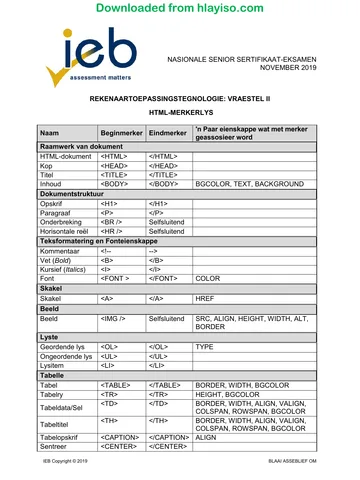
2. You may only use a text-based editor for the HTML section, namely Notepad,
Notepad++, WordPad or Komodo text editor.
3. You must answer ALL the questions. Please read the entire question before
attempting a solution. Do not do more than is required by the question.
4. Take note of the mark allocation to ascertain the complexity of the solution required
and the amount of time to spend on each question.
5. Save your work regularly.
6. If a formula/function such as a complicated if statement does not work, indicate the
question number, give a brief explanation, and paste a screenshot of the
spreadsheet or database into the Screenshots document to obtain part marks;
you may then leave it out of the spreadsheet or database solution.
7. Make a backup copy of all database files before you start your examination.
8. All word-processing documents should be set up as follows (unless other
instructions are given)
• The default for measuring units – centimetres (cm)
• Language – English (South Africa)
• Page size – A4
• Margins – 2,54 cm
9. Note that you may use the offline help function available in each application.
IEB Copyright © 2019 PLEASE TURN OVER
Skip to contentQuestion paper 

View all
Computer Applications Technology Grade 12 IEB P2 2019 QP
IEB Grade 12 Computer Applications Technology Paper 2 question paper from the 2019, 12 pages. Read online or get the free PDF download, memo linked when available.
Publisher: IEB
Computer Applications Technology · Grade 12 · 2019. Question paper, 12 pages. Read online or download the PDF.
- Subject
- Computer Applications Technology
- Grade
- Grade 12
- Document type
- Question paper
- Year
- 2019
- Paper
- 2
- Publisher
- IEB
- Curriculum
- IEB
- Pages
- 12
- File size
- 210.8 KB
Loading document…
Loading document…
1 of 12
Document textSearch extracted text and jump to a page.
Downloaded from hlayiso.com
NATIONAL SENIOR CERTIFICATE: COMPUTER APPLICATIONS TECHNOLOGY: PAPER II Page 2 of 12
10. Figures in the question paper have a border. When a figure is provided as part of a
question, you are not expected to add the border unless specifically instructed to
do so.
11. All data files listed in Instruction 12 can be found on the network drive that has
been allocated for this examination. Please note that all solutions must be saved to
your examination folder on this network drive.
12. You have been supplied with an examination folder called LearnerFiles. In this
folder are two subfolders. Refer to Figure 1 below and check that the following
folders and files exist in LearnerFiles:
Figure 1
The Website folder contains two files and one subfolder. Refer to Figure 2 below.
Figure 2
The Images subfolder within the Website folder contains two files. Refer to
Figure 3 below.
Figure 3
IEB Copyright © 2019
Downloaded from hlayiso.com
NATIONAL SENIOR CERTIFICATE: COMPUTER APPLICATIONS TECHNOLOGY: PAPER II Page 3 of 12
Read the scenario below that describes the background to the practical tasks you
are required to perform.
SCENARIO
As part of your Life Orientation curriculum, you participate in outreach programs
in local areas. Members of a nearby village have decided to start a community
library to improve literacy levels amongst residents.
Some of the work that needs to be done includes maintenance of donated
computer equipment and preparation of relevant documents including a library
management database system and a website.
Using the knowledge you have gained in Computer Applications Technology, you
are to assist the community by performing the following tasks:
QUESTION 1 FILE AND FOLDER MANAGEMENT
1.1 In the examination folder, rename the folder called AnswerFiles- by adding
your Examination Number to the existing folder name. (1)
1.2 Copy the file called q6LibraryDb.accdb to the folder called AnswerFiles-
YourExaminationNumber. (1)
1.3 Locate the MS Excel file called q1_3_PwdFile.xlsx and remove the current
password that is set as "123456". Save the file using the same file name in
the folder called AnswerFiles-YourExaminationNumber. (1)
1.4 Locate the file called q1_4_Accessing_Digital_Information.docx and save
it as a pdf in the folder called AnswerFiles-YourExaminationNumber. (2)
1.5 Insert your Examination Number in the header of the document called
q1_AnswerFile.docx. (1)
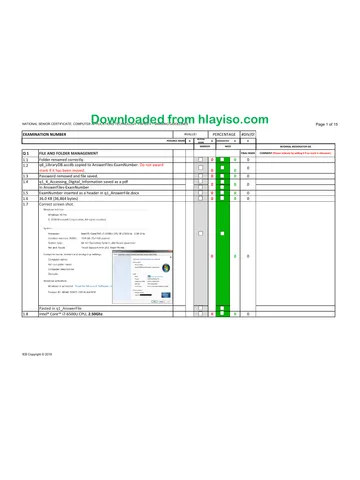
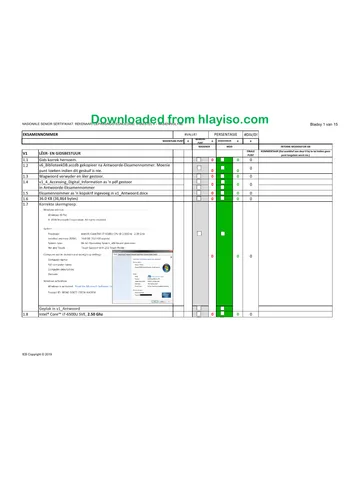
1.6 In the space provided in q1_AnswerFile.docx record the amount of disk
space taken up by the file called books.jpg in the Images subfolder in the
Website folder. (1)
1.7 Take a screen shot of the device specifications of your computer and paste
it in the space provided in q1_AnswerFile.docx. (2)
1.8 Determine the speed of your computer's processor. Record your answer in
the space provided in q1_AnswerFile.docx. (1)
1.9 You notice that one of the computers you have been assigned to use has
little disk space available. You decide to uninstall some unused applications.
Give the steps you would take to uninstall an unwanted program. Type your
answer in the space provided in q1_AnswerFile.docx. (4)
1.10 Create a shortcut in the AnswerFiles-YourExaminationNumber folder that
will open your HTML editor. (3)
1.11 Save the file q1_AnswerFile.docx and edit its properties so that it is read-
only. (2)
[19]
IEB Copyright © 2019 PLEASE TURN OVER
Downloaded from hlayiso.com
NATIONAL SENIOR CERTIFICATE: COMPUTER APPLICATIONS TECHNOLOGY: PAPER II Page 4 of 12
QUESTION 2 WORD PROCESSING
A guide to starting a community library has been typed into the document called
q2_Guide.docx. Prepare the document for publication by doing the following:
2.1 Modify the header and footer as follows:
2.1.1 Insert the current date in the header of the document. (1)
2.1.2 Centre the date in the header. (1)
2.1.3 Set the date to update automatically. (1)
2.1.4 Format the footer to "Blank (Three Columns)". (1)
2.1.5 Insert your examination number in the left of the footer. (2)
2.1.6 Insert page numbers using the plain text format in the right of the
footer. (2)
2.1.7 Delete the content control in the centre of the footer. (1)
2.2 Add an image as directed below:
2.2.1 Use the image books.jpg in the Images subfolder in the Website
folder. (1)
2.2.2 Insert the image at the start of the first paragraph. (2)
2.2.3 Set the text wrapping so that the image appears behind the text. (2)
2.2.4 Set the position of the image so that it is Top Centre relative to the
margin. (2)
2.3 Modify the Heading 1 style as follows:
2.3.1 Change the font size to 18 pt. (1)
2.3.2 Change the font colour from automatic to any colour of your choice. (1)
2.3.3 Change the paragraph spacing to 6 pt before. (1)
2.3.4 Select all text formatted as Heading 2 and apply the style Heading 1
to the selected text. (2)
Save the file as q2_Guide-YourExamNumber.docx in the folder called
AnswerFiles-YourExaminationNumber.
[21]
IEB Copyright © 2019
Downloaded from hlayiso.com
NATIONAL SENIOR CERTIFICATE: COMPUTER APPLICATIONS TECHNOLOGY: PAPER II Page 5 of 12
QUESTION 3 WORD PROCESSING
All members of the library must fill in an application form. Locate the file called
q3_LibraryApplicationForm.docx and modify the document as follows.
3.1 Insert content controls as follows:
3.1.1 Insert a Combo Box Content Control at the given 5 cm tab next to the
"title" label. (1)
3.1.2 The combo box should provide the options Mr, Mrs, Ms, and Other. (1)
3.1.3 Insert appropriate Text Content Controls for the labels "Name" and
"Surname". (2)
3.2 Add a dotted outside border around the labels "Title", "Name" and
"Surname" as well as their Content Controls. (2)
3.3 Use the options "Learner/Student", "School Leaver", "Senior Citizen" and
"Other" to create respective Check Box Content Controls. The check boxes
must appear to the left of the labels. (3)
3.4 Modify the layout of the Check Box Content Controls created in
Question 3.3 so that they appear as two balanced columns while the rest of
the document is a single column. (3)
3.5 Insert a tab in line with the Donation/Registration Fee label as follows:
3.5.1 The tab must be at 14 cm. (1)
3.5.2 The tab must be decimal aligned. (1)
3.5.3 The tab must have leader number 2. (1)
3.6 Insert the text "R150.00" at the tab stop. (1)
Insert your Examination Number in the header of the document.
Save the application form as q3_LibraryApplicationForm-
YourExaminationNumber.docx in the folder called AnswerFiles-
YourExaminationNumber.
[16]
IEB Copyright © 2019 PLEASE TURN OVER
Downloaded from hlayiso.com
NATIONAL SENIOR CERTIFICATE: COMPUTER APPLICATIONS TECHNOLOGY: PAPER II Page 6 of 12
QUESTION 4 MAIL MERGE
Open the Word document called q4_Donors.docx and prepare the document as
follows:
4.1 Activate track changes. (1)
4.2 Merge the document as follows:
4.2.1 Use the table called tblDonor in the database q6_LibraryDB as the
data source. (1)
4.2.2 During the mail merge process, sort the data in ascending order by
DonorSurname and then in descending order by DonorName. (2)
4.2.3 Replace the text <<Donor Name>>, <<Donor Surname>>, and
<<Email Address>> with the appropriate fields from the data source. (3)
4.3 Insert a comment on the label "Email Address" that reads:
"All email addresses must be verified." (2)
Save the merged document as q4_DonorsMerged-YourExaminationNumber.docx
in the folder called AnswerFiles-YourExaminationNumber.
[9]
IEB Copyright © 2019
Downloaded from hlayiso.com
NATIONAL SENIOR CERTIFICATE: COMPUTER APPLICATIONS TECHNOLOGY: PAPER II Page 7 of 12
QUESTION 5 SPREADSHEETS
5.1 Open the spreadsheet called q5_1_AccessionRegister.xlsx and make the
following changes:
5.1.1 Insert your Examination Number in the middle of the footer. (1)
5.1.2 Apply the following changes to the range A1 to H1:
(a) Underline the headings with a double line. (1)
(b) Change the font to bold. (1)
(c) Change the row height to 30 points or 1.06 cm. (1)
(d) Align all the text to the right. (1)
(e) Align all the text so that it is centred between the top and the
bottom of each cell. (1)
5.1.3 Sort the data by Author1 in ascending order and then by Title in
descending order. (4)
5.1.4 Format cells H3 to H477 to currency with no symbol. (2)
5.1.5 Use conditional formatting for the cells in column H so that all items
worth between R100 and R200 have a red fill. (2)
5.1.6 Prepare the document for printing as follows:
(a) Set the range A1 to H477 as the print area. (2)
(b) Set Row 1 to repeat at the top of each page. (2)
(c) Change the page size to any suitable size other than A4. (1)
(d) Change the orientation of the page to landscape. (1)
Save the file as q5_1_AccessionRegister-YourExaminationNumber.xlsx in
the folder called AnswerFiles-YourExaminationNumber.
IEB Copyright © 2019 PLEASE TURN OVER
Downloaded from hlayiso.com
NATIONAL SENIOR CERTIFICATE: COMPUTER APPLICATIONS TECHNOLOGY: PAPER II Page 8 of 12
5.2 Open the spreadsheet called q5_2_LibraryMembers.xlxs. Note that the
spreadsheet contains the following worksheets and data:
• LibraryMembers – a record of all members of the library
• Stats – a summary of statistics
• FeeStructure – a table with the respective fees per group
• Sheet3 – a table with details of the source of the library items
• GenderTable – a list of the gender options available
Note that the following questions apply to the LibraryMembers worksheet.
5.2.1 Insert a comment in cell A1 with the text "Member ID". (2)
5.2.2 Determine the MemberID in cell A2 given that the MemberID is made
up of the first three letters of the member's surname and day in the
member's date of birth. Copy this formula to A3:A127. See the
example given in Figure 4 below.
Figure 4 (5)
5.2.3 Apply data validation to the cells E2 to E127 as follows:
(a) Use the list in cells A2 to A4 in the worksheet called
GenderTable. (2)
(b) Add a warning style error alert. (1)
(c) Add an appropriate error message. (2)
5.2.4 Insert a calculation in cell F2 to determine the amount payable by
each member depending on the membership type. Use the data in
the worksheet called FeeStructure. Autofill column F with this
calculation. (4)
Note that all the changes below must be applied to the worksheet labelled
Stats.
5.2.5 In cell B2, use a spreadsheet function to determine the total number
of females who are members of the library. (4)
5.2.6 In cell B3, use a spreadsheet function to find the date of birth of the
oldest member of the library. (2)
Note that all the changes below must be applied to the worksheet labelled
Sheet3.
5.2.7 Rename the worksheet to ItemSources. (2)
IEB Copyright © 2019
Downloaded from hlayiso.com
NATIONAL SENIOR CERTIFICATE: COMPUTER APPLICATIONS TECHNOLOGY: PAPER II Page 9 of 12
5.2.8 Create a chart in this worksheet as directed below:
(a) Use the data given in A2:B5. (1)
(b) The chart type must be Doughnut Pie Chart. (2)
(c) Add labels to the chart. (1)
(d) Edit the chart title to read "Library Items' Sources." The title
must appear at the top of the chart. (1)
Save the file as q5_2_LibraryMembers-YourExaminationNumber.xlsx in
the folder called AnswerFiles-YourExaminationNumber.
[49]
IEB Copyright © 2019 PLEASE TURN OVER
Downloaded from hlayiso.com
NATIONAL SENIOR CERTIFICATE: COMPUTER APPLICATIONS TECHNOLOGY: PAPER II Page 10 of 12
QUESTION 6 DATABASES
The database called q6_LibraryDB.accdb in the folder called AnswerFiles-
YourExaminationNumber was developed to manage the library users and the
items in the library. This database also handles borrowings and returns of the
resources in the library.
Rename the database to q6_LibraryDB-YourexaminationNumber.accdb
6.1 All the changes below must be applied to the table called tblBooks.
6.1.1 Set the AccessionNumber field as a primary key. (1)
6.1.2 Change the properties of the Title field as follows:
(a) The field cannot be left empty. (1)
(b) The field must be indexed but allow duplicates. (2)
6.1.3 For the Author1 field, create a combo box to look up values in the
table called tblAuthors. (3)
6.1.4 Modify the AcquisitionDate field so that it displays as a long date. (2)
6.1.5 Change the data type of the ItemCost field so that it displays
currency with no decimals. (2)
6.2 The following changes must be applied to tblBorrowingManager.
6.2.1 Modify the BookID field so that only books found in tblBooks can be
issued using this database. (3)
6.2.2 Set the default value of the DateBorrowed field to the current date. (2)
6.2.3 Set the default value of the DateToReturn field to display a date 14
days from the date the book was issued. In the event that you
encounter warnings, click "Yes" to continue and "Yes" again to test
data with the new rules. (2)
6.3 The following change must be applied to the field called MemberID in
tblLibraryMembers.
Create an input mask so that three letters, followed by two digits of which
the second one is optional, must be entered. (3)
6.4 Create a form as follows:
6.4.1 Create a form based on tblBorrowingManager using all the fields
available except the LibraryMember field. Use the datasheet layout.
Save the form as sfrmIssueDesk. (2)
IEB Copyright © 2019
Downloaded from hlayiso.com
NATIONAL SENIOR CERTIFICATE: COMPUTER APPLICATIONS TECHNOLOGY: PAPER II Page 11 of 12
6.4.2 Open the frmMemberDetails in design view and make the following
modifications:
(a) Change the title of the form to "Issue Desk". (1)
(b) Change the back colour of the form header to automatic. (1)
(c) Add a button in the detail section of the form to find a record. (2)
(d) Enlarge the detail section of the form to accommodate a
subform. Add sfrmIssueDesk as an object in frmMemberDetails
directly below the form fields. (3)
(e) Adjust the size of the subform so that all the fields are visible. (1)
6.5 Create queries as follows:
6.5.1 Create a query called qryBooksNotReturned. The query must display
the member's name and surname and the titles of those books that
have not yet been returned. (4)
6.5.2 Create a query called qryFines to calculate the overdue fines to be
paid on each book that was returned after the due date. The fine is
R10 per day that the book is overdue. The query must show only the
member's name and surname as well as the amount due. (4)
6.6 Create a report called rptBorrowReport that will display the following fields that
could come from tblLibraryMembers, tblBooks or tblBorrowingManager:
6.6.1 MemberID
6.6.2 Surname
6.6.3 Name
6.6.4 BookID
6.6.5 Title (2)
6.7 Group the report by MemberID. (1)
6.8 Insert a text box with an appropriate label and formula in the MemberID
group footer to determine how many books each member has borrowed
from the library. (3)
Save and close the database q6_LibraryDB-YourExaminationNumber.accdb.
[45]
IEB Copyright © 2019 PLEASE TURN OVER
Downloaded from hlayiso.com
NATIONAL SENIOR CERTIFICATE: COMPUTER APPLICATIONS TECHNOLOGY: PAPER II Page 12 of 12
QUESTION 7 HTML
A website to publicise the work of the community developing the library has
been set up. However, it still needs some work to improve its appearance.
Follow the instructions given below to achieve this task assigned to you.
Note that all the changes below must be applied to the page called index.html in
the Website folder.
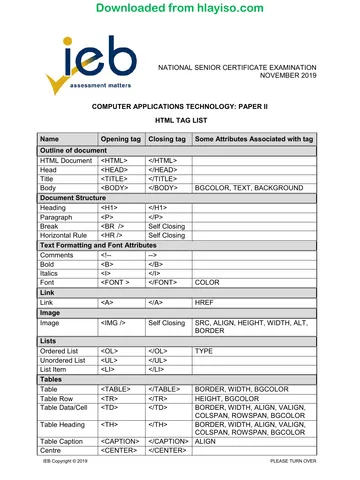
7.1 Insert title tags in the head tag. (1)
7.2 Add your examination number as the title of the web page. (1)
7.3 Insert the image headerImage.jpg in the Images subfolder as follows:
7.3.1 Insert the image at the top of the page. (2)
7.3.2 Adjust it so that it has a width of 1 200 px. (2)
7.4 Centralise the image, the horizontal lines and the text "Donors". See
Figure 5 below.
Figure 5 (2)
7.5 Set a hyperlink for the text "Donors" to open the page called donors.html. (2)
7.6 Change the font colour of all the text below the text "Donors" to any visible
colour. (2)
7.7 Modify the list given so that it is a bulleted list. (3)
Save and close the HTML file index.html.
Note that all the changes below must be applied to the page called donors.html in
the Website folder.
7.8 Modify the table so the that it has borders of 2 px. (2)
7.9 Insert a table header with the text "Contact Donors" that spans three
columns. (2)
7.10 Set the background colour of the last row to the hex code #FFD700. (2)
[21]
Total: 180 marks
IEB Copyright © 2019
Study this subject
Revise the topics in this paper, then practise them question by question.
- Grade 12 Computer Applications Technology notes
CAPS revision notes with worked examples.
- Computer Applications Technology questions by topic
Past exam questions sorted by CAPS topic, with memos where available.
- Grade 12 Computer Applications Technology quizzes
Short topic quizzes with instant feedback.
- All Grade 12 Computer Applications Technology past papers
Past papers by year, with memos where available.
- Grade 12 IEB past papers
More Computer Applications Technology and other subjects in this collection.
Recommended for this subject
More papers and memos for this grade and subject.
Question paperIEB
Computer Applications Technology Grade 12 IEB P1 2019 QP
Question paperIEB
Computer Applications Technology Grade 12 IEB P1 2019 QP (Afr)
Question paperIEB
Computer Applications Technology Grade 12 IEB P2 2019 QP (Afr)
Question paperIEB
Computer Applications Technology Grade 12 IEB P2 2019 QP
Question paperIEB
Computer Applications Technology Grade 12 IEB P2 2019 QP (Afr)
Question paperIEB
Computer Applications Technology Grade 12 IEB P2 2019 QP
Related documents
Question paperIEB
Computer Applications Technology Grade 12 IEB P2 2019 QP (Afr)
Question paperIEB
Computer Applications Technology Grade 12 IEB P2 2018 QP
Question paperIEB
Computer Applications Technology Grade 12 IEB P2 2018 QP (Afr)
Question paperIEB
Computer Applications Technology Grade 12 IEB P2 2018 QP
Question paperIEB
Computer Applications Technology Grade 12 IEB P2 2018 QP (Afr)
Question paperIEB
Computer Applications Technology Grade 12 IEB P2 2017 QP
More from Grade 12 Computer Applications Technology
MemorandumIEB
Computer Applications Technology Grade 12 IEB Paper 1 2019 Memo
MemorandumIEB
Computer Applications Technology Grade 12 IEB P1 2019 Memo (Afr)
Question paperIEB
Computer Applications Technology Grade 12 IEB P1 2018 QP
Question paperIEB
Computer Applications Technology Grade 12 IEB P1 2018 QP (Afr)
MemorandumIEB
Computer Applications Technology Grade 12 IEB Paper 1 2018 Memo
MemorandumIEB