
Downloaded from hlayiso.com
NATIONAL SENIOR CERTIFICATE: COMPUTER APPLICATIONS TECHNOLOGY: PAPER II – MARK SHEET Page 1 of 8
Candidate:
180
Question Mark Achieved Comment
1 20 Marks Total Question 1
1.1 Set the file Personal Thought to be hidden.
Attribute set to hidden.
1.2 Modify the word processing document Letterhead to be a document template.
Correct document converted
To a document template
.dot or .dotx
Organise your preloads as follows:
1.3.1 Create a folder called Archive.
Folder created with correct name
1.3.2 Move all files that were modified in the year 2015 or earlier into this folder.
Moved
All files
Relationships, Snap Chat and Twitter
1.4 Rename the file Candidate to your examination number.
File renamed to candidate number
Computer Management
1.5 Provide the brand name and version of the operating system you are using.
Operating system
version given
1.6 Modify your examination folder's view as follows:
Change view to details
Order by type descending
Capture a screenshot of this view and paste it into the correct place in the
Computer Management document.
View set to details
Ordered by type descending
Screenshot captured
Note
Do not deduct if
Personal thought
is displayed or not
as it is hidden
1.7 Provide the following information regarding the file Heart.jpg.
1.7.1 Author.
Author Given
The Mind
1.7.2 File Size.
file size within 7 Kb
140 Kb
1.8 Provide a screenshot of the html editor you will be using for this examination and paste it
into the correct place in the Computer Management document.
Screenshot of an HTML editor
Icon or title bar or any screenshot that contains title of HTML editor
1.9 Your sibling's computer's disk space is full; provide instructions on how to run a disk
clean up. Place your answer in the correct place in the Computer Management
document.
Step 1 (Opening)
Step 2 (Go to properties or open up dialog)
Step 3 (Click on Disk Clean-up)
• Right click on one of you disk drives
• Go to Properties
• Click Disk Clean-up
1.10 Capture a screenshot of the disk space your system drive has left on your machine and
paste it into the correct place in the Computer Management document.
Screenshot captured
Clearly showing disk space of system drive
IEB Copyright © 2017
Skip to contentMemorandum 

View all
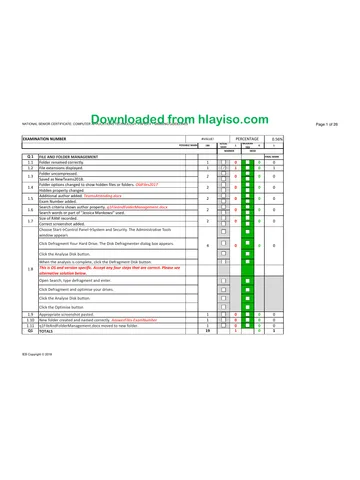
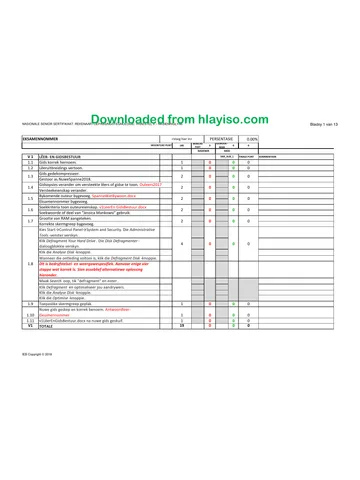
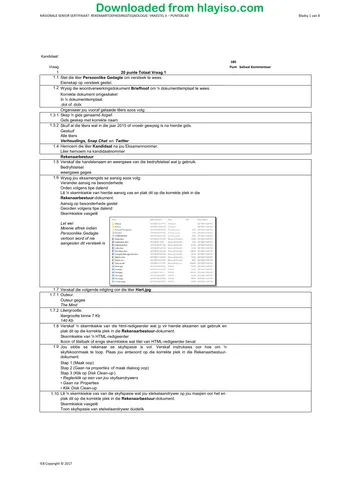
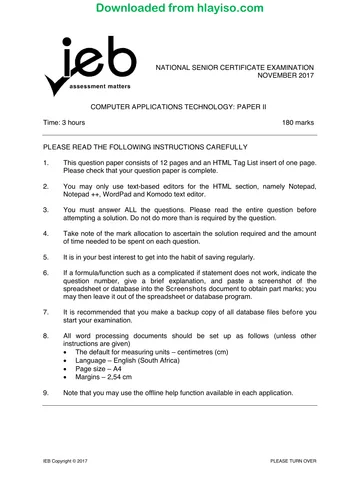
Computer Applications Technology Grade 12 IEB Paper 2 2017 Memo
IEB Grade 12 Computer Applications Technology Paper 2 memorandum from the 2017, 8 pages. Read online or get the free PDF download, question paper linked when available.
Publisher: IEB
Computer Applications Technology · Grade 12 · 2017. Memorandum, 8 pages. Read online or download the PDF.
- Subject
- Computer Applications Technology
- Grade
- Grade 12
- Document type
- Memorandum
- Year
- 2017
- Paper
- 2
- Publisher
- IEB
- Curriculum
- IEB
- Pages
- 8
- File size
- 326.9 KB
Loading document…
Loading document…
1 of 8
Document textSearch extracted text and jump to a page.
Downloaded from hlayiso.com
NATIONAL SENIOR CERTIFICATE: COMPUTER APPLICATIONS TECHNOLOGY: PAPER II – MARK SHEET Page 2 of 8
2 22 Marks Total Question 2
2.1 Modify the page margins as follows:
2.1.1 Set the Top, Bottom, Left and Right margins to be 3 cm.
Top, Bottom, Left and Right margins set to 3 cm
2.1.2 Set the gutter to be 1 cm.
Gutter set to 1 cm
2.2 Add a border around the whole document as follows:
2.2.1 Add a shadow border around the whole document.
Border added to whole document
Shadow
2.2.2 Set the border width to be 3 pt.
3 pt width
2.3 Insert an automatic table of contents directly after the title 'Fake News'.
Table of contents added after title
Automatic
2.4 Modify the header and footer of the document as follows:
2.4.1 Set it so that the document has a different header and footer on the first page.
Section break included for different header and footer on 1st page
2.4.2 Add your examination number to the header of the first page.
Examination number added to the first page
2.4.3 Add an automatically updating date in the right of the footer in the section of the
document starting on the second page of the document.
number added to right of the footer
Automatically updating date
2.5 Create a new style in the document as follows:
2.5.1 Name the new character style Reference.
New style called Reference
Character type
2.5.2 Set the font family to Verdana .
Font family set to Verdana
2.5.3 Set the font effects to be subscript .
Font effects set to subscript
2.5.4 Set the font colour to be red .
Font colour set to red
2.5.5 Apply the style to the text '[howstuffworks.com on 2017/02/01]' at the top of the second
page.
Applied to correct text
2.6 Modify the Heading 2 style as follows:
2.6.1 Set the paragraph to have a 12 pt before spacing.
12 pt before spacing
2.6.2 Set the shading to grey .
Shading grey
2.7 Add a link back to the top of our document as follows:
2.7.1 Insert the text 'Back to top' at the end of the document.
Correct text added
2.7.2 Hyperlink this text to the top of the document.
Text is hyperlinked
To correct location in document
3 13 Marks Total Question 3
3.1 Modify the page setup as follows:
3.1.1 Set the orientation of the document to portrait.
Orientation set to portrait
3.1.2 Set the paper size of the document to A3.
Paper size set to A3
3.2 Add a footnote to the text 'compare' that displays the words: 'People only post the best
of themselves'.
Footnote added
Correct text
3.3 Set the font size of all text to 32.
All text set to size 32
3.4 Add Drop Cap to each of the two sentences.
Drop Cap added Both sentences
3.5 Insert an image as follows:
3.5.1 Insert the image Gossip below the last line of text.
Image added
3.5.2 Set the paragraph alignment to right.
Paragraph alignment set to right
3.5.3 Set it to NOT lock the aspect ratio.
Aspect ratio not locked
IEB Copyright © 2017
Downloaded from hlayiso.com
NATIONAL SENIOR CERTIFICATE: COMPUTER APPLICATIONS TECHNOLOGY: PAPER II – MARK SHEET Page 3 of 8
3.5.4 Set the height to 25 cm and the width to 18 cm .
Height set to 25 cm and width to 18 cm
3.5.5 Add a double red frame around the picture.
Frame around the picture. Double red frame
4 15 Marks Total Question 4
Modify the table as follow:
4.1.1 Merge the two cells in the first row.
Two cells in first row merged
4.1.2 Set the first row to have a light blue shading.
First row set to light blue shading
4.1.3 Modify the border of the table to have a 3 pt double outer border and no lines within the
table.
3 pt double outer border. No lines within the table
4.2 Add a comment to the text '201 Facebook Friends' that displays the words 'Few, if any,
teens have met that many people in person'.
Comment added to correct text
Correct text added in comment
4.3 Create a right-aligned tab stop at 15 cm with a dotted leader for all text from after
'Proposed wisdom to share' to 'Block the person'.
Right-aligned tab stop added
Correct position (15 cm) and to correct text
Dotted leader
Merge the document as follows:
4.4.1 Link the document to the data source Friends using the sheet named Data.
Document linked to a data source
Correct data source
4.4.2 Apply a filter to the data source so that it will only use records where the
Younger sibling field is 'Yes'.
Filter added to the data source
Correct field and filter
4.4.3 Replace the text 'friend' with the two merge fields First name and Last name separated
by a space.
Merge field added
Both First name and Last name, seperated by a space
5 50 Marks Total Question 5
5.1 Set the width of Columns A, B, C, D and E to 13.
Column width changed to 13
Columns A, B, C, D and E changed to 13
5.2 Format cell ranges A1:E1 as follows:
Set a double border at the bottom of the cell
No other border
Bold
Yellow Fill
Correct cell range has a double border at the bottom of the cell
No other borders in that range. Font set to bold
Has a yellow fill
5.3 Add the page number field to the right of the footer section.
Page number field added to footer
Right section
5.4 Replace all occurrences of the word 'celibration' with the word 'Celebration'.
celibration replaced by Celebration
All 79 instances of celibration replaced
5.5 Sort all the data by Topic ascending and then by User descending.
First by topic Ascending. Then by User Descending. Correct data. A:E
5.6 Filter the data so that only messages with the topic 'Relationships' that are over
150 characters are displayed.
Filter applied to the correct data
Topic of relationships
Over 150 characters, 60 resulting records
IEB Copyright © 2017
Downloaded from hlayiso.com
NATIONAL SENIOR CERTIFICATE: COMPUTER APPLICATIONS TECHNOLOGY: PAPER II – MARK SHEET Page 4 of 8
5.7 Apply conditional formatting to column B as follows:
Anger should have a red fill
Mourning should have a blue fill
Bored should have a yellow fill
Anger - red fill
Mourning - blue fill
Bored - yellow fill
Only 1 mark awarded if colours done manually (i.e. not through conditional formatting)
Note all the changes below must be applied to the worksheet labelled Summary .
5.8 Insert a calculation in B2 to determine the average number of characters per post in the
worksheet labelled Posts .
Function (Average)
Range (Post!A:A) Accept A1:A437
Answer
=AVERAGE(Posts!A:A)
Result
509.331
5.9 Insert a calculation in B3 to determine the median number of characters per a post in the
worksheet labelled Posts .
Function (Median)
Range (Post!A:A) Accept A1:A437
Answer
=MEDIAN(Posts!A:A)
Result
516
5.10 Insert a calculation in B4 to determine the number of posts in the worksheet labelled
Posts per the gender given in A4. Expand this calculation down to B5.
Correct function (Countif)
Correct range (Posts!E:E) (Do not award mark if character literal "M" or "F" is used.)
Accept E1:E437
Correct criteria
Answer
=COUNTIF(Posts!E:E;Summary!A4)
Results
151
284
Note all the changes below must be applied to the worksheet labelled Users.
5.11 Insert a function to determine the user's formal name.
I.e. Mr Neil Patrick formal name would be Mr N. Patrick.
In column E (Q 5.11), expand the calculation so that all users' formal names will be
determined.
Calculation added with B2 as first entry
& used to concatenate
Space and full stop literals added " " and "."
Left function used correctly LEFT(C2;1)
D2 appended to the end
Answer
=B2&" "&LEFT(C2;1)&"."&D2
First 3 results
Mr N. Patrick
Mrs K. Boleke
Mr M. Irving
5.12 In column G (Q 5.12) insert a function to determine the age the user will be turning this
year. The age should automatically update each year. Expand the calculation so that all
users' ages will be calculated.
Current date used
YEAR used to receive only year
F2 subtracted from the current year
Answer
=YEAR(NOW())-F2 Or =YEAR(Today())-F2
First 3 results
34
27
12
IEB Copyright © 2017
Downloaded from hlayiso.com
NATIONAL SENIOR CERTIFICATE: COMPUTER APPLICATIONS TECHNOLOGY: PAPER II – MARK SHEET Page 5 of 8
Note all the changes below must be applied to the worksheet labelled Pages .
5.13 Format the values in Column E to be percentage.
Column E formated to percentage
5.14 In column F insert a calculation to determine the number of visits that are return
visits.
Return Visits = Visits x Return visitors
Expand the calculation so that all pages' return visits pm (per month) will be
calculated.
Manual Calculation added (=) and multiply used *
C2 and E2 fields multiplied
Expanded to F5
Answer
=C2*E2
First 3 results
720
600
840
5.15 By utilising the data in cells A1:C5 on the Pages worksheet, recreate the following chart
exactly as given on a new sheet, refer to Figure 4.
Correct data range for chart
3D Column Chart type. Correct Chart type (3D Clustered column) will have legend at
bottom and correct vertical axis scale.
On a new sheet
Callouts added to data
Note all the changes below must be applied to the worksheet labelled Adverts .
5.16 The cost of an advert differs depending on the type of organisation indicated given in
column B (Type). If a company is an NPO, the cost is 100, otherwise it is 600. In
column C (Q 5.16), insert a function to determine the organisation's cost per advert.
Expand the calculation so that all organisations' costs will be determined .
Function (IF) Vlookup if other data is added
Correct comparison (B2="NPO")
Correct true and false values (100;600)
Answer
=IF(B2="NPO";100;600)
First 3 results
100
600
600
IEB Copyright © 2017
Downloaded from hlayiso.com
NATIONAL SENIOR CERTIFICATE: COMPUTER APPLICATIONS TECHNOLOGY: PAPER II – MARK SHEET Page 6 of 8
Note all the changes below must be applied to the worksheet labelled Q 5.17 .
5.17 Insert a calculation in cell B1 to determine which user had the most posts from the
Posts 2 sheet. You may add any appropriate data and calculations to the rest of the
worksheet and/or the Posts 2 worksheet to achieve this .
Result
Betty
Solution 1:
User names entered into sheet
countif to select number post per user
Max used to determine highest posts for a user
Vlookup function used
correct range and lookup value
Solution 2:
In Posts 2 sheet a number associated with each user in a table
Vlookup used to assign the correct number to each post
Mode used to determine the most recurring number
Vlookup or if used in Q 5.17 sheet
Correct range and lookup value
Solution 3:
Pivot table created from the data in the Posts 2 sheet
Pivot table contains the total posts for each user
Max used to determine highest posts for user
Vlookup function used
Correct range and lookup value
If solved in another way:
Number of posts per a user determined
Highest number determined
Name retrieved from highest number
6 40 Marks Total Question 6
6.1 Import data from the text file called Event into the Event table.
Data imported
To the Event table
Apply the following changes to the table Page :
6.2.1 Set the field page_id to be the primary key field.
Page_id set to be the primary key field
6.2.2 Set the type field to look up from the values Sport, Relationship, Corporate and
Academic.
Lookup added
Of typed-in values
Correct values given
6.2.3 Add a field called Admin , which will look up the field user_name from the table
User .
Lookup added
From the table User
Only the user_name field
Apply the following changes to the table User :
6.3.1 Ensure the Gender field has accurate input from the user as follow:
Field size to 1
Add a validation rule of 'M' or 'F'
Field set to size 1
Validation rule added with a character literal 'M' also award if only 'F'
OR 'F'
Answer
='M' or 'F'
6.3.2 Add an input mask to the phone field to ensure a phone number is entered in the format
as in the example (072) 555-1234 and all numbers must be entered. Please refer to
Figure 5 for a list of characters that define input masks.
Literals added as required \ or/and ""
0 used as placeholder
Sequence of placeholders and literals correct
Answer
\(000") "000"-"0000
Create a new table called Advert as follows:
6.4.1 Create a primary key field called Advert_id of an appropriate data type.
Advert_id field created
Set as primary key field
Data type set to autonumber
IEB Copyright © 2017
Downloaded from hlayiso.com
NATIONAL SENIOR CERTIFICATE: COMPUTER APPLICATIONS TECHNOLOGY: PAPER II – MARK SHEET Page 7 of 8
6.4.2 Create a field called title of the text data type and the format to ensure capital letters.
title field created of text data type
Format property set to >
6.4.3 Create a field called cost of a currency data type and set it to be required.
Field called cost of currency data type
Set to required
Create a form as follows:
6.5.1 Create a form called User_post using only the user_name, first_name and
last_name fields from the table User and only the post and Likes fields from the table
Post . Ensure the form is grouped by the User table, and that the subform is
called Post Subform .
Form created
Using correct fields from both tables
Grouped by the User table
6.5.2 Edit the label in the form header to 'Users with their posts – Your exam number'.
Label edited in header with correct text
6.5.3 Set the Default View Property of the Post Subform to Single Form.
Default view property of subform set to Single Form.
6.5.4 Open the Post Subform separately and add a button to the subform containing the
posts, which will delete that displayed post. The caption of the button should be
'Delete'.
Button added to subform
Caption changed to delete
Deletes record when clicked
Create queries as follows:
6.6.1 Create a query called Academic , which will display only the page_title field of all
records in the table Page with the type 'Academic'.
Only page_title displayed
type field added
Criteria on type field set to 'Academic'
6.6.2 Create a query called Popular , which will display all fields from the table Post where the
user was 'OneLiner' and with the likes over 40.
All fields displayed
User set to 'OneLiner'
And i.e. on same condition row
Likes over 40
Create a report as follows:
6.7 Create a report called Posts , using all fields from the table Post and grouped by the
field user.
Report created called Posts
All fields from the table Post
Grouped by the field user
IEB Copyright © 2017
Downloaded from hlayiso.com
NATIONAL SENIOR CERTIFICATE: COMPUTER APPLICATIONS TECHNOLOGY: PAPER II – MARK SHEET Page 8 of 8
7 20 Marks Total Question 7
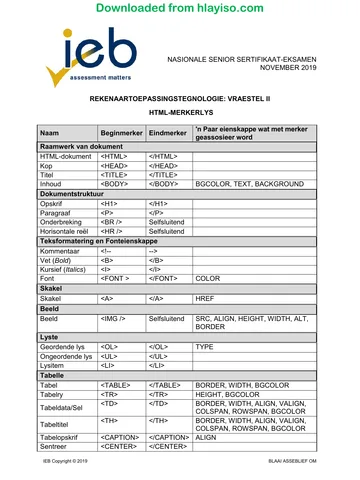
7.1 Add a title to the page to read 'Good practice' and include your Examination number.
<title> tag created inside the <head> tags
Correct text enclosed within the title tags
Answer
<head>
<title>Good practice – Exam number</title>
</head>
7.2 Add a background colour to the table to be green.
Attribute added to the table tag
of bgColor='green' bgColor=green also acceptable
Answer
<table border=2 bgcolor='Green'>
7.3 Edit the first cell in the first row as follows:
7.3.1 Span the cell over two columns.
Attribute added to the correct cell
colspan='2' added colspan=2 also correct
Answer
<td colspan='2'
7.3.2 Set the cell to have a horizontal alignment of center .
Align attribute added to correct cell
set to center
Answer
<td colspan='2' align='center'>
7.4 Set the width of the first cell on the second row to 250.
width attribute added to correct cell
Set to 250
<td width = 250>
7.5 Hyperlink the text 'Next page' to the web page Thoughts.html.
Next page enclosed in a-tags
a-tags point to correct location
Answer
<a href='Thoughts.html'>Next Page</a>
7.6 Add a heading as follows:
7.6.1 Add a level 1 heading of 'Thought provoking events'.
h1-tag added to body
Correct text enclosed in tag
Answer
<h1> Thought provoking events <h1>
7.6.2 Set the font colour to be red .
Font tag used or style
color set to red
Answer
<font color='Red'>Thought provoking events</font>
or
<h1 style="color:red">Thought provoking events</h1>
7.7 Add an image to the page as follows:
7.7.1 Add the image Harambe.jpg located in the subfolder called Images within the Website
folder.
Img tag inserted
Has correct src attribute
Answer
<img src='Images\Harambe.jpg'
7.7.2 Set the width and height of the image to 250.
Width set to 250
Height set to 250
Answer
<img src='Images\Harambe.jpg' width='250' height='250'/>
IEB Copyright © 2017
Study this subject
Revise the topics in this paper, then practise them question by question.
- Grade 12 Computer Applications Technology notes
CAPS revision notes with worked examples.
- Computer Applications Technology questions by topic
Past exam questions sorted by CAPS topic, with memos where available.
- Grade 12 Computer Applications Technology quizzes
Short topic quizzes with instant feedback.
- All Grade 12 Computer Applications Technology past papers
Past papers by year, with memos where available.
- Grade 12 IEB past papers
More Computer Applications Technology and other subjects in this collection.
Recommended for this subject
More papers and memos for this grade and subject.
MemorandumIEB
Computer Applications Technology Grade 12 IEB Paper 1 2019 Memo
MemorandumIEB
Computer Applications Technology Grade 12 IEB P1 2019 Memo (Afr)
MemorandumIEB
Computer Applications Technology Grade 12 IEB Paper 1 2018 Memo
MemorandumIEB
Computer Applications Technology Grade 12 IEB P1 2018 Memo (Afr)
MemorandumIEB
Computer Applications Technology Grade 12 IEB Paper 2 2018 Memo
MemorandumIEB
Computer Applications Technology Grade 12 IEB P2 2018 Memo (Afr)
Related documents
MemorandumIEB
Computer Applications Technology Grade 12 IEB P2 2017 Memo (Afr)
Question paperIEB
Computer Applications Technology Grade 12 IEB P2 2017 QP
Question paperIEB
Computer Applications Technology Grade 12 IEB P2 2017 QP (Afr)
Question paperIEB
Computer Applications Technology Grade 12 IEB P2 2017 QP
Question paperIEB
Computer Applications Technology Grade 12 IEB P2 2017 QP (Afr)
Question paperIEB
Computer Applications Technology Grade 12 IEB P2 2017 QP
More from Grade 12 Computer Applications Technology
Question paperIEB
Computer Applications Technology Grade 12 IEB P1 2019 QP
Question paperIEB
Computer Applications Technology Grade 12 IEB P1 2019 QP (Afr)
Question paperIEB
Computer Applications Technology Grade 12 IEB P2 2019 QP
Question paperIEB
Computer Applications Technology Grade 12 IEB P2 2019 QP (Afr)
Question paperIEB
Computer Applications Technology Grade 12 IEB P2 2019 QP
Question paperIEB