
Downloaded from hlayiso.com
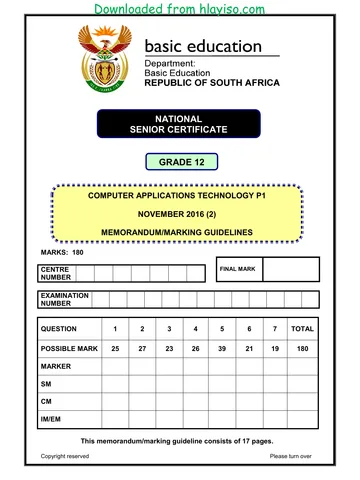
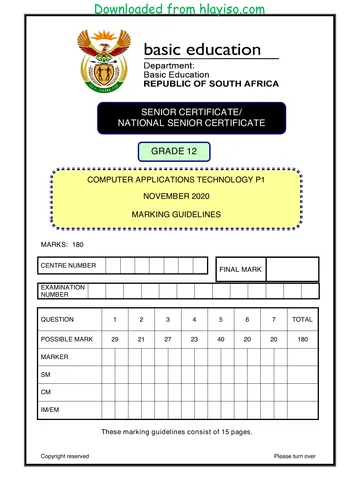
NATIONAL
SENIOR CERTIFICATE
GRADE 12
COMPUTER APPLICATIONS TECHNOLOGY P1
NOVEMBER 2016
MEMORANDUM/MARKING GUIDELINES
MARKS: 180
CENTRE FINAL MARK
NUMBER
EXAMINATION
NUMBER
QUESTION 1 2 3 4 5 6 7 TOTAL
POSSIBLE MARK 30 22 25 25 38 20 20 180
MARKER
SM
CM
IM/EM
This memorandum/marking guideline consists of 15 pages.
Copyright reserved Please turn over
Skip to contentMemorandum 
View all
Computer Applications Technology Grade 12 P1 2016 Memo
Grade 12 Computer Applications Technology Paper 1 memorandum from the NSC November Exam 2016, 15 pages. Read online or get the free PDF download, question paper linked when available.
Computer Applications Technology · Grade 12 · NSC November Exam · 2016. Memorandum, 15 pages. Read online or download the PDF.
- Subject
- Computer Applications Technology
- Grade
- Grade 12
- Document type
- Memorandum
- Year
- 2016
- Exam period
- NSC November Exam
- Paper
- 1
- Curriculum
- CAPS
- Pages
- 15
- File size
- 484.9 KB
Loading document…
Loading document…
1 of 15
Document textSearch extracted text and jump to a page.
Downloaded from hlayiso.com
Computer Applications Technology/P1 2 DBE/November 2016
NSC – Memorandum/Marking Guidelines
EXAMINATION
NUMBER
IGNORE SPELLING IN ALL CASES WHERE IT WOULD NOT HAVE ANY IMPACT ON
THE ANSWER.
QUESTION 1 File name: 1Metal Total Q1: 30
Maximum Candidate
No Criteria
Mark Mark
1.1.1 First page: 'Precious Metals' 2
• Font type changed to 'Verdana' 1
• Strikethrough effect removed 1
1.1.2 Picture 1
• First image flipped for text to read from left to right 1
1.1.3 Picture 2
• Height and width set to exactly 5 cm x 5 cm (or 4.57 x 5
or 5 x 5.47 if aspect ratio still checked) 1
• Aspect ratio unchecked (if 5 cm x 5 cm allocate mark) 1
1.1.4 First page 1
• Cover page/some pages/all pages are vertically aligned
as 'center' 1
1.2 'Metal' style 1
• 'Coin' style changed to 'Metal' 1
1.3 Table of contents 2
• Table of contents updated (see heading 'Bullion') 1
• Four levels display (see 'Annexure A' headings) 1
1.4 Hyperlink 1
• Hyperlink removed from the word 'nuggets' 1
(Note to marker: Do not award mark if the word 'nuggets' is
deleted.)
1.5 Table 8
• Row 2 merged and text centred 2
• Palladium shape filled with 'Gold, Accent, Lighter 60%' or
'80%' (OR one shade lighter (blue or gold)) 1
• Any column border changed to double line/thick border
line 1
• Formula field insert: =SUM(Above) 1
• Formula formatted to display comma separator
000,000,000 OR ###,###,### OR #,##0 1
• Metals measured in tons sorted 1
• In descending order according to number 1
Copyright reserved Please turn over
Downloaded from hlayiso.com
Computer Applications Technology/P1 3 DBE/November 2016
NSC – Memorandum/Marking Guidelines
EXAMINATION
NUMBER
1.6 Index entries 1
{XE "Precious Metals:silver"}
• 'silver' marked as a sub-entry for the marked index entry
'Precious Metals' 1
1.7 Spelling of 'totaling' 1
• Spelling of the word 'totaling' corrected to 'totalling' 1
1.8 Find and Replace: Word 'platinum' 4
• Replaced with symbol OR and letters 'Pt' (OR 'pt' 1
OR '') 1
• Symbol , space AND 'Pt' correct 1
• 7 occurrences of lowercase 'platinum' have been
replaced 1
1.9 Automatic numbering 5
• Automatic numbering (1., 2., 3.) applied to subheading
'A question of value investing' 1
• 'Continue numbering' applied to the second sub-heading
(rest of numbering automatically adjusted) 1
• Number position set consistently against
margin/to approximately 0 1
• Text indent of subheading set consistently (to
approximately 1.25 cm) 1
• Text alignment under one or more subheadings is
justified 1
1.10 Index 1
• Index updated ('commodity markets' appear in Index) 1
Total for QUESTION 1 [30]
Copyright reserved Please turn over
Downloaded from hlayiso.com
Computer Applications Technology/P1 4 DBE/November 2016
NSC – Memorandum/Marking Guidelines
EXAMINATION
NUMBER
QUESTION 2 File name: 2Pall Total Q2: 22
Maximum Candidate
No Criteria
Mark Mark
2.1 Page border/Watermark 4
• Any page border added to the document 1
• 2PalMetal image inserted 1
as washout watermark 1
• Scaling of watermark/picture is set to 150% 1
2.2 Bookmark 2
• 'History of Palladium' linked to 'History' bookmark 1
• Bookmark 'Applications' removed 1
(Note to marker: Do not award second mark if the text has
been deleted.)
2.3 Text box and callout shape
• Text box changed to any callout shape 1
• Text in shape/text box reads from bottom to top
• All text clearly visible 1
• Position of shape/text box fixed to its position page 1
1
(Note to marker: 'Move object with text box' should be
unchecked to allocate fourth mark.)
2.4 Caption 3
• Caption label 'Picture' used (do not accept typed text) 1
• Caption added with caption text ('Beautiful rings') 1
• Caption placed above image 1
2.5 Form controls 6
• Page break/Section break (Next page)/Page break
before inserted before 'Quiz' 1
• 'Full Name' text form field maximum length set to 12 1
• 'Full Name' text form field format set to 'First capital' 1
• Any checkbox form field added 1
• Any dropdown form field added 1
• Option values set to Russia, South Africa, Ethiopia
(accept if only some options entered) 1
2.6 Table of figures (Use Alt + F9 to mark) 3
• Any automatic table of figures inserted 1
• 'Simple' format used for table of figures (sentence 1
case, in bold)
• Page numbers don't display in table of figures 1
Total for QUESTION 2 [22]
Copyright reserved Please turn over
Downloaded from hlayiso.com
Computer Applications Technology/P1 5 DBE/November 2016
NSC – Memorandum/Marking Guidelines
EXAMINATION
NUMBER
QUESTION 3 File name: 3Platinum Total Q3: 25
• Mark the questions from the formulae and not the values/answers in the cell.
• Check against candidate's actual work (Cell references may differ, depending on the
candidate's response).
• Candidate may use multiple formulae or cells as 'building blocks' to reach answers.
• Named ranges can be used instead of cell references.
• The answers must still be correct even if changes are made to the existing data.
Maximum Candidate
No Criteria
Mark Mark
Platinum/Sheet1 worksheet
3.1 Rename worksheet 1
• 'Sheet1' renamed to 'Platinum' 1
3.2 Cells A1:E1: 3
• Cells A1:E1 merged 1
• Font size is 16
• Any gradient fill added to cells A1:E1 1
(not normal fill) 1
3.3 Cell E2: 1
• Comment removed from cell E2 1
3.4 Cell B6: 1
=SUM(B3:B5) (accept only if a function was used) 1
3.5 Cell E3: 4
=(D3-B3)/B3*100
• Correct cells: D3-B3 OR B3-D3 1
• Correct use of brackets 1
• Division: /B3 OR D3 relative to 1st bullet 1
• *100 (accept formatting as a percentage instead) 1
3.6 Conditional formatting: Cells B8:D11 5
• Conditional formatting applied to cells B8:D11 1
• Top/Bottom rule set to 40 % (or values that 3
rank in top 4)
• Any border applied 1
Copyright reserved Please turn over
Downloaded from hlayiso.com
Computer Applications Technology/P1 6 DBE/November 2016
NSC – Memorandum/Marking Guidelines
EXAMINATION
NUMBER
3.7 Chart/Graph 5
• Data selection extended to cells A3:D5 OR A2:D5 1
• Data for 'South Africa' filled with 3Platinum image 1
• Any stacked effect applied 1
• Legend moved to bottom 1
• Vertical axis display years (2014, 2015 and 2016) 1
Qual_Kwal worksheet
3.8 Cell D10: (Check for building blocks) 5
=LEFT(B1,TRUNC(B10/550))
OR
=LEFT(B1,INT(B10/550))
OR
=LEFT(B1,ROUNDDOWN(B10/550),0)
OR
=RIGHT(B1,TRUNC(B10/550))
OR
=MID(B1,1,(TRUNC(B10/550)))
OR
=IF(B10/550>=5,"*****",IF(B10/550>=4,"****",
IF(B10/550>=3,"***",IF(B10/550>=2,"**","*"))))
• Function(s) used correctly 1
• Used weight to determine the correct number of 1
stars 1
• Extract correct number of stars for all possibilities 1
• Display stars for all possibilities 1
(Notes to marker:
• Accept any valid variation of the nested IF or
LOOKUP functions. (Nested IF , division/values ,
conditions , outcomes )
• Check for building blocks.)
Total for QUESTION 3 [25]
Copyright reserved Please turn over
Downloaded from hlayiso.com
Computer Applications Technology/P1 7 DBE/November 2016
NSC – Memorandum/Marking Guidelines
EXAMINATION
NUMBER
QUESTION 4 File name: 4Jewel_Juweel Total Q4: 25
• Mark the questions from the formulae and not the values/answers in the cell.
• Check against candidate's actual work (Cell references may differ, depending on the
candidate's response).
• Candidate may use multiple formulae or cells as 'building blocks' to reach answers.
• Named ranges can be used instead of cell references.
• The answers must still be correct even if changes are made to the existing data.
Maximum Candidate
No Criteria
Mark Mark
Jewel_Juweel worksheet
4.1 Row 3: Formatting 1
• Any text wrapped 1
4.2 Cell A5: 4
=CONCATENATE(MID(C5,2,3),B5)
OR
=MID(C5,2,3)&B5
• CONCATENATE function OR & 1
• MID (C5,2,3) OR appropriate arguments 2
• B5 1
4.3 Cell D5: (Check for building blocks) 5
=VLOOKUP(C5,Qual_Kwal!$A$1:$E$6,
RANDBETWEEN(1,4)+1)
OR
=VLOOKUP(C5,Qual_Kwal!$A$3:$E$6,
RANDBETWEEN(1,4)+1)
OR
=VLOOKUP(C5,Qual_Kwal!$A$3:$E$6,(RAND()*
3+1)+1)
OR
=VLOOKUP(C5,Qual_Kwal!$A$1:$E$6,
RANDBETWEEN(2,5))
• Lookup value: C5 1
• Table array: Qual_Kwal!A1:E6 OR
Qual_Kwal!$A$1:$E$6 (A3:E6 can also be used) 1
• Column index number OR
RAND() OR RANDBETWEEN 1
• Upper boundary (2) OR (1)+1 1
• Lower boundary (5) OR (4)+1 1
Copyright reserved Please turn over
Downloaded from hlayiso.com
Computer Applications Technology/P1 8 DBE/November 2016
NSC – Memorandum/Marking Guidelines
EXAMINATION
NUMBER
4.4 Cell F4: 6
=IF(C4="Silver",IF(H4<>"","*",""),"")
OR
=IF(C4="Silver",IF(H4="","","*"),"")
OR
=IF(AND(C4="Silver",H4<>""),"*","")
OR
=IF(C4="Silver",IF(LEN(H4)>0,"*",""),"")
OR
=IF(AND(C4="Silver",H4>0),"*","")
• Criteria 1: Check that the precious metal is silver:
1
C4="Silver"
• Criteria 2: Check if a value appears in column H
1
OR column I: H4<>""
1
• Correct output (''") if metal is not silver
• Correct output ('''') if metal is silver and no value appear
1
in column H OR column I
• Correct output ('*') if metal is silver and value appears in
1
column H OR column I
• Function copied to cells below (any function) 1
(Notes to marker:
• Accept any valid test for blank cell including
COUNTBLANK(H4) and LEN(H4)=0.
• Accept any other correct test if the correct
corresponding output is displayed.)
4.5 Cell M6: 4
=SUMIF(B4:B53,"*ring*",J4:J53)
OR
=SUMIF(B4:B53,"Ring",J4:J53)+SUMIF(B4:B53,
"Earrings",J4:J53)
OR
=SUMIFS(J4:J53,B4:B53,"*ring*")
• SUMIF/SUMIFS function 1
• Criteria range: B4:B53 1
• Criteria: "*ring*", OR "Ring" AND "Earrings" 1
• Sum range: J4:J53 1
Copyright reserved Please turn over
Downloaded from hlayiso.com
Computer Applications Technology/P1 9 DBE/November 2016
NSC – Memorandum/Marking Guidelines
EXAMINATION
NUMBER
4.6 Cell M7: 3
=COUNTIF(C4:C53,"Gold")
• COUNTIF function 1
• Range: C4:C53 1
• Criteria: "Gold" 1
4.7 Cell M8: 2
=COUNTA(H4:H53)
OR
=COUNT(E4:E53)-COUNTBLANK(H4:H53)
OR
=COUNTA(B4:B53)-COUNTBLANK(H4:H53)
OR
=COUNTIF(H4:H53,"*")
• Correct function 1
• Correct range (accept column I) 1
(Note to marker: If COUNTA(range)-
COUNTBLANK(range) structure is used accept columns
(B,C,D,E,G,J) as correct range for COUNTA and
columns (H or I) as correct range for COUNTBLANK.)
Total for QUESTION 4 [25]
Copyright reserved Please turn over
Downloaded from hlayiso.com
Computer Applications Technology/P1 10 DBE/November 2016
NSC – Memorandum/Marking Guidelines
EXAMINATION
NUMBER
QUESTION 5 File name: 5Inves Total Q5: 38
Maximum Candidate
No Criteria
Mark Mark
Table: tbJewellery
5.1.1 Field: Metal 1
• Field size set to 33 1
5.1.2 Field: Stones 1
• Format changed to Yes/No OR Lookup 1
5.1.3 Field: Grams 5
• Required property set to Yes 1
• Validation Rule: >10 and <=80 3
OR Between 11 and 80
• Appropriate validation text inserted that refers to
correct range (more than 10 and less than or equal to
80) 1
5.1.4 Field: JewelleryType 3
• 'Watch' option does not appear 1
• 'Bangle' option appears 1
• In second position 1
5.1.5 Field: JewelleryId 4
• Input Mask: LLLA09
LLL 1
A 1
0 1
9 1
5.1.6 Field: ValuationDate 2
Default value: DATE()+60
OR #2016-10-19# + 60
OR NOW()+60
OR #2016/12/18#
• DATE() OR NOW() OR Actual date 1
• + 60 1
Copyright reserved Please turn over
Downloaded from hlayiso.com
Computer Applications Technology/P1 11 DBE/November 2016
NSC – Memorandum/Marking Guidelines
EXAMINATION
NUMBER
Form: frm5_2
5.2 • Label added and examination number in form 1 5
header 1
• Combo box or list box added 1
• Combo box values based on tb5_2 1
and bound/linked to InvestmentTerm field 1
(Row Source: tb5_2 OR Select[tb5_2].
[InvestmentTerm] FROM tb5_2 OR "Long"; "Medium";
"Short" AND
Row Source Type: Table/Query OR Value List)
Query: qry5_3
5.3 • InvestorCountry: Total: Group By 1 3
• Criteria: 'United States' (or 1
correct variations)
• NumberOfCoins: Total: Sum 1
Query: qry5_4
5.4 • Fields displayed: InvestorName, InvestorSurname, 8
InvestmentDate and/or new field (CheckMatch) 1
• Criteria InvestmentDate: >=#1975-01-01# OR
>#1974-12-31# 1
AND
<=#1989-12-31# OR <#1990-01-01# 1
OR Between #1975-01-01# AND #1989-12-31# 1
OR Year([InvestmentDate]): Between 1975 and 1989
• Calculated field: CheckMatch: 1
[InvestorCountry] = [InvestorOrigin] 3
OR CheckMatch: IIF() ([InvestorCountry]=
[InvestorOrigin](),"True","False")
(Note to marker: 50 records expected.)
Report: rpt5_5
5.5 • Grouping changed to InvestmentTerm field 1 6
• Field InvestmentTerm appears in group header/footer
1
• Function inserted in InvestorCountry group footer or
group header 1
• =COUNT ([InvestorSurname]) or any other field 2
OR Count(*)
• Suitable label (must refer to number of investors) 1
Total for QUESTION 5 [38]
Copyright reserved Please turn over
Downloaded from hlayiso.com
Computer Applications Technology/P1 12 DBE/November 2016
NSC – Memorandum/Marking Guidelines
EXAMINATION
NUMBER
QUESTION 6 File name: 6Rhodium Total Q6: 20
• This question should be marked from the HTML code.
• Numerical attribute values do not need to be in inverted commas.
• A maximum of 1 mark will be deducted if one or more closing tags are omitted.
Maximum Candidate
No Criteria
Mark Mark
6.1 Heading, alignment and font colour 3
<h1 align="center"><font color="red">Rhodium
Investment: The Rarest of Precious Metals</font></h1>
• 'Rhodium Investment: The Rarest of Precious Metals'
appear as heading 1 1
• Alignment: center 1
• Font colour: red 1
(Note to marker: Accept if font changes implemented with
a paragraph tag.)
6.2 Horizontal line 2
<hr width="90%"/>
• Horizontal line added 1
• Line width set to 90% 1
6.3 Background image 2
<body background="6Rh.jpg">
• background="6Rh.jpg" inserted correctly 1
• In body tag 1
6.4 Unordered list and line break 3
<ul type="square">
<li>Diesel catalytic converters</li>
<br/>
<li>Non-diesel catalytic converters</li>
</ul>
• Bulleted list added 1
• Bullet type: square 1
• Line break added between bullets (not paragraph) 1
Copyright reserved Please turn over
Downloaded from hlayiso.com
Computer Applications Technology/P1 13 DBE/November 2016
NSC – Memorandum/Marking Guidelines
EXAMINATION
NUMBER
6.5 Image: height, width and border 3
<img src="6RMine.jpg" height="100" width="200"
border="5">
• Height = 100 1
• Width = 200 1
• Border = 5 1
6.6 Formatting: Bold and italics 2
<b><i>South Africa</i></b> OR
<i><b>South Africa</b></i>
• Bold applied to 'South Africa' 1
• Italics applied to 'South Africa' 1
6.7 Link 2
<a href="www.ResourceInvestor.com">
www.ResourceInvestor.com</a>
• Link text 'www.ResourceInvestor.com' inserted OR
'http://www.ResourceInvestor.com' 1
• Link 'href' added correctly 1
(Note to marker: The link will work correctly if the web
browser opens and the address displays in the address
bar. No Internet access is needed.)
6.8 Table: Cell spacing and colspan 3
<table align="center" border="3" cellspacing = "10">
<tr> <td colspan ="3">Rhodium Prices</td></tr>
<tr> <th>Metal</th>
<th>Year</th>
<th>Price</th></tr>
<tr> <td>Rhodium</td>
<td>2014</td>
<td>R1 235</td></tr>
</table>
• Cellspacing = 10 1
• First row: colspan = 3 (appears as a 'merged' cell) 1
• Text appears in the first row ('Rhodium Prices') 1
Closing tag(s) or triangular brackets omitted -1
Total for QUESTION 6 [20]
Copyright reserved Please turn over
Downloaded from hlayiso.com
Computer Applications Technology/P1 14 DBE/November 2016
NSC – Memorandum/Marking Guidelines
EXAMINATION
NUMBER
QUESTION 7 Total Q7: 20
File names: 7Data, 7DataImp, 7Gem_Edel, 7GemMerge, 7DOB, 7Answ_Antw
Maximum Candidate
No Criteria
Mark Mark
7Data
7.1.1 Print Area 1
• Print area set 1
7.1.2 Data validation: G2:G101 2
• Allow: Whole numbers 1
• Data greater than or equal to 0 1
7DataImp
7.2 Data imported 3
• All data (100 records) imported to Clients table 1
in database
• Column headings of worksheet used as field names 1
• Table named as Clients 1
7Gem_Edel/7GemMerge
7.3.1 Track changes 1
• All track changes accepted ('Birthstone Chart 1
appears as 16 pt and bold)
7.3.2 Footnote 1
• Endnote converted to footnote 1
(Note to marker: No marks awarded if a footnote is added
in addition to the existing endnote.)
7.3.3 Paragraph spacing 1
• Spacing after set to 3 pt after 1
7.3.4 Tab setting: <<Birthstone_GeboorteSteen>> 2
• Any leader tab set 1
• To 8 cm 1
7.3.5 Mail merge 2
• Text '<InvestorName_BeleggerNaam>' replaced with
the field <<InvestorName_BeleggerNaam>> 1
• Data source: Month criteria set to 10 1
7GemMerge
7.3.6 Merge completed 1
• Mail merge completed (see letters in 7GemMerge) 1
• Accept any method that will yield the correct answer.
Copyright reserved Please turn over
Downloaded from hlayiso.com
Computer Applications Technology/P1 15 DBE/November 2016
NSC – Memorandum/Marking Guidelines
EXAMINATION
NUMBER
• Allocate two marks for only the correct answer.
• If nothing appears in 7Answ_7Antw or the answer is incorrect, check 7Coin_Munt for
the method/answer.
7Answ_Antw, 7Coin_Munt
7.4.1 How many investors bought coins in any dollar currency? 2
• 77
1
Method:
• Filter on CoinFaceValue: Criteria: contains '$' 1
• OR Filter on CoinCurrency: Criteria: contains 'Dollar'
• =COUNTIF(M2:M101,"*Dollar*")
• Sort and count
7.4.2 How many long term investors have a start date in 2
September? 1
• 3
1
Method:
• Filter on InvestmentTerm: 'Long' AND Filter on
StartDate: Dates in periods: 'September'
• OR add =MONTH(E2) in an extra column – in this
case done in column P and use function
=COUNTIFS(D2:D101,"Long",P2:P101,"9")
7.4.3 What is the name of the most popular occurring coin? 2
• Maple Leaf OR Eagle 1
Method: 1
• 7 COUNTIF/SUMIF for every coin name
e.g.=COUNTIF(J2:J101,"Maple Leaf")
• First sort the data according to the coin name, and
then use of the SUBTOTAL function to get a subtotal
for each coin name
• Pivot table
• Use outline and get subtotal on CoinName
Total for QUESTION 7 [20]
TOTAL 180
Copyright reserved
Study this subject
Revise the topics in this paper, then practise them question by question.
- Grade 12 Computer Applications Technology notes
CAPS revision notes with worked examples.
- Computer Applications Technology questions by topic
Past exam questions sorted by CAPS topic, with memos where available.
- Grade 12 Computer Applications Technology quizzes
Short topic quizzes with instant feedback.
- All Grade 12 Computer Applications Technology past papers
Past papers by year, with memos where available.
- Grade 12 past papers
More Computer Applications Technology and other subjects in this collection.
Recommended for this subject
More papers and memos for this grade and subject.
Memorandum
Computer Applications Technology Grade 12 P1 2025 Memo
Memorandum
Computer Applications Technology Grade 12 P2 2025 Memo
Memorandum
Computer Applications Technology Grade 12 P1 NSC June 2025 Memo
Memorandum
Computer Applications Technology Grade 12 P1 2024 Memo (Eng)
Memorandum
Computer Applications Technology Grade 12 P1 2022 Memo (Afr)
Memorandum
Computer Applications Technology Grade 12 P1 2022 Memo (Eng)
Related documents
Memorandum
Computer Applications Technology Grade 12 P1 2016 Memo
Memorandum
Computer Applications Technology Grade 12 P1 2016 Memo
Memorandum
Computer Applications Technology Grade 12 P1 2016 Memo
Memorandum
Computer Applications Technology Grade 12 P1 NSC June 2016 Memo
Memorandum
Computer Applications Technology Grade 12 P1 2016 Memo
Memorandum
Computer Applications Technology Grade 12 P1 2021 Memo
More from Grade 12 Computer Applications Technology
Question paper
Computer Applications Technology Grade 12 P2 2025 QP
Question paper
Computer Applications Technology Grade 12 P1 2024 QP (Afr)
Question paper
Computer Applications Technology Grade 12 P1 2024 QP (Eng)
Question paper
Computer Applications Technology Grade 12 P2 2024 QP (Eng)
Question paper
Computer Applications Technology Grade 12 P1 November 2024 NSC QP
Question paper