
Downloaded from hlayiso.com
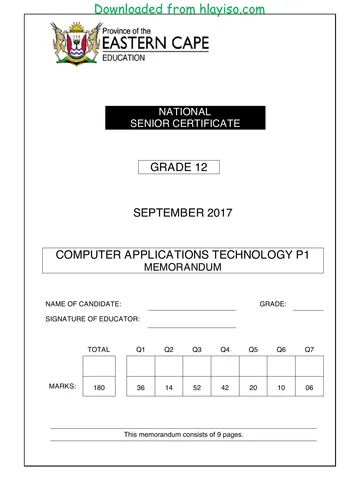
NATIONAL
SENIOR CERTIFICATE
GRADE 12
SEPTEMBER 2017
COMPUTER APPLICATIONS TECHNOLOGY P1
MARKS: 180
TIME: 3 hours
This question paper consists of 16 pages, including an HTML tag sheet.
*CATNE*
You're offline
Skip to contentQuestion paper 
View all
GR12 CATN P1 Sept2017 QP Eng 2 hlayiso.com
Computer Applications Technology · Grade 12 · Eastern Cape Mock Exam · 2017. Question paper, 16 pages. Read online or download the PDF.
- Subject
- Computer Applications Technology
- Grade
- Grade 12
- Document type
- Question paper
- Year
- 2017
- Exam period
- Eastern Cape Mock Exam
- Paper
- 1
- Pages
- 16
- File size
- 981.8 KB
Loading document…
Loading document…
1 of 16
Document textSearch extracted text and jump to a page.
Downloaded from hlayiso.com
2 COMPUTER APPLICATIONS TECHNOLOGY P1 (EC/SEPTEMBER 2017)
INSTRUCTIONS AND INFORMATION
1. Owing to the nature of this three-hour examination, it is important to note that
you will NOT be permitted to leave the examination room before the end of
the examination period.
2. Insert your surname and name in the header of EVERY document that you
create or save.
3. The invigilator will give you a disk containing all the files needed for the
examination OR you will be told where the files can be found on the network
or computer. If a disk has been issued to you, you must write your centre
number and examination number on the label. If you are working on the
network, you must follow the instructions provided by the invigilator.
4. A copy of the master files will be available from the invigilator. Should there
be any problems with a file, you may request another copy from the
invigilator.
5. This question paper consists of SEVEN questions.
6. Answer ALL the questions.
7. Ensure that you save EACH document using the file name given in the
question paper. Save your work at regular intervals as a precaution against
possible power failures.
8. Read through each question before answering or solving the problem. Do
NOT do more than required by the question.
9. At the end of the examination you must hand in the disk given to you by the
invigilator with ALL the files saved on the disk, OR you should make sure that
ALL the files are saved on the network/computer as explained to you by the
invigilator/teacher. Make absolutely sure that all files can be read.
10. During the examination you may make use of the help functions of the
programs which you are using. You may NOT use any other resource
material.
11. If data is derived from a previous question that you cannot answer, you
should still proceed with the questions that follow.
12. Unless instructed otherwise, you must use formulae and/or functions for ALL
calculations in questions involving spreadsheets. Use absolute cell
references only where necessary to ensure that formulae are correct when
you copy them to other cells in a spreadsheet.
13. In ALL questions involving word processing, you should set the language to
English (South Africa). The paper size is assumed to be A4 Portrait, unless
instructed otherwise.
14. In Annexure A the HTML tag sheet is provided.
Copyright reserved Please turn over
Downloaded from hlayiso.com
(EC/SEPTEMBER 2017) COMPUTER APPLICATIONS TECHNOLOGY P1 3
15. The examination folder/data disk that you receive with this question paper will
contain the folder and files listed below. Ensure that you have the folder and
all the files before you begin this examination.
Copyright reserved Please turn over
Downloaded from hlayiso.com
4 COMPUTER APPLICATIONS TECHNOLOGY P1 (EC/SEPTEMBER 2017)
SCENARIO
Turtles are found throughout most of the temperate and tropical
world and in the open ocean. 42% of the 270-known species are
rare or threatened with extinction. Many turtles and their eggs are
valued as food. Edible species include several marine turtles, the
green turtle (traditional ingredient of turtle soup), the diamondback
terrapin and the soft-shelled turtle. Catching females when they
lay eggs on land has contributed to a serious decline in many
species, since it can take 10 to 30 years for some turtles to reach sexual maturity.
The school asked the Grade 12 learners to assist in a campaign to make people
aware about the ways to prevent the extinction of turtles.
QUESTION 1 WORD PROCESSING
A document was created to give some basic facts about Sea Turtles.
Open the 1_Turtle Facts word processing document.
1.1 Set the left-hand and bottom margins of the document to 1.5 cm. (1)
1.2 This document has a cover page. Make the following changes to the cover
page.
1.2.1 Add the heading “Save The Sea Turtles” in the Title control on the
cover page. (1)
1.2.2 Locate the AutoShape on the cover page:
Fill the AutoShape with the image 1_Save The Turtle (1)
Ensure that the height and width is exactly 8 cm (2)
1.3 Apply a condensed spacing of 1.5 pt for the heading "BASIC FACTS ABOUT
SEA TURTLES” on page 3. (2)
1.4 Locate the highlighted letter “S” on page 3.
Add a drop cap effect for the letter “S” to drop over 4 lines
Distance from the text is 0.5 cm (2)
1.5 Modify the existing style Sub Turtle so that the paragraph shading appears in
yellow and that all text in this style will be formatted to update automatically. (2)
Copyright reserved Please turn over
Downloaded from hlayiso.com
(EC/SEPTEMBER 2017) COMPUTER APPLICATIONS TECHNOLOGY P1 5
1.6 Locate the four paragraphs (highlighted in green) under the heading
Reproduction and do the following:
Place them in 2 columns with a line in between
The spacing between the columns should be 1.5 cm
The first paragraph should be in the first column and the other three
paragraphs should be in the second column (3)
1.7 Apply any glow effect to the text box containing the tip “Did you know?...” on
page 5. (1)
1.8 Locate the footnote on page 6 that’s added to the word mating and make the
following changes:
Convert the footnote to an endnote
Change the endnote symbol to a ‘ * ’ symbol (2)
1.9 A table representing the population status of different turtle species is listed on
page 7 of the document. Alter the table so that:
The spacing between the cells is 0.5 cm (1)
Insert a function in the highlighted area (replace the highlighted region)
to determine how many turtle species are listed under the population
status (2)
1.10 Apply multilevel bullets to the Glossary listed on page 8 as shown below:
Use Bullet 1.jpg as the first level
Bullet 2.jpg as the second level
(3)
1.11 Edit the bibliography inserted on page 8 to include:
The month the website was updated is August and not February (1)
Include a comment that reads “Save Sea Turtles” (1)
NB: Make sure to display the updated contents in the bibliography.
Copyright reserved Please turn over
Downloaded from hlayiso.com
6 COMPUTER APPLICATIONS TECHNOLOGY P1 (EC/SEPTEMBER 2017)
1.12 Change the orientation of only the last 2 pages to landscape. (1)
1.13 Locate the table displayed on the last 2 pages of the document and do the
following:
Change the outer border of the table to dashed line and 4½ pt
thickness (2)
Insert a caption for the image displayed next to “Green Sea Turtle” so
that it reads “Figure 1: Green Sea Turtle” (1)
NB: Update the table of figures so that the caption for Figure 1 is
included as well.
1.14 Add automatic page numbering to the last 2 pages of the document as
follows:
Place the page numbers in the page header in any format (1)
Ensure that page number restarts from 1 onwards (2)
1.15 Create a hyperlink to the word <<TOP OF THE DOCUMENT >> found on the
last page so that the link is created to the top of the document. (2)
1.16 Insert a watermark on the cover page only that reads Billion Baby Turtles. (2)
[36]
Copyright reserved Please turn over
Downloaded from hlayiso.com
(EC/SEPTEMBER 2017) COMPUTER APPLICATIONS TECHNOLOGY P1 7
QUESTION 2 WORD PROCESSING
An observation form was created in Word for people to fill in information about Sea
Turtles if they come across any during their visit to the seashore or any other place.
Open the 2_Observation Form word processing document.
2.1 Insert a paragraph shading to the heading "Sea Turtle Observation Form”
with any shade of green. (2)
2.2 Format the text form field for the heading “How many turtles…” so that:
The maximum length is 2
It does not display any decimals (2)
2.3 Edit the drop down form next to “What was the health condition…” field so
that:
The option “Select One Below” is added (1)
Appear as the first option in the list (1)
2.4 Format the date field next to “Date Of Observation” so that the date will be
displayed in d MMMM yyyy format. (1)
2.5 Crop the image shown in the document so that it resembles image/picture
below.
(1)
2.6 Add a help text to the “Cell No” field so that it reads “Please Enter only 10
Digits”. (2)
2.7 Set and apply a 14 cm right aligned solid leader tab after the headings
“Name, Surname and Address” after the heading “Contact Details" to
resemble like shown below:
(2)
2.8 Locate the email address info@SEETurtles.org shown on the last line of the
document. Use a feature in Word to display the message “Help Us To Save
SEA Turtles” when you move your mouse pointer on to the email address. (2)
[14]
Copyright reserved Please turn over
Downloaded from hlayiso.com
8 COMPUTER APPLICATIONS TECHNOLOGY P1 (EC/SEPTEMBER 2017)
QUESTION 3 SPREADSHEET
A spreadsheet file containing the different ongoing campaigns to save the Sea
Turtles has been stored in the 3_Turtle Campaign spreadsheet.
Open the 3_Turtle Campaign spreadsheet and work in the Info worksheet.
3.1 Insert today’s date in cell H1 in the format dd mmm YY. (1)
3.2 Merge and centre the cells A1 to G2. (1)
3.3 Insert a thick border on the left and right side of each cell from A3 to O3.
NB: The top and the bottom borders remains the same as shown below.
(2)
3.4 Freeze row 3. (1)
3.5 Use suitable text functions to create a member code in cell A4.
The code is created by combining the following:
Whole contents of Name field
Followed by the length of the Membership Status field
Followed by the text ‘#code’
Example: The member code for 'Jacob' will be Jacob4#code. (5)
3.6 The membership status is given to the members based on the years of
service that each member has under their respective campaign.
Insert a function/formula in cell H4 to determine the Years Of Service since
he/she joined the campaign using the column G (Active Member Since) and
cell H1, rounded up to no decimal place. (6)
3.7 The management has conducted an annual fundraising for its members. The
amount to be paid individually for each fundraising event is displayed in cells
I2:M2.
Use a formula/function in cell N20 to find the total amount raised by James as
a member during the fundraising event. (3)
3.8 Apply conditional formatting to the Amount Raised values given in column N.
Only amount raised between R 200 and R 250 should be shaded
Apply any 2 colour shading of your choice (3)
Copyright reserved Please turn over
Downloaded from hlayiso.com
(EC/SEPTEMBER 2017) COMPUTER APPLICATIONS TECHNOLOGY P1 9
3.9 The management is planning on rewarding the members for their effort and
help that they have offered for conserving the Sea Turtles.
The reward is decided after finding the difference between the target amount
for adopting a turtle hatchling (cell P1) and the amount raised by the
members displayed in column N. Use a function in cell O4 to find the type of
reward for Jacob.
NB: Find the difference in the same calculation and make use of cell
referencing wherever necessary.
Reward
If the difference is 0 or less Adoption Cert
If the difference is between 1 and 100 -
If the difference is more than 100 Participation Cert
Copy the function you added in cell O4 to cells O5:O49. Ensure that it works
correctly. (6)
3.10 Calculate in cell E51, the total amount raised by all the platinum members. (4)
3.11 Calculate the number of members who belong to SEE Turtles Campaign, in
cell E52. (3)
3.12 Calculate the average age of all the female members in cell E53. (4)
3.13 Use a function or combination of functions in cell E54 to find the number of
Members who did not participate in Sea Turtle Garden Flag and Turtle
Goodies event. (3)
Work in the Spotted worksheet.
3.14 The management would like to find the name of the turtle spotted by the
different members who came for the event.
Use the LOOKUP function in cell B2 on the Spotted worksheet together with
the LOOKUP worksheet to display the name of the turtle spotted by the
member Jacob. (5)
Copyright reserved Please turn over
Downloaded from hlayiso.com
10 COMPUTER APPLICATIONS TECHNOLOGY P1 (EC/SEPTEMBER 2017)
Work in the Graph worksheet.
3.15 Change the graph to appear as follows:
NOTE:
Include the data set for the year 2014 in the graph
Make the series overlap at -50°
Display the x-axis name as shown in the screenshot above
Display the data labels at the top of each bar
Set the minimum value of the y-axis to be 5 (5)
[52]
Copyright reserved Please turn over
Downloaded from hlayiso.com
(EC/SEPTEMBER 2017) COMPUTER APPLICATIONS TECHNOLOGY P1 11
QUESTION 4 DATABASE
A database was created showing the different classifications and other features of
Turtles.
Open the 4_Turtle Classification database.
4.1 Format the Classification table as follows:
4.1.1 Change the row height to the standard height (1)
4.1.2 Ensure that gridlines are changed to red colour (1)
4.1.3 Edit the value list for the Listed As field so that the option Threatened
will be listed as the third option (2)
4.1.4 Change the data type of Diet field to a more appropriate type (1)
4.1.5 Ensure that the Scientific Name field is not left empty and is
displayed in uppercase even if it is typed in lowercase (2)
4.1.6 Create an input mask on the Turtle ID field to ensure that the user
inserts a code made up as follows:
One compulsory letter
Followed by two compulsory numbers
Followed by an asterisk (*)
Followed by an optional digit or space
Then an optional letter or digit
Example: L78*1K or j89* K or k78*16 can be entered (5)
4.2 Work with the Turtle Images table and the frm4_2 form.
4.2.1 The form frm4_2 was created to include the images of the six turtles
in the form. Unfortunately the image for the Green Sea Turtle was not
displayed. Make the necessary changes in the Turtle Images table
so that the image Green sea turtle.jpg will be displayed in the form. (2)
4.2.2 Export the Turtle images table as a PDF file and save it in the
examination folder as Export4_2. (2)
4.3 Open the query qry4_3. Display only the records where:
The total species is 399 or less
Whose diet contains jelly fish and crab (4)
Copyright reserved Please turn over
Downloaded from hlayiso.com
12 COMPUTER APPLICATIONS TECHNOLOGY P1 (EC/SEPTEMBER 2017)
4.4 Create a query called qry4_4 based on the Classification table.
Display only the Turtle Name and Colour
Insert a calculated field called Weight in pounds, which is calculated
by dividing the weight in kilogram by 2.2046
Use a function to round off the answer to one decimal place
The starting letter of the turtle name should be between G and O and
sorted in the ascending order of their names (7)
4.5 Open the form frm4_5 and make the following changes:
Add a border width of 4pt and a shadow effect to the image in the form
header
Insert a command button in the form footer to exit the form
Ensure that the dividing lines are not visible
Make the default view of the form to be continuous (6)
4.6 Create a report called rpt4_6 based on the Classification table so that it
resembles as follows:
Display only the fields Turtle Name, Turtle ID, Colour, Weight (in kg) &
Listed As
Group the records based on the Weight (in kg) field and set the grouping
intervals to 50s
Ensure that the page number does not display on the first page
Add a calculation in the report footer to count the number of Critically
Endangered turtles. Make sure a proper label is given for the calculation (9)
[42]
Copyright reserved Please turn over
Downloaded from hlayiso.com
(EC/SEPTEMBER 2017) COMPUTER APPLICATIONS TECHNOLOGY P1 13
QUESTION 5 WEB DESIGN (HTML)
A web page has been created to give some people facts about the most endangered
turtle species, the threats faced by them and the ways to save the turtles.
Open the incomplete 5_Save Us web page in a web browser and also in a
text/HTML editor for e.g. Notepad (NOT a word processing program such as Word).
NOTE:
Question numbers are inserted as comments in the coding as guidelines to
show approximately where the answer(s) should be inserted.
An HTML tag sheet has been attached for reference.
Your final web page should look like the example below.
Copyright reserved Please turn over
Downloaded from hlayiso.com
14 COMPUTER APPLICATIONS TECHNOLOGY P1 (EC/SEPTEMBER 2017)
5.1 Add the HTML code so that the text Save Sea Turtles appear in the browser
tab. (2)
5.2 Change the size of the horizontal lines that comes within the heading
“7 Things You Can Do To Save Sea Turtles” to 6. (1)
5.3 Insert the image Baby Turtle found in the exam folder after the heading
“7 Things You…” so that the width and the height of the image is 100 and 45
percent and the text “Baby Turtle” to display if the image does not display in
the browser. (5)
5.4 Change the word SEVEN in the first paragraph to bold. (1)
5.5 Change the unordered list displayed after the first paragraph to a square
pattern. (2)
5.6 Change the heading “Most Endangered…” so that it becomes the heading
for the whole table as shown in the screenshot. (3)
5.7 Make the following changes to the second row of the table containing the
headings Turtle Name and Scientific name so that:
The row colour is green
The font colour is white for both the headings (2)
5.8 Insert a caption at the end of the table displayed in the webpage so that it
displays “Table 1: List Of Endangered Turtle Species” as shown in
screenshot (centred). (3)
5.9 Correct the hyperlink tag created to the word SEETurtles.org found in the last
paragraph so that it links to the www.SEETURTLES.ORG website. (1)
[20]
Copyright reserved Please turn over
Downloaded from hlayiso.com
(EC/SEPTEMBER 2017) COMPUTER APPLICATIONS TECHNOLOGY P1 15
QUESTION 6 GENERAL
Open the 6_Spotted By & Scientific Info spreadsheet and work in the Spotted By
& Scientific Info worksheet.
6.1 Hide the worksheets 2 and 3 as it is no longer needed. (1)
6.2 Column D contains the name of the different turtles. Replace all the
occurrences of the word turtle with uppercase TURTLE.
NB: Any method can be used. (2)
6.3 Column B contains the name of the person who spotted different turtles. Use
any appropriate method to find the name that is not repeated the second time.
Enter the name of the person in cell G3. (2)
6.4 Sort the contents of the worksheet first by Scientific Name in the descending
order and then by Spotted By in the ascending order. Write down the name
of the turtle in the first row of the worksheet after the sorting is done in cell G9. (3)
6.5 Protect the cells A1:D1 with the password 2017. Ensure that only these four
cells are protected. (2)
[10]
QUESTION 7 INTEGRATION
The name of the adoption certificate winners are stored in the 7_Winners List
spreadsheet, in the Winners worksheet.
7.1 Create a mail merge as follows:
Link the document 7_Certificate to the Winners worksheet in the
7_Winners List spreadsheet file.
Link the placeholders shaded in yellow to the appropriate fields.
Only the platinum members with an adoption certificate should receive
the certificates. (4)
DO NOT complete the merge yet.
Save the document 7_Certificate.
Complete the merge and save the merged document in your
examination folder as 7_CertificateMerged. (2)
[6]
TOTAL: 180
Copyright reserved Please turn over
Downloaded from hlayiso.com
16 COMPUTER APPLICATIONS TECHNOLOGY P1 (EC/SEPTEMBER 2017)
ANNEXURE A – HTML TAG SHEET
Basic Tags Formatting Tags continued
Tag Description Tag Description
<body></body> Defines the body of the web <li></li> Inserted before each list
page item, and adds a number or
<body Sets the background colour symbol depending upon the
bgcolor="pink"> of the web page type of list selected
<body text="black"> Sets the colour of the body <img src="name"> Adds an image
text
<head></head> Contains information about <img src="name" Aligns an image: can also be
the document align="left"> "right", "center"; "bottom",
"top", "middle"
<html></html> Creates an HTML document <img src="name" Sets size of border around
– starts and ends a web border="1"> an image
page
<title></title> Defines a title for the <img src="name" Sets the height and width of
document width="200" an image
<!-- --> Comment height
="200">
Text Tags <img src="name" Displays alternative text
alt="alternative when the mouse hovers over
Tag Description text"> the image or when the image
<hl></hl> Creates the largest heading is not found
<h6></h6> Creates the smallest <hr/> Inserts a horizontal line
heading
<b></b> Creates bold text <hr size="3"/> Sets size (height) of line
<i></i> Creates italic text
<font Sets size of font, from "1" to <hr Sets width of line, in
size="3"></font> "7" width="80%"/> percentage or absolute value
<font Sets font colour <hr Sets the colour of the line
color="green"></font> color="ff0000"/>
<font face="Times Sets font type Table Tags
New Roman"></font>
Link Tags Tag Description
Tag <table></table> Creates a table
<a href="URL"></a> Creates a hyperlink <tr></tr> Creates a row in a table
<a href="URL"><img Creates an image link <td></td> Creates a cell in a table
src="URL"></a>
<a name="NAME"></a> Creates a target location <th></th> Creates a table header (a
cell with bold, centered text)
<a href="#NAME"></a> Links to a target location <table Sets the width of the table
created somewhere else in width="50">
the document
Formatting Tags <table Sets the width of the border
border="1"> around the table cells
Tag <table Sets the space between the
cellspacing="1"> table cells
<p></p> Creates a new paragraph <table Sets the space between a
cellpadding="1"> cell border and its contents
<p align="left"> Aligns a paragraph to the <tr Sets the alignment for cell(s)
"left" (default), can also be align="left"> (can also be "center" or
"right", or "center" "right")
<br/> Inserts a line break
<ol></ol> Creates a numbered list <tr Sets the vertical alignment
<ol type="A","a", Defines the type of valign="top"> for cell(s) (can also be
"I","i","1"></ol> numbering used "middle" or "bottom")
<ul></ul> Creates a bulleted list <td colspan="2"> Sets the number of columns
a cell should span
<ul type="disc", Defines the type of bullets <td rowspan="4"> Sets the number of rows a
"square","circle"></ used cell should span
ul>
Copyright reserved Please turn over
Recommended for this subject
Published documents with matching subject and grade metadata.
Question paper
CAT P2 GR12 QP September 2025 ENG
Question paper
CAT P1 QP GR12 SEPT 2024 Afrikaans hlayiso.com
Question paper
CAT P1 QP GR12 SEPT 2024 English hlayiso.com
Question paper
CAT P2 GR12 QP SEPT 2024 English hlayiso.com
Question paper
Computer Applications Technology P1 Nov 2024 Afr
Question paper
Computer Applications Technology P1 Nov 2024 MG Afr
Related documents
Matched using subject, grade, language, document type and exam metadata.
Memorandum
GR12 CATN P1 Sept2017 MEMO Afr 2 hlayiso.com
Memorandum
GR12 CATN P1 Sept2017 MEMO Eng 2 hlayiso.com
Question paper
Computer Application Technology P1 Feb March 2017 Afr hlayiso.com
Question paper
CAT P1 QP GR12 SEPT 2022 English hlayiso.com
Question paper
CAT P1 GR12 QP SEPT 2020 English hlayiso.com
Question paper
Gr12 CATN P1 S16 QP Eng hlayiso.com
More from Grade 12 Computer Applications Technology
Explore more published documents in this catalogue.
Memorandum
CAT P1 MEMO GR12 SEPT 2025 ENG
Memorandum
CAT P2 GR12 MEMO September 2025 AFR
Memorandum
Computer Applications Technology P1 May June 2025 MG Eng
Memorandum
CAT P1 MEMO GR12 SEPT 2024 English hlayiso.com
Question paper
Computer Applications Technology P1 May June 2023 MG Eng hlayiso.com
Question paper