
Downloaded from hlayiso.com
NATIONAL
SENIOR CERTIFICATE
GRADE 12
SEPTEMBER 2015
COMPUTER APPLICATIONS TECHNOLOGY P1
MARKS: 180
TIME: 3 hours
*CATDM1*
This question paper consists of 19 pages, including annexures.
Skip to contentAll 2015 papers 
View all
Computer Applications Technology Grade 12 P1 2015 QP (Eng)
Grade 12 Computer Applications Technology Paper 1 question paper from the Eastern Cape Mock Exam 2015 (English), 19 pages. Read online or download the free PDF.
Computer Applications Technology · Grade 12 · Eastern Cape Mock Exam · 2015. Question paper, 19 pages. Read online or download the PDF.
- Subject
- Computer Applications Technology
- Grade
- Grade 12
- Document type
- Question paper
- Year
- 2015
- Exam period
- Eastern Cape Mock Exam
- Paper
- 1
- Curriculum
- CAPS
- Pages
- 19
- File size
- 661.6 KB
Free to read online, no sign-up needed
Loading document…
Loading document…
1 of 19
This exam
Eastern Cape Mock Exam 2015
Questions in this paper
Document textSearch extracted text and jump to a page.
Downloaded from hlayiso.com
2 COMPUTER APPLICATIONS TECHNOLOGY P1 (EC/SEPTEMBER 2015)
INSTRUCTIONS AND INFORMATION
1. Due to the nature of this three-hour examination, it is important to note that you
will NOT be permitted to leave the examination room before the end of the
examination period.
2. Enter your examination number in the header of every document that you
create or save.
3. The invigilator will give you a disk containing ALL the files needed for the
examination or you will be told where the files can be found on the network. If a
disk has been issued to you, you must write your name on the label. If your
work is on the network, you must follow the instructions provided by the
invigilator.
4. A copy of the master files will be available from the invigilator. Should you
accidentally corrupt the files given to you, you may request further copies from
the invigilator.
5. Make sure that you save each document using the file names given. Save your
work at regular intervals as a precaution against possible power failures.
6. Read through EACH question before answering or solving the problem. Do
NOT do more than what is required by the question.
7. At the end of the examination you must hand in the disk given to you by the
invigilator with all the answers saved on the disk or make sure that all the files
have been saved on the network as explained to you by the invigilator/educator.
Ensure that ALL files can be read.
8. Note that NO printing is required.
9. During the examination you may use the help functions of the programs which
you are using. You may NOT use any other resource material.
10. Note that if data is derived from a previous question that you cannot answer,
you should still proceed with the questions that follow.
11. Formulas and/or functions must be used for ALL calculations in questions
involving spreadsheets, unless otherwise specified. Absolute cell references
must only be used where necessary to ensure that formulas are correct when
they are copied to other cells in the spreadsheet.
12. In ALL questions involving word processing, the language should be set to
English (South African) and the paper size is assumed to be A4 portrait, unless
otherwise instructed.
13. All measuring units should be set to centimetres.
14. This question paper consists of seven questions. Answer ALL the questions.
Copyright reserved Please turn over
Downloaded from hlayiso.com
(EC/SEPTEMBER 2015) COMPUTER APPLICATIONS TECHNOLOGY P1 3
NOTE:
The data disk that you receive with this question paper contains the folder and the
files listed below. Ensure that you have ALL these files before you begin this
examination.
A folder called EXAM DATA with files and a sub-folder called:
Q7MyFile Folder
1Chart.jpg Image
Images6.jpg Image
Q1Newsletter_Nuusbrief Word processing file
Q2SubjectChoice_Vakkeuse Word processing file
Q3Staff_Personeel Spreadsheet file
Q4Marks_Punte Spreadsheet file
Q5Tablet database_databasis Database file
Q6_Logo.jpg Image
Q6_Techno.html HTML file
Q7Answersheet_Antwoordblad Word processing file
Q7SubjetChoice_Vakkeuse Word processing file
Tablets-v-textbooks.jpg Image
Copyright reserved
Downloaded from hlayiso.com
4 COMPUTER APPLICATIONS TECHNOLOGY P1 (EC/SEPTEMBER 2015)
SCENARIO
In 1922 Thomas Edison reportedly said:
I believe that the motion picture is destined to revolutionise [transform] our education
system and that in a few years it will supplant the use of textbooks … The education of
the future, as I see it, will be conducted through the medium of the motion picture
where it should be possible to obtain 100 percent efficiency.
Tablets will not transform education:
“What a bold statement,”, “particularly in view of the current
proliferation of tablets and other mobile devices.”
Most South African schools are currently researching the use of tablets instead of
textbooks in schools. You are requested by your school principal to assist with the
drafting of letters and questionnaires to parents.
QUESTION 1
A newsletter must go out to the parents to inform them about the schools
research regarding this issue. Make use of your expertise in applying word
processing attributes and features to produce a professional document.
Open the document Q1Newsletter_Nuusbrief.
1.1 Set the top-and-bottom margins to 1,5 cm. (1)
1.2 Locate the paragraph that starts with: ‘During the AGM and …’ under the
paragraph heading “The cost saving”. Apply the following formatting:
1.2.1 Change the formatting of the subheading, “The cost saving” to
Garamond 13 pt. (2)
1.2.2 Apply line spacing of exactly 14 pt to the text under the heading
‘The cost saving’. (2)
1.2.3 Locate the list of preloaded resources under the heading
‘Resource Library’. Apply bullets to the list using the image
tablets-vs-textbooks.jpg which can be found in your exam folder
as the bullet symbol. (2)
1.3 Replace all the occurrences of the word ‘TRAIN YOUR BRAIN’ with ‘TYB’
in a bright green font colour. (2)
Copyright reserved Please turn over
Downloaded from hlayiso.com
(EC/SEPTEMBER 2015) COMPUTER APPLICATIONS TECHNOLOGY P1 5
1.4 The text from ‘MIB Technology’ (shaded in yellow) to ‘… low, fixed cost’
must be placed in columns as follows:
The text must appear in three columns with a line between each
column. (2)
The space between the columns must be exactly 1 cm. (1)
The text of all the three columns must be fully justified. (1)
1.5 Apply styles to the document as follows.
1.5.1 Create a new paragraph style called Lets go digital based on the
Heading 1 style. Modify the new style as follows: (2)
The text should be surrounded by a shadowed border. (1)
The paragraph spacing should be set to 2,5 pt after the
heading. (1)
1.5.2 Apply the Lets go digital style to the heading, ‘How it all works’. (1)
1.6 Insert an automatic table of contents on a new page at the beginning of the
document. Add the heading ‘TABLE OF CONTENTS’ and format the table
of contents as follows:
The table of contents must show the style Lets go digital as the first
level, Heading 1 as the second level and Heading 2 as the third level
as shown below:
Use the Distinctive format.
Tab leaders should display. (5)
1.7 Insert the image 1Chart as a watermark in the document. Set the scale of
the watermark to 150%. (2)
Copyright reserved
Downloaded from hlayiso.com
6 COMPUTER APPLICATIONS TECHNOLOGY P1 (EC/SEPTEMBER 2015)
1.8 Add automatic page numbering to the document as follows:
Place the page numbers in the page footer.
Ensure that even page numbers appear right-aligned in the footer and
that odd page numbers appear left-aligned in the footer.
Start page numbering on the first page of the document. Start
numbering from 10 onwards. (5)
1.9 Locate the text ‘31 March 2001’ at the top of the document.
Ensure that the entire date (31 March 2001) remain together on the same
line, and not become separated over two lines. (2)
1.10 Expand the character spacing of the text ‘Striving excellence’ on the
first page by 3 pt. (1)
Right align the text. (1)
Format the text to capital letters. (1)
Save Q1Newsletter_Verslag and close the document. [35]
Copyright reserved Please turn over
Downloaded from hlayiso.com
(EC/SEPTEMBER 2015) COMPUTER APPLICATIONS TECHNOLOGY P1 7
QUESTION 2
Open the word processing file Q2SubjectChoice_Vakkeuse.
Type your Name and Surname in the header of the document.
The school created a form to assist in capturing the learners’ subject choice
details. Look at the example below and follow the instructions to complete the
form to be ready for use.
2.1 Remove the hyperlink from the text ‘SUBJECT GROUPS’. (1)
2.2 Insert the Wingdings symbol (Microsoft Office: character code 255)
between the text ‘Subject Choices’ and ‘Vakkeuse’. (1)
2.3 Use paragraph borders to place a line above and below the heading on
the first line of the form as shown. (2)
Copyright reserved
Downloaded from hlayiso.com
8 COMPUTER APPLICATIONS TECHNOLOGY P1 (EC/SEPTEMBER 2015)
2.4 Locate the Drop-Down Form Field underneath the ‘Group 2’ text and add
the following options:
Accounting
Geography
Business Studies (1)
2.5 Insert a check box form field next to the option
‘Mathematics/Mathematical Literacy’. The check box must be placed on
8 cm next to the option. Use a tab setting to align the check box at 8 cm. (2)
2.6 Change the properties of the form field used to enter the surname so that
a maximum of 10 characters can be entered. (1)
2.7 Add a table to the document next to the appropriate field/text to allow the
cell number of the learner to be added:
It must consist of 10 columns.
The width of the columns must be set to ‘autofit to contents’.
The row height must be set to exactly 0.8 cm. (3)
2.8 Set and apply a 5 cm dotted leader tab to provide space for the signature
of the learner underneath the text ‘Signature’. (2)
2.9 Restrict any changes to the document with the password ‘Help’, but you
must still be able to fill in the form. (2)
Save Q2SubjectChoice_Vakkeuse and close the document. [15]
Copyright reserved Please turn over
Downloaded from hlayiso.com
(EC/SEPTEMBER 2015) COMPUTER APPLICATIONS TECHNOLOGY P1 9
QUESTION 3
A local school have saved the personal details of their educators in a spreadsheet.
Open the spreadsheet Q3Staff_Personeel and work in the Educators worksheet.
3.1 Merge cells A1:-P1 and centre the contents horizontally across the new
merged cell. (1)
3.2 Change the fill colour of the above-mentioned range to any green colour. (1)
3.3 Change the text alignment of the headings in cells A3-P3 to a 90 degree
angle. (1)
3.4 Change the date format in cell F12 so that it displays in the following
format: eg. 20-Jan-80. (1)
3.5 Each staff member has been assigned a code, for example 101Y*JOH.
Insert a function/formula in column D (starting in cell D4) to determine a
staff code for each staff member. The staff code consists of the following:
The number in column A
The last letter of the name in column B followed by an asterisk (*)
The first three letters of the surname in column C
The code must display in capital letters.
3.6 Columns H-J contains types of devices that are used by educators daily.
3.6.1 Add a function in cell H22 to determine how many educators use
laptops. (2)
3.6.2 Add a function in cell H23 to determine how many educators use
laptops and smartphones. (1)
3.7 Educators sometimes get recognition for the number of years spend
teaching.
Add a formula to cell K4 to calculate the number of years this educator
rendered his service to education using their starting date in cell G4 and
the Today’s Date. Format the number of years so that no decimal places
are shown. (5)
3.8 The educators will receive certificates for their years in service at the
Education Department. Educators who have more than 30 years’ service,
will receive "Gold” certificates, those with more than 20 years’ service,
“Silver” certificates and those less than 20 years’ service, no certificates.
Add an IF statement to cell L4 to display what type of certificate this
educator will receive. Fill the function down to the rest of the educators. (4)
Copyright reserved
Downloaded from hlayiso.com
10 COMPUTER APPLICATIONS TECHNOLOGY P1 (EC/SEPTEMBER 2015)
3.9 In cell C22, use a function to calculate the total number of characters in
the surname found in cell C16. (2)
3.10 Use a function in cell M22 to determine how many educators do not do
sports as an extra mural activity. (Make sure the answer does not display
any decimal places.) (2)
3.11 The school receive some cash donations and do fundraisers that
contribute towards the educator fund which is used to pay educators for
extra mural activities during the year. Educators who qualify receive
R120 per hour spent during these activities.
Add a formula in cell O9 to calculate how much Mrs. Samson will receive
for her time spent on cricket coaching. (Your answer should display in
rands.) (3)
3.12 Add a function in cell O22 to determine the amount due on only the
female staff during the term for extra mural activities. (4)
Work in the Sheet 1 worksheet.
3.13 A supplier of the schools textbooks AYOBA BOOKS have created a
spreadsheet in order to quickly generate an invoice for parents.
The framework for the invoice is saved in Sheet 1. Rename this
worksheet as Invoice. (1)
3.14 The ISBN numbers, titles of the books and prices are saved in the
Costs_Lookup worksheet.
Add a VLOOKUP function in cell C20 on the Invoice worksheet to
display the correct title for the books.
Copy the function to rest of the cells. (6)
3.15 Add the current date as a function to cell D15. The date must update
automatically. (1)
Save and close the Q3Staff_Personeel spreadsheet. [42]
Copyright reserved Please turn over
Downloaded from hlayiso.com
(EC/SEPTEMBER 2015) COMPUTER APPLICATIONS TECHNOLOGY P1 11
QUESTION 4
The Grade 12 class teacher would like to create a graph/chart to display the top
learner’s marks.
Open the spreadsheet Q4Marks_Punte and work in the Report worksheet.
Use the information below to insert a column chart in the worksheet. (1)
Note the following:
Use the highlighted data/marks for Lamani Asanda to create the chart. (Do
not show the total.) (1)
Data labels must be displayed in the centre of each series. (1)
Display the legend at the bottom and rename it as Lamani Asandi. (2)
Change the minimum value of the vertical axis to 10 and the maximum
value to 100. (2)
Once completed, move the graph to the Graphs sheet. (1)
Save and close Q4Marks_Punte document. [8]
Copyright reserved
Downloaded from hlayiso.com
12 COMPUTER APPLICATIONS TECHNOLOGY P1 (EC/SEPTEMBER 2015)
QUESTION 5
The data collected during the research has been captured in a database. Help the
educator to edit the data where necessary so that it can provide useful information.
Open the database Q5Tablet database-databasis.
5.1 Work in the Q5Tabs table:
5.1.1 Move the Name of tab field to be the first field in the table and add a
Primary key to it. (2)
5.1.2 Assign a suitable data type to the DatePurchased field. (1)
5.1.3 Insert a field called Operating system. (1)
Place the field directly after the Screen size field. (1)
Set the data type to be able to hold a picture. (1)
5.1.4 Change the Field Properties of the Review field as follows:
The field size to ‘Double’.
The decimal places must be set to ONE decimal place. (2)
5.1.5 In the Available colours field use a drop-down list to capture the
following colours Black, White, Grey and Red. Restrict the field to
only accept the inserted colours. (2)
5.1.6 Add an input mask to the ID Code field to only accept SIX characters
in the following format: TWO uppercase letters followed by an
underscore (_), followed by THREE digits, for example CT_202 (2)
5.1.7 Tablet makes are found in the Name of tab field. The name of the
tablet called ‘google’ is spelled incorrect.
Identify this record and correct the spelling. (1)
Copyright reserved Please turn over
Downloaded from hlayiso.com
(EC/SEPTEMBER 2015) COMPUTER APPLICATIONS TECHNOLOGY P1 13
5.2 Research is being done by the CAT teacher on tablet specifications and
performance.
Open the Q5Favourite_Gunsteling table.
Most tablets use Android operating systems from version 2 to version 4.2.
Create a query called Q5Androids to display all the tablets that are using
any version of the Android operating system. (2)
5.3 Open the query Device Info.
Modify the query so that it display all the devices of which the Current
Value exceeds R10 000. (1)
Display only the following fields: ‘Name of tab’, ‘Storage’, ‘Screen size’
and ‘Current Value’. (1)
Sort the query by ‘screen size’ in ascending order. (1)
Save the query as Q5Modified and close. (1)
5.4 Open the Q5Tabs Query.
A deposit of 20 percent is required for each purchase. Add a calculated field
that will calculate and show the 20 percent deposit that is required for each
purchase. Name the new field ‘Deposit’. (4)
5.5 Open the form called Q5Signals_Seine which is based on the
Q5Favourite_Gunsteling table and make the following changes to the form:
5.5.1 Remove the Operating system field as it is no longer needed. (1)
5.5.2 Add the date as a field in the footer of the form. (2)
5.5.3 The Connectivity_Konneksie field does not appear on the current
form. Add a list box for the Connectivity_Konneksie field which
include the following options: Wi-Fi, 3G and LTE. A suitable label
must be added to the list box. (4)
Format the label to match the other labels on the form. (1)
Copyright reserved
Downloaded from hlayiso.com
14 COMPUTER APPLICATIONS TECHNOLOGY P1 (EC/SEPTEMBER 2015)
5.6 Open the Q5Favourite_Gunsteling report and make the following changes:
5.6.1 Change the paper size of the report to letter. (1)
5.6.2 Display the page number at the bottom of the report. Make sure that
the format is page N of M and is positioned on the right side of the
report. (3)
5.6.3 Insert the date next to the heading in the Report Header. (1)
5.6.4 Add a suitable function with a suitable label to calculate and display
the total number of tablets. (3)
5.6.5 Change the font colour of the heading in the Report Header to a blue
font colour. (1)
Save and close Q5 tablet database. [40]
Copyright reserved Please turn over
Downloaded from hlayiso.com
(EC/SEPTEMBER 2015) COMPUTER APPLICATIONS TECHNOLOGY P1 15
QUESTION 6
You need to assist the person who started the webpage to complete it. Your duty is
to edit the layout of the webpage so that it is readable.
Open the file Q6_Techno.html and carry out the instructions below. Use the
application program Notepad to edit the web page.
You may use the HTML Tag Sheet provided for this question.
6.1 Insert the title of the webpage: “Tablets on wheels”. (1)
6.2 Correct the image tag so that the image displays properly. Make sure that
the picture is displayed on the right hand side. Set the image height and
width to 100. (4)
6.3 Change the paragraph tag in “Contact Details” so that it becomes a level 1
heading. (1)
6.4 The heading “Address” should be in bold. (1)
6.5 Use an appropriate tag to format the font of the heading “Directions” to
Algerian. Change the font colour to red. (3)
6.6 Place the names under the heading “Names of tablets” in an unordered list
with square bullets. (4)
6.7 A table has been created but it does not display correctly. Use appropriate
tags to correctly place all the shipment information in the table. The table
should look as follows: (3)
Edit the table as follows:
6.7.1 Change the thickness of the border to 5. (1)
6.7.2 The spacing between the cell borders and the text should be 8. (1)
6.8 Use the image “Tablets-v-textbooks.jpg” to create a hyperlink to the word
“e-Books” below the table. (3)
Save and close Q6_Techno.html. [22]
Copyright reserved
Downloaded from hlayiso.com
16 COMPUTER APPLICATIONS TECHNOLOGY P1 (EC/SEPTEMBER 2015)
QUESTION 7
Your educator created a folder called Q7MyFile and need help with organising of
the files and folders.
Add your Name and Surname in the header of the Q7Answersheet_Antwoordblad
7.1 Create a subfolder called Music in the Q7MyFile folder. (1)
7.2 Move all the MP3 files into this Music subfolder. (1)
7.3 Find the smallest file in the Q7MyFile folder. Enter your answer in the
Q7Answersheet_Antwoordblad. (1)
7.4 Protect the file Selfie with the password #Self12 in order for the file to be
opened. (2)
7.5 Convert the Tablets for sale file to a pdf file and remove the original file. (2)
7.6 Open the spreadsheet file Staff_Personeel. Copy the chart to the
Q7Answersheet_Antwoordblad and make sure it can update if any
changes are made to the chart. (2)
7.7 Compress the Ultimate 7 file and rename it Q7Compress. (2)
7.8 Sort the files and folders in the Q7MyFile folder according to size (from the
largest to the smallest). Take a screenshot of sorted files and folders and
paste it in the space provided in the Q7Answersheet_Antwoordblad. (2)
7.9 Change the File Properties of the file Q7Answersheet_Antwoordblad by
entering your name under Author. (1)
Copyright reserved Please turn over
Downloaded from hlayiso.com
(EC/SEPTEMBER 2015) COMPUTER APPLICATIONS TECHNOLOGY P1 17
7.10 The Q7SubjectChoice_Vakkeuse letter must be posted to the parents
of Sannie du Plessis in grade 9. They could not attend the information
evening.
Create an envelope in the Q7SubjectChoice_Vakkeuse document and
use the information as shown in the example below:
Delivery Address:
Mr & Mrs du Plessis
101 Ninon Court
Sunnyside
0002
The return address to be used:
The Principal
Hellen High School
P.O. Box 909
Pretoria
0001
Save the changes and close the file. (4)
[18]
TOTAL: 180
Copyright reserved
Downloaded from hlayiso.com
(EC/SEPTEMBER 2015) COMPUTER APPLICATIONS TECHNOLOGY P1 18
Basic Tags Formatting
Tag Description Tag Description
Defines the body of the <p></p> Creates a new paragraph
<body></body>
webpage
<body bgcolor="pink"> Sets the background color of Aligns a paragraph to the left (default),
<p align="left">
the web page can also be right, or center
<body text="black"> Sets the colour of the body <br/> Inserts a line break
text
Contains information about <ol></ol> Creates a numbered list
<head></head>
the document
Creates an HTML document <ol type="A","a", Defines the type of numbering used
<html></html>
- starts and end a web page "I","I","1"></ol>
<title></title> Defines a title for the <ul></ul> Creates a bulleted list
document
<!-- --> Comment <ul type="disc", Defines the type of bullets used
"square","circle"></ul>
Text Tags <li></li>
Tag Description <imgsrc="name"> Adds an image
Creates the largest heading <img src="name" Aligns an image: can be left, right,
<hl></hl>
align="left"> center; bottom, top, middle
Creates the smallest heading <img src="name" Sets size of border around an image
<h6></h6>
border="1">
<b></b> Creates bold text <img src="name"
width="200" height Sets the height and width of an image
="200">
<i></i> Creates italic text <img src="name" Displays alternative text when the
alt="alternative text"> mouse hovers over the image
<font Sets size of font, from 1 to 7 <hr/> Inserts a horizontal line
size="3"></font>
<font <hr size="3"/> Sets size (height) of line
Sets font color
color="green"></font>
<font face="Times New Sets width of line, in percentage or
Sets font type <hr width="80%"/>
Roman"></font> absolute value
Copyright reserved Please turn over
Downloaded from hlayiso.com
(EC/SEPTEMBER 2015) COMPUTER APPLICATIONS TECHNOLOGY P1 19
Links Tables
Tag Description Tag Description
<a <table></table> Creates a table
Creates a hyperlink
href="URL"></a>
<a <tr></tr> Creates a row in a table
href="URL"><img Creates an image link
src="URL"></a>
<a <td></td> Creates acell in a table
Creates a target location
name="NAME"></a>
Links to a target location Creates a table header (a cell with
<a
created somewhere else in <th></th> common bold, centered text)
href="#NAME"></a>
the document
Sets the width of the border around the
<table border="1">
table cells
<table cellspacing="1"> Sets the space between the table cells
<table cellpadding="1"> Sets the space between a cell’s border
and its contents
<table width="50"> Sets width of table
Sets alignment for cell(s) (left, can
<tr align="left">
also be center, or right)
Sets vertical alignment for cell(s) (top,
<tr valign="top">
can also be middle, or bottom)
Sets number of columns a cell should
<td colspan="2">
span
Copyright reserved Please turn over
Study this subject
Recommended for this subject
Question paper
Computer Applications Technology Grade 12 P1 2015 QP (Afr)
Errata
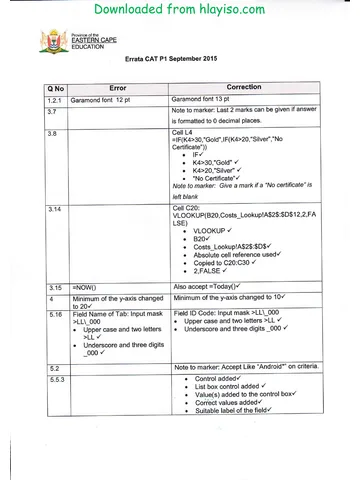
Computer Applications Technology Grade 12 P1 2015 Errata
Memorandum
Computer Applications Technology Grade 12 P1 2015 Memo (Afr)
Question paper
Computer Applications Technology Grade 12 P2 2015 QP (Eng)
Question paper
Computer Applications Technology Grade 12 P1 2015 QP (Afr)
Question paper
Computer Applications Technology Grade 12 P1 2015 QP (Afr)
More from Grade 12 Computer Applications Technology
Memorandum
Computer Applications Technology Grade 12 P1 2025 Memo (Eng)
Memorandum
Computer Applications Technology Grade 12 P2 2025 Memo (Afr)
Memorandum
Computer Applications Technology Grade 12 P1 2025 Memo (Eng)
Memorandum
Computer Applications Technology Grade 12 P1 2024 Memo (Eng)
Memorandum
Computer Applications Technology Grade 12 P2 2024 Memo (Eng)
Question paper